In Elements, a build is everything it takes to get your app ready to release. It installs packages, compiles and type checks your code for the server and the browser, applies migrations to the database, runs the tests and writes the release. You never run those steps yourself and you never wire them together. The project server runs all of them as you save, and a single-file save is usually built and hot reloaded in a few milliseconds.
See the state of the build
Open a terminal in your project and run:
Terminalelements build
What you see when the build is ok:
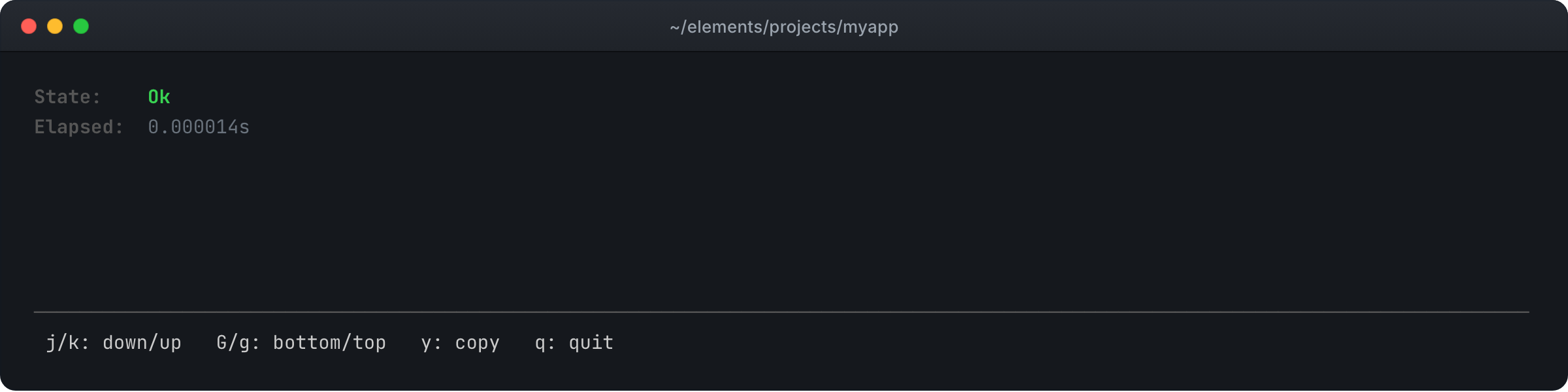
Green means the build is ok. Red means the build has errors.
What you see when the build has errors:
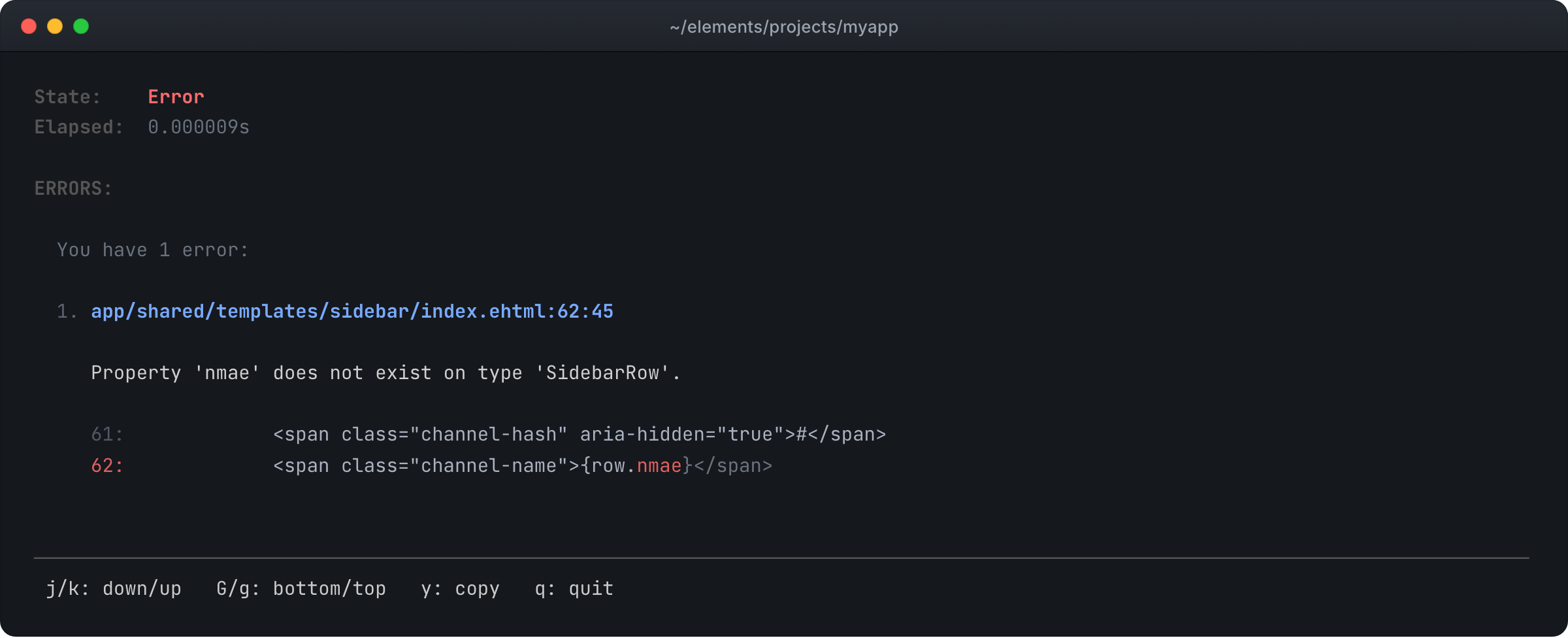
Each error names its file, line and column, and shows the code around it. With
several errors, step through them with j and k. The view stays open and
updates as files change, so leave it running in a second terminal while you or
your agent work.
What a build does
Every save runs one build on the project server, in this order:
- Config. Reads
config.jsocand your environment files, such asconfig/env/development.env, checks every value, and marks every part of your app that uses a value that changed, so those parts are rebuilt too. - Install. Installs the packages listed in
config.jsocandpackage.lock, when that list has changed. - Crawl. Follows every import from your app's entry points, and reads, parses and evaluates each file that changed.
- Bind. Connects every name in your code to the thing it refers to, across files and packages.
- Type check and program analysis. Checks your code for the server and the
browser at the same time. Program analysis catches what types alone cannot,
such as browser code that reaches server code without going through an
@rpcfunction, and HTML that breaks its own content rules. - Emit. Writes the code that runs, for each target. Unused code is shaken
out,
@rpccalls in the browser become network requests, server-only code is left out of the browser,awaits are added for the Elements functions that support them, such assql(), and every browser file gets a hash in its name. - Migrate the test database. Applies new or edited migrations to your app's test database.
- Test. Runs the tests your change touched, against that test database.
- Migrate the app database. Applies the same migrations to your app's database, only when every step before it passed.
- Release. Makes the new build the release your app runs.
Every step reports into one list of errors, so a failing test, a broken migration and a type error all show up in one place, the moment you save. Every step is incremental, so it only redoes the work your change affects. And the release only ever holds a build where every step passed.
One build, two targets
Your app runs in two places, on the server and in the browser, and Elements builds both from the same code in the same build. Every file is checked for each target it reaches, against the types that target actually has: server code sees Node's types, and browser code sees the DOM.
- Server-only code stays on the server. The browser build leaves out
server code such as queries and secrets on its own, with nothing for you to
mark. Calling
sql()from code that reaches the browser is a build error at that line. - Server functions you call from the browser. An
@rpcfunction runs on the server. In the browser build, each call to it becomes a network request to the server, and its arguments and return value are type checked at build time. - The browser gets only what it uses. Unused code is dropped from the browser build, and every browser file has a hash in its name, so browsers and any CDN in between cache it until it changes.
TypeScript, compiled into Elements
Elements is the first build tool to build the TypeScript compiler into itself.
The compiler's source code, the Go implementation, is part of the Elements
source code and compiles into the same elements binary. It is not a separate
program Elements runs, and not a library it links to. Elements adapted that
code to run on its own source graph, so type checking shares the build's
versions and cache, and to check one program for two targets at once. Then it
built its HTML templates and its config language on the compiler's own binder
and checker.
So type checking is a step of the build, in the same process and against the
same in-memory source as every other step, not a tool you run beside it. There
is no tsconfig.json to keep in sync.
It builds two resolve graphs, one for the server and one for the browser, and
type checks each at the symbol level. Some symbols exist only on the server,
such as a LiveTable declaration or sql(). For each target, the checker follows
only the symbols that target reaches and checks them against that target's
types. Server code is checked as server code, browser code as browser code, and
a server-only symbol reached from the browser is an error at that line.
Elements' HTML templates and config files are built on that same checker. A
template attribute is a TypeScript declaration, and the expressions inside {}
are checked like any .ts file, with the same error messages. A misspelled field
in a template is a red build with a line number, not a blank spot on the page
that a user finds later.
Config is hot
Your app's configuration is source code too. config.jsoc and your
environment files, such as config/env/development.env, are part of the build
like every other file. Change a setting or an environment variable, save, and
the build rebuilds every part of your app that uses it, and only those parts.
Your running app has the new value, with no restart.
And it is checked like code. Environment variables are read at build time, so a missing or misspelled one is a build error with a line number, not a crash after you deploy.
Only what changed, in milliseconds
Every file has a version made from its content and the versions of everything it imports. When you save, Elements redoes only the work your change affects and nothing else, at every step: checking, compiling, testing and reloading. Ask for the state of an unchanged project and the answer comes back in microseconds, because the project server already did the work.
Hot reload patches your running app and the open browser at the smallest level the change needs, so each save shows up without a restart.
Tests run in every build
You never run your tests to find out if they pass. The build runs them on every save, as one of its steps, and a failing test turns the build red like any other error:
- Only the tests your change touched run. Every other test keeps its last result, and a test whose code has an error waits until the error is fixed.
- In parallel. Test files run at the same time, so a large suite still answers quickly.
- Against their own database. Every app has a separate test database, and each test runs inside a transaction that rolls back when it ends. Tests never touch the data you see in the browser and never leave anything behind.
- Failing tests block the release. The release only ever holds a build where every test passed.
See the build through its tests
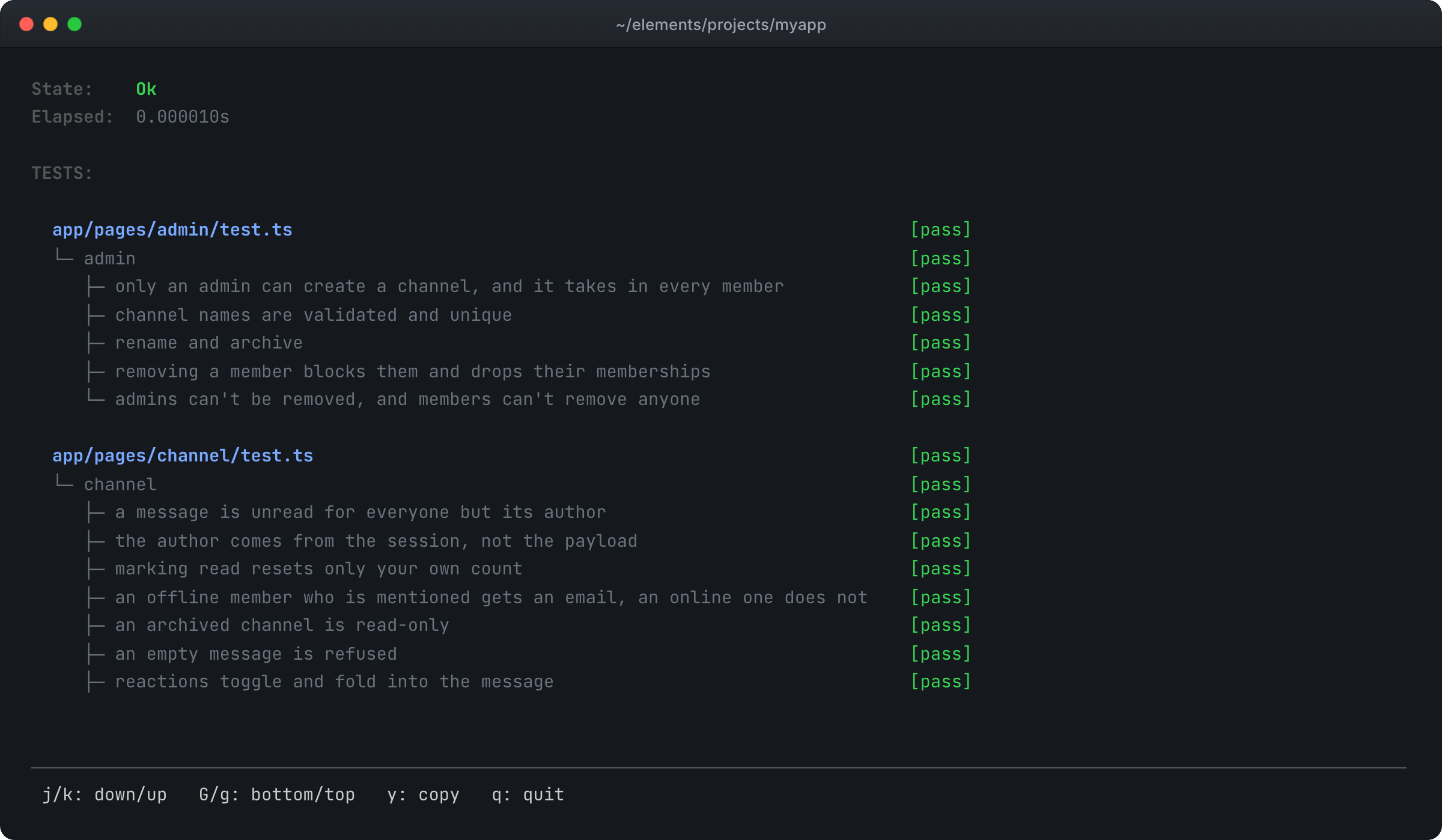
elements test does not run a separate test pass. It shows you the same build,
organized as a tree of your test files and the tests inside them:
Terminalelements test
Every test in the app, from the build:
When you are working on one part of your app, name the file to see only its tests:
Terminalelements test app/pages/channel/test.ts
Just the tests for the channel page:
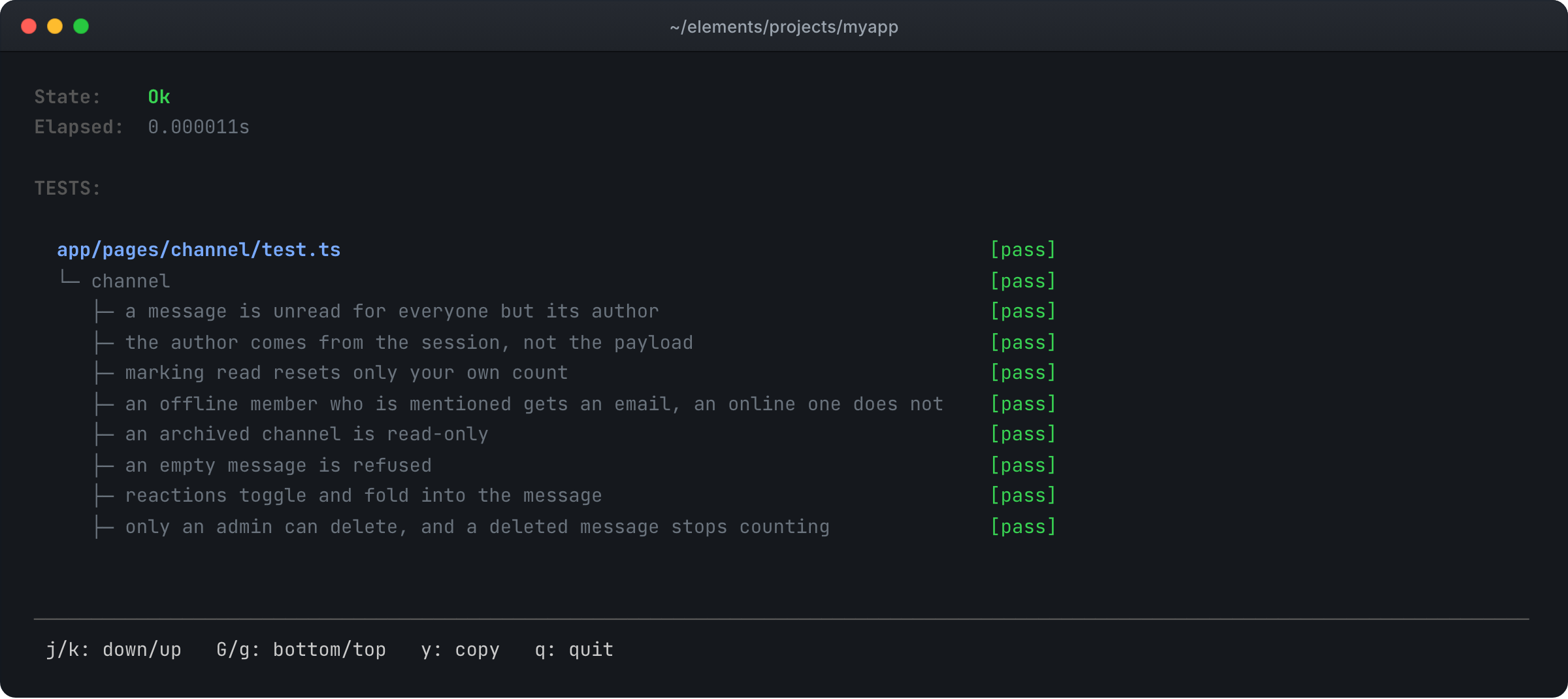
The answer comes back in microseconds, because the build already ran the
tests. An agent gets the same tree as data with elements test -json.
Migrations are tested before they touch your data
Because the test database is migrated and tested first, a migration that breaks a test never reaches the data you are working with.
Packages
Add and remove packages with elements install
Terminalelements install dayjs
elements install runs as its own task on the project server's build loop, in
line with builds and test runs and never at the same time as one. That task
resolves the package, writes it to node_modules, and records it in
config.jsoc and in package.lock, which pins the exact version. When the
task finishes, the project server queues a build, and that build brings the new
package into your app and rebuilds against it.
What you see after adding a package:
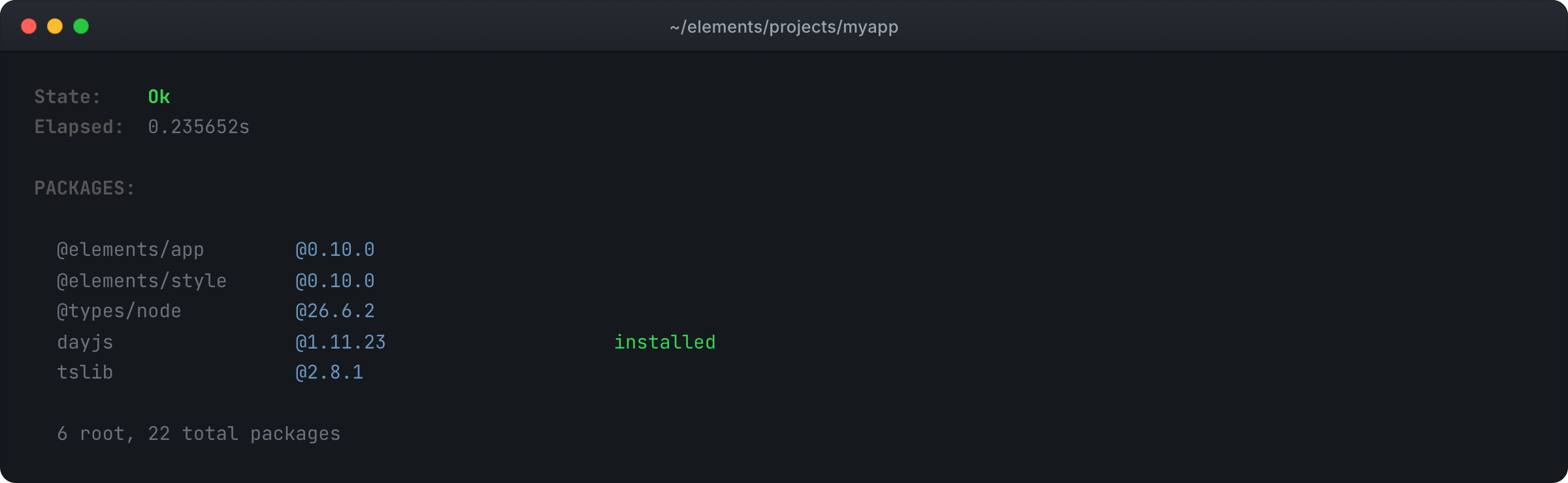
elements uninstall dayjs removes a package the same way.
The build keeps your packages in step
The build has its own install step. When the list of packages in
config.jsoc and package.lock has changed, it installs those packages before
anything is compiled. That covers editing the dependency list in config.jsoc by hand and
saving, a new package.lock from git, and a fresh clone with no node_modules
yet. So you can open a project, save a file, and have its packages installed at
the versions package.lock pins.
Every npm package installs as is. Installs write only the packages that changed, and a package you have installed once on your machine lands in the next project without a download.
Build a package and the app that uses it
A package you are writing yourself installs from its folder instead of a registry:
Terminalelements install my-package@local
The build watches it like your own code. Save a file in the package and your app rebuilds against the change, with one editor and no linking step. When you deploy, the package goes with your app, so an app built on a package you have not published deploys like any other.
Everything connects to the same build
The project server runs one build, and everything that touches your project connects to it: the terminal, your editor and your agent. It runs their commands one after another, so a build, an install and a test run never step on each other, and all three see the same errors at the same moment.
The project server also speaks the language server protocol, so your editor shows those errors as you type.
The same error in an editor:
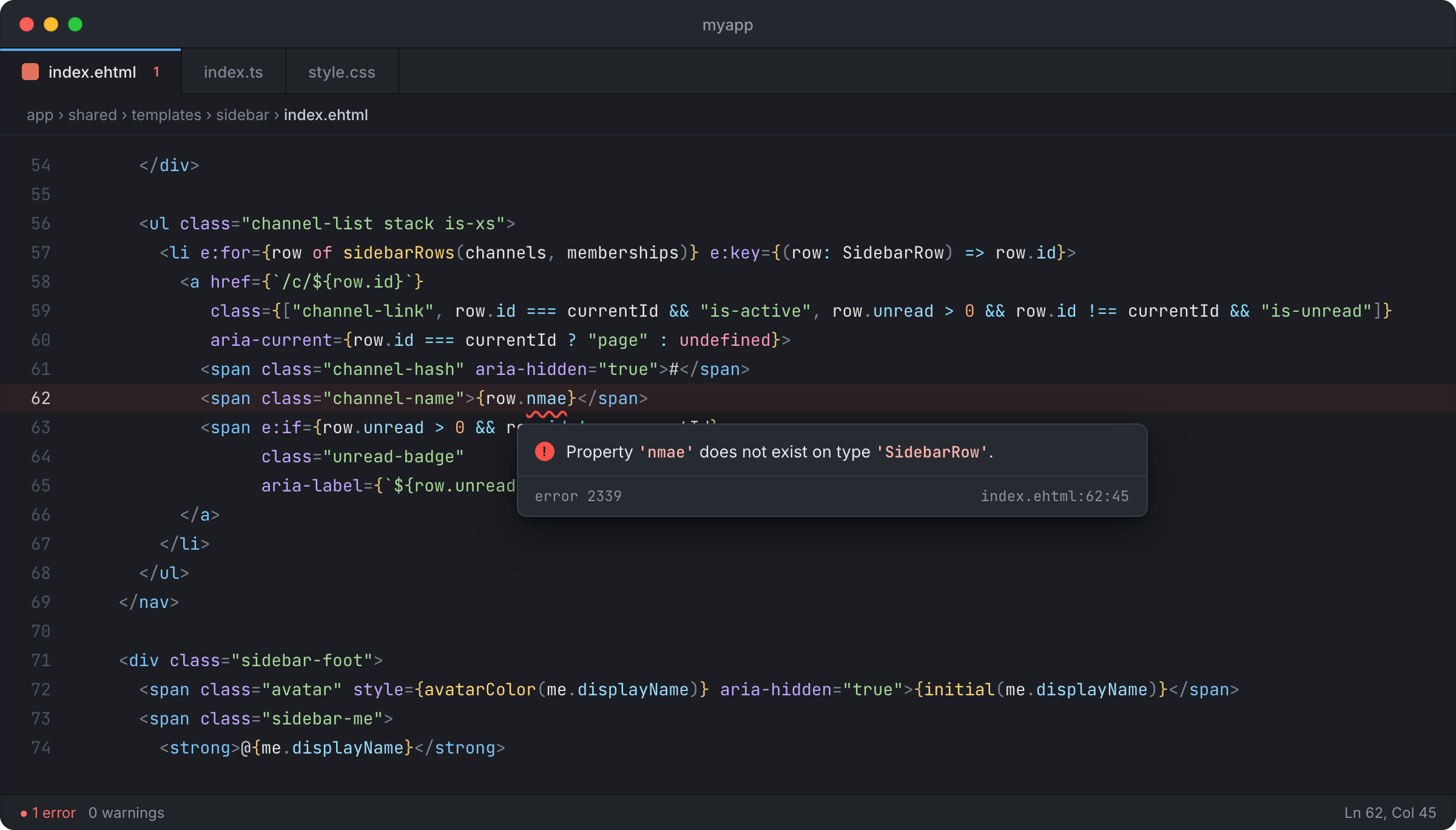
An agent asks the same server with elements build -json and gets the errors
as structured data, with each file, line and message, in microseconds. So it
checks its work after every edit instead of guessing, and fixes what broke
before it tells you it is done.
There is no CI to set up
A deploy runs the same build on your server. It compiles, runs the migrations against the server's test database, runs the tests, and swaps in the new release only when every step passes; until then the previous release keeps serving. So your tests run in three places from one definition: in your editor as you type, on your machine as you save, and on your server before it switches over. There is no pipeline to write and nothing to keep in sync between them.
Try the build
Break something on purpose. Open any template in your app, misspell a field, and save. Watch the build go red and name the line. Fix it, save, and watch it go green.
The manual: build (opens in a new tab), cli (opens in a new tab), typescript (opens in a new tab), html (opens in a new tab), jsoc (opens in a new tab), config (opens in a new tab), tests (opens in a new tab), migrations (opens in a new tab), packages (opens in a new tab).