Claude's desktop app puts everything you need to build with AI in one window: a chat with Claude, a terminal with the live state of your build, and a browser showing your app. Ask Claude for a change and watch all three update.
The Claude desktop app, building an app with Elements:
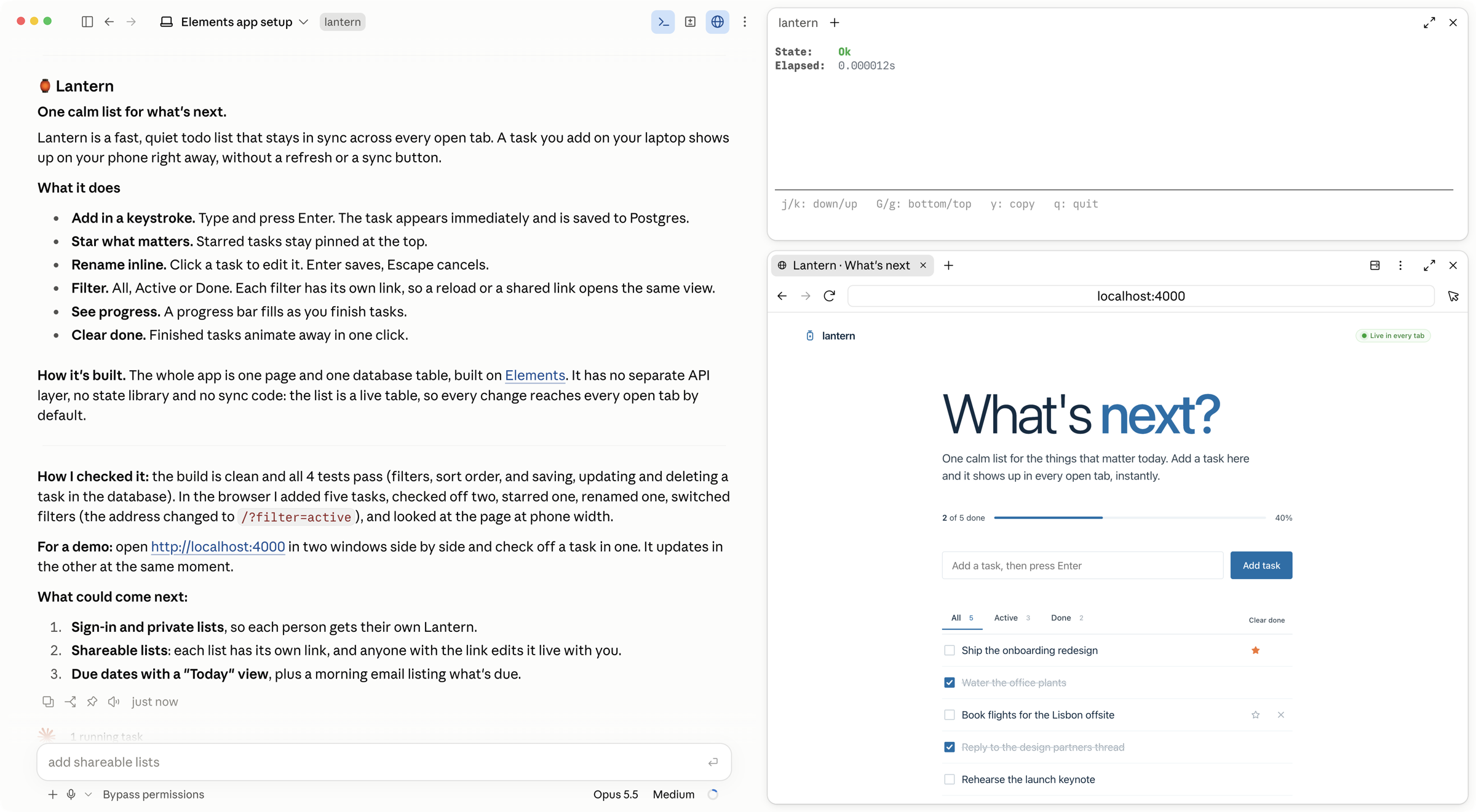
Open your chat, terminal and browser in Claude
1. Paste the prompt into Claude
Open Claude's desktop app, switch to the Code tab, and paste this into the chat to create and start an app:
Install elements:
curl -fsSL 'https://install.elements.dev?os=darwin' | sh && export PATH=~/elements/bin:$PATH

Create an Elements app:
cd ~/elements/projects
elements create myapp
cd myapp

Start the app.
To work on an app you already have, open its folder instead and ask Claude to start the app.
2. Open the app and the terminal
Once the app is running, Claude opens a terminal in your project and shows a link to the app. Click the link to open it in Claude's browser pane. Both stay inside Claude, not in a separate terminal app or browser window. Codex and the agent editors, such as Cursor, have their own terminal and browser panes that work the same way.
To open them yourself, use the terminal and browser icons at the top of the Code tab:
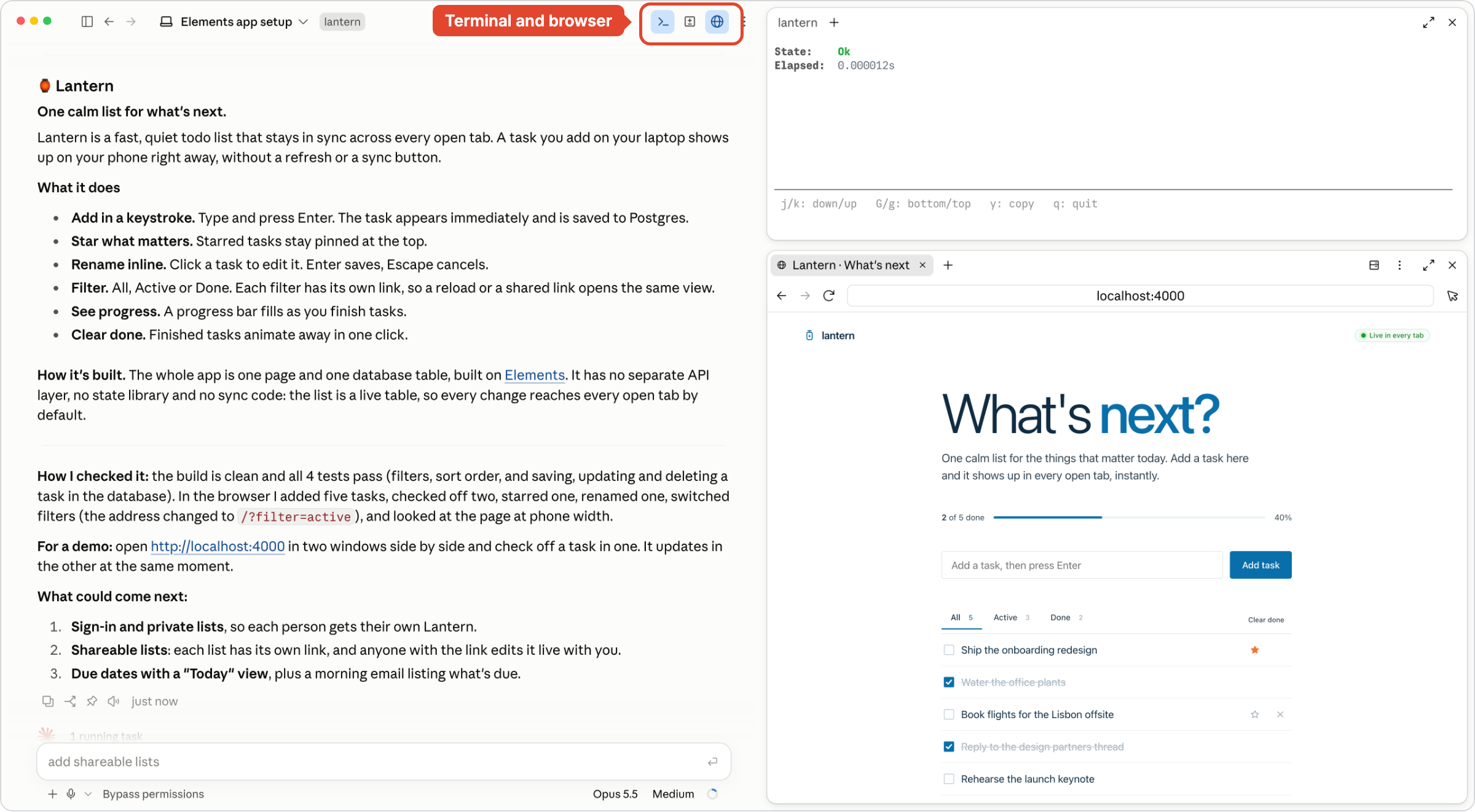
A terminal you open yourself can start in a different folder. Move into your project first:
Agent Terminalcd ~/elements/projects/myapp
3. Run the build view
In the terminal, type:
Agent Terminalelements build
The build view stays open and updates as files change. Green means the build is ok. Red means the build has errors.
Build something with Claude
Tell Claude what you want to build, in plain words:
Agent ChatBuild a todo list that stays in sync across every open tab, with starred tasks pinned at the top and a filter for active and done.
Claude builds all of it: a table in the database to hold the tasks, the page that lists them, and tests that check it works. Watch the panes while it goes. Each time Claude saves a file, the Agent Terminal updates in milliseconds and the browser shows the change. If something breaks, the build goes red, and Claude reads the same error and fixes it before it tells you it is done.
Watch Claude test your app
Claude does not stop at writing the code. It opens your app in its own browser pane and uses it the way a person would. It signs in as a test user, fills in forms, clicks through each flow and checks the page at phone width, and you watch every step happen beside the chat. When it built Lantern, it added five tasks, checked off two, starred one, renamed one and switched the filters before it reported back.
Claude signing in to Lantern as a test user:
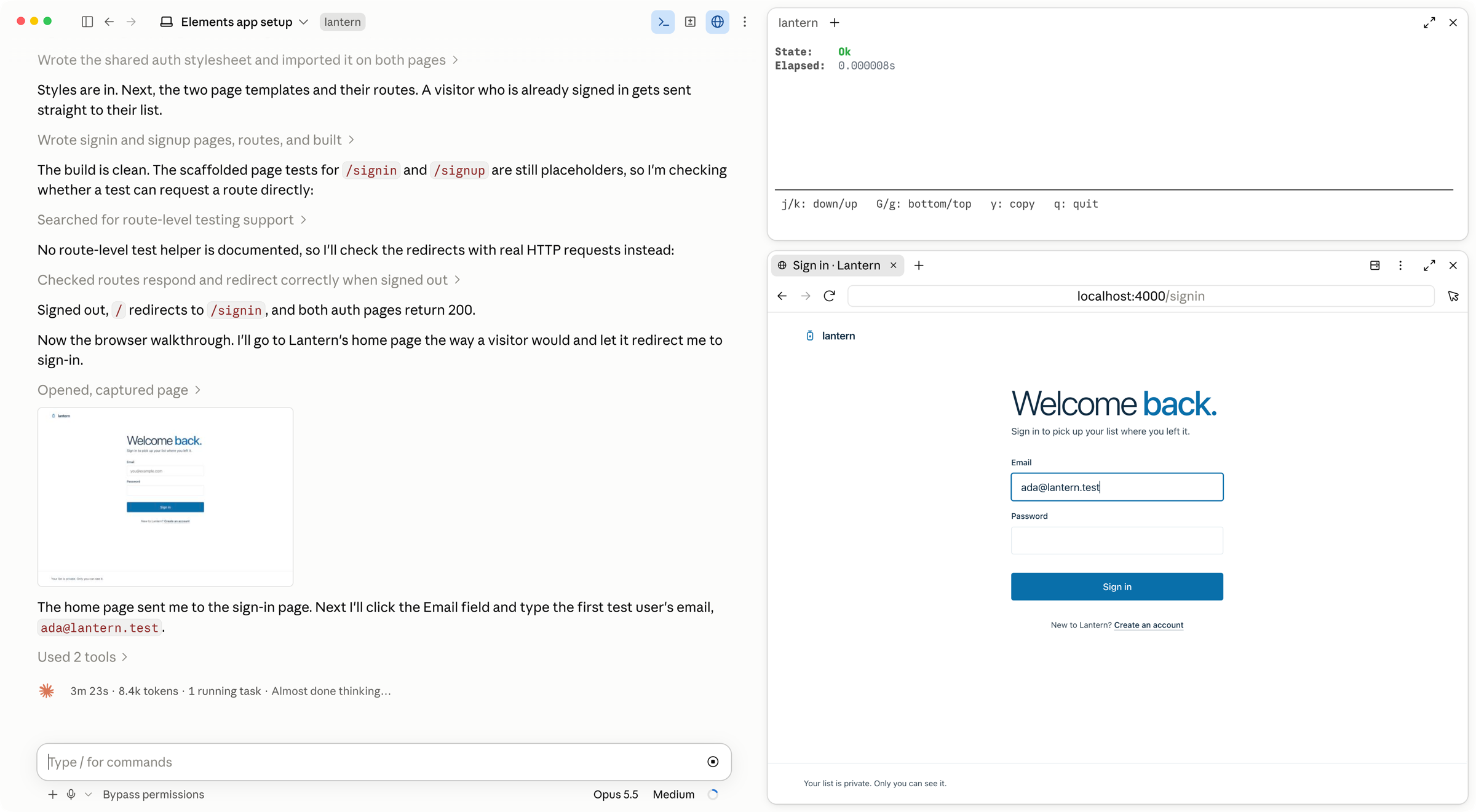
Elements is what makes this fast enough to watch. Each save reaches the open page in milliseconds through hot reload, so the app changes in front of you while Claude works, with no restart and no refresh. The project server answers Claude in microseconds, so it checks its work after every edit instead of guessing.
Claude tests the real app: the same code, the same Postgres database and the same build you will deploy to a server you control. An online builder shows you a preview. Here you watch your actual app come to life.
Everything runs on your machine
The code, the Postgres database, the tests and the running app are all on your computer. The files are ordinary files: open them in any editor, commit them and deploy them to servers you control. You get the speed of building with AI, and you own the app outright.
The manual: start (opens in a new tab), build (opens in a new tab), browser (opens in a new tab), tests (opens in a new tab).