One paste into an AI agent installs Elements and gives you a new app of your own, running on your machine with a database, tests and live reload already set up.
1. Get an AI agent
Use the one you already have. If you need one:
- Claude (opens in a new tab), with Claude Code
- Codex (opens in a new tab)
- Cursor (opens in a new tab)
In a desktop app, open the Code tab, not the general chat. The agent needs to run commands on your machine.
2. Paste this prompt
Install elements:
curl -fsSL 'https://install.elements.dev?os=darwin' | sh && export PATH=~/elements/bin:$PATH

Create an Elements app:
cd ~/elements/projects
elements create myapp
cd myapp

Start the app.
It installs Elements, creates an app named myapp and starts it. The installer
needs no admin privileges. It writes to ~/elements, adds a line to your shell
profile, and installs the extension for each editor it finds.
Or use the terminal
Install Elements, once per machine:
curl -fsSL 'https://install.elements.dev?os=darwin' | sh && export PATH=~/elements/bin:$PATH
Create an app, once per project:
cd ~/elements/projects
elements create myapp
Start your app:
cd myapp
elements start
elements start makes sure the project server is running, then starts your
app. The project server runs in the background while you work and holds your
project's build in memory. Each time you save a file, it brings the build up to
date in milliseconds: it compiles your code, applies migrations to the database and
runs the tests your change touched. Your terminal, your editor and your agent all
connect to the same server. All three see the same errors, and the server
runs their commands one after another, so a build, an install and a test run
never step on each other. Your app runs as its own program, and each save reloads it in place, without a restart.
3. Open the app
The app runs at http://localhost:4000. Where it opens depends on how you
started it. Claude's desktop app and the agent editors, such as Cursor, may
show it in a browser pane inside the app, and elements start in a terminal
opens your default browser. You can always open Chrome, or whichever browser
you use, and go to localhost:4000 (opens in a new tab) yourself.
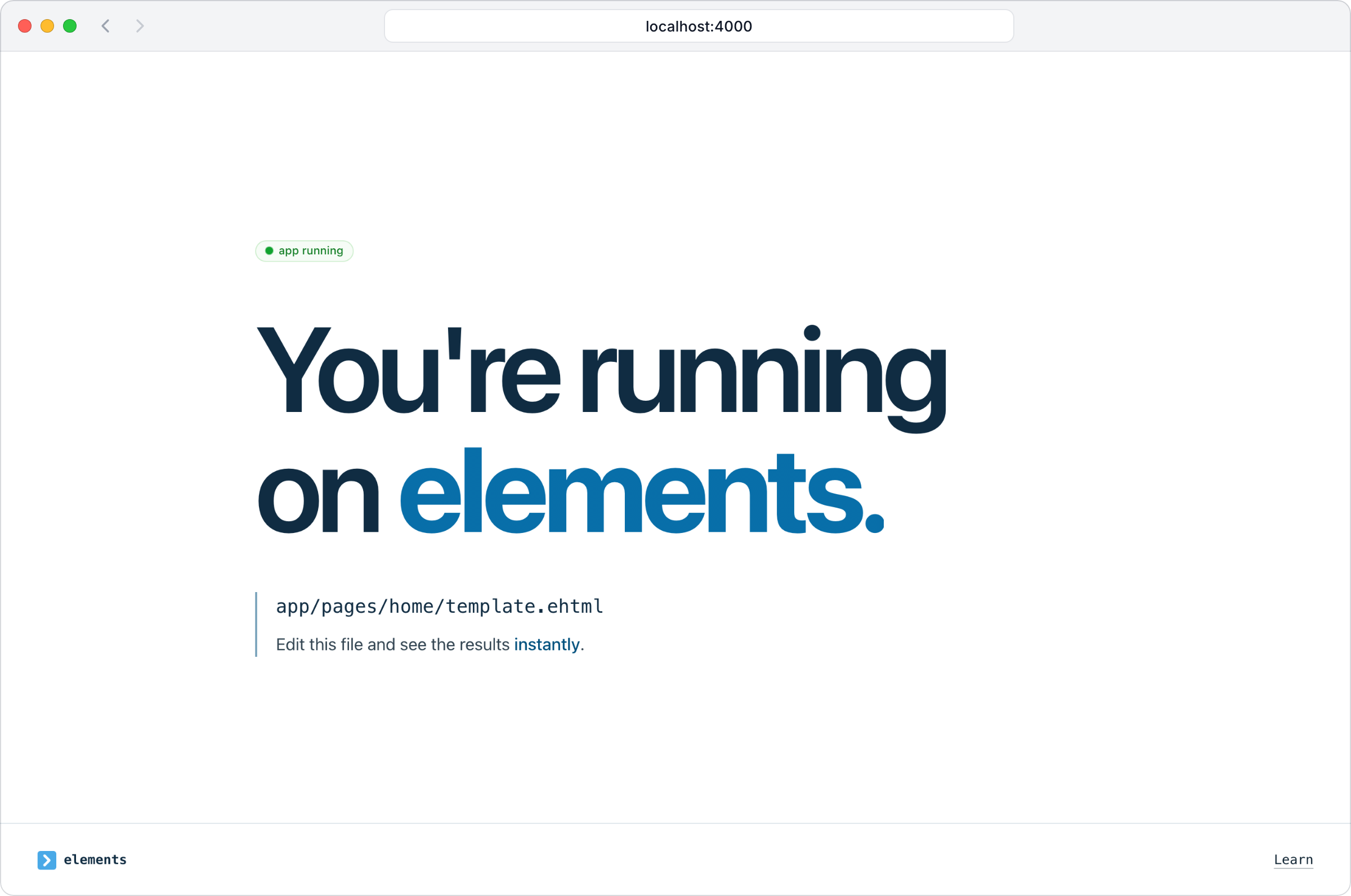
The page says the app is running and names the file to edit. Behind it is a Postgres database of its own, a test runner and a project server that rebuilds the app as you save. You installed none of them separately.
4. Make your first change
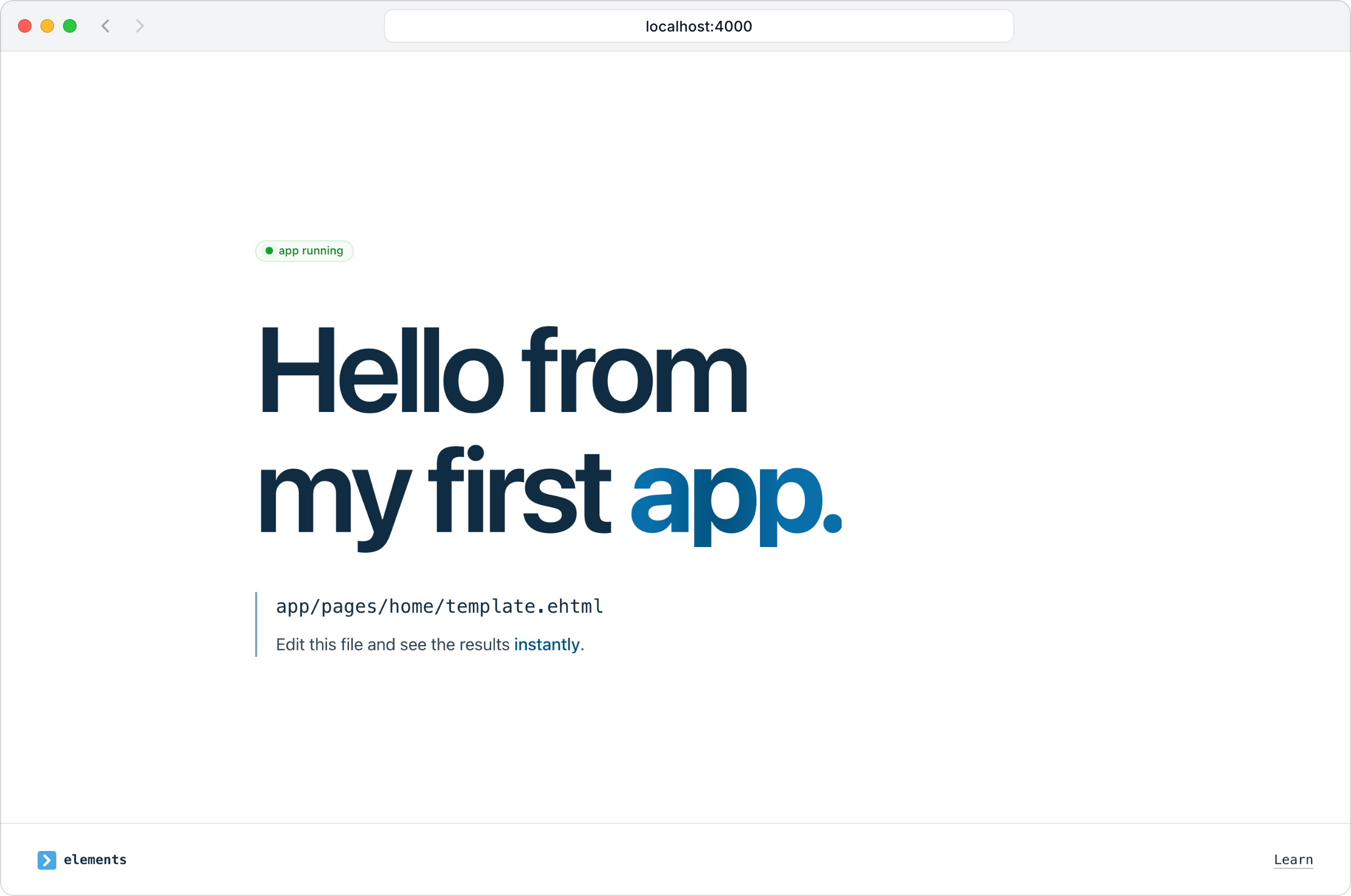
Open ~/elements/projects/myapp/app/pages/home/template.ehtml in any editor,
change the heading, and save. The page in your browser updates on its own.
Before the change:
After the change:
5. Build something
Tell your agent what you want, in plain words:
Agent ChatTurn this into a signup page for a weekly newsletter, with a list of subscribers only I can see.
Watch the page while it works. Every file the agent saves shows up in the browser, and the agent hears about any error the moment it saves, so it fixes its own mistakes before it says it is done.
The manual: start (opens in a new tab), cli (opens in a new tab), build (opens in a new tab), editors (opens in a new tab), database (opens in a new tab), html (opens in a new tab).