Get Started
This guide will show you how to install VS Code, install Elements, create your first app, and start building with AI.
1Install VS Code
VS Code is a free app for building software. Already have it? Go to the next step.
Download VS Code2Open VS Code
Open VS Code from your Applications folder.
Or press Command + Space, type "VS Code" and press Enter.
3Sign in to GitHub Copilot
New to VS Code? It asks you to sign in when it first opens. Click Continue with GitHub.
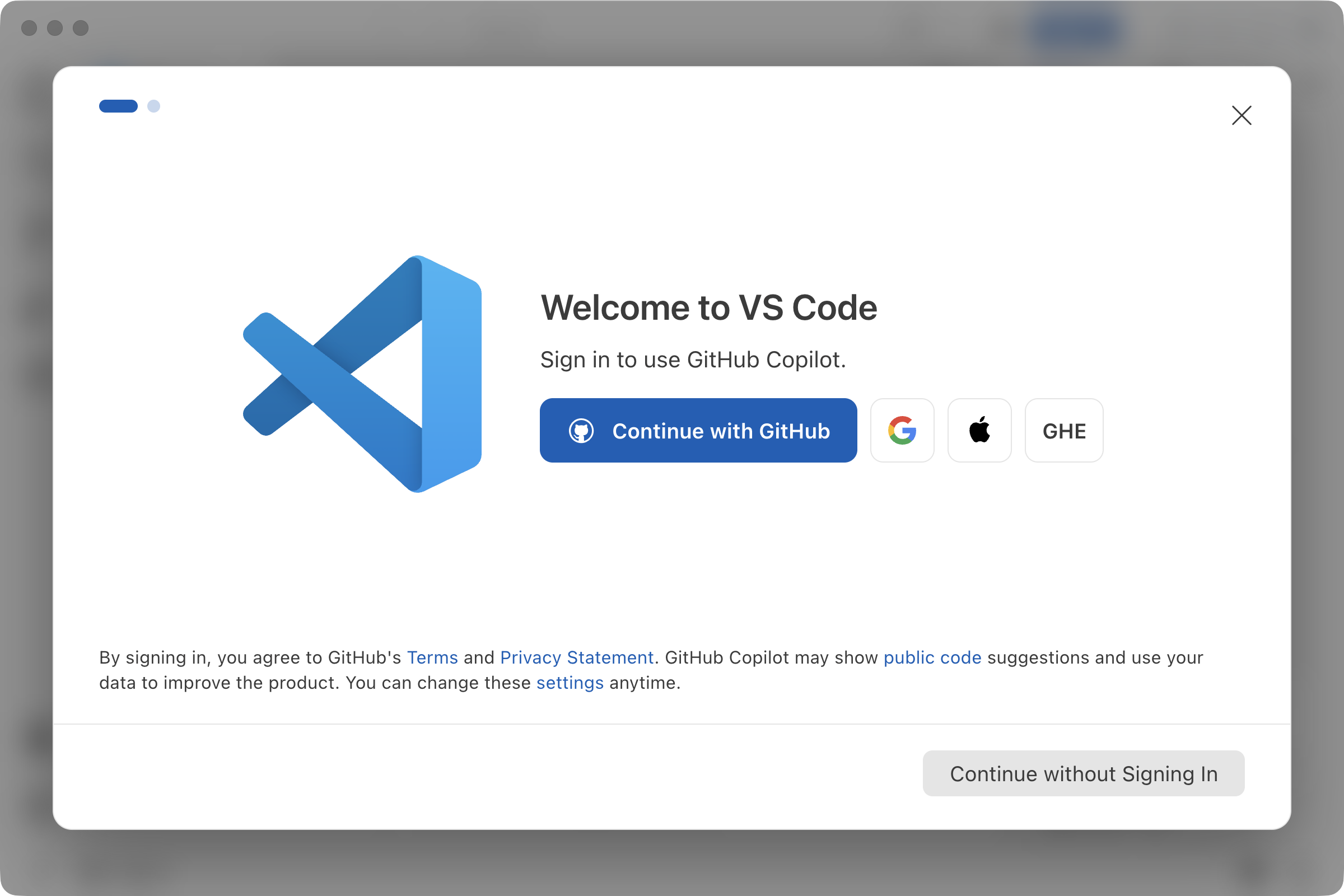
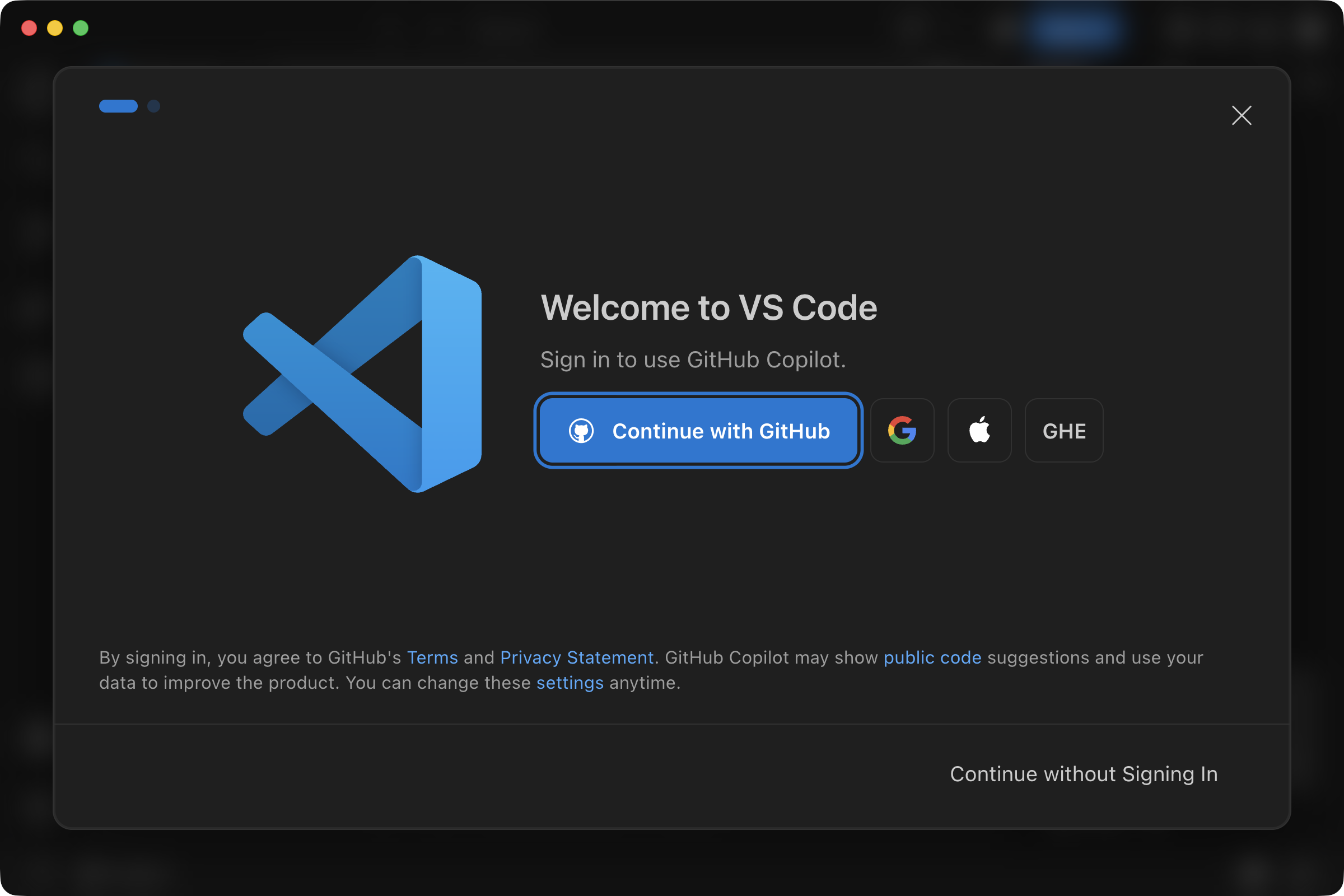
Already had VS Code? Click Sign In at the top right of the window.
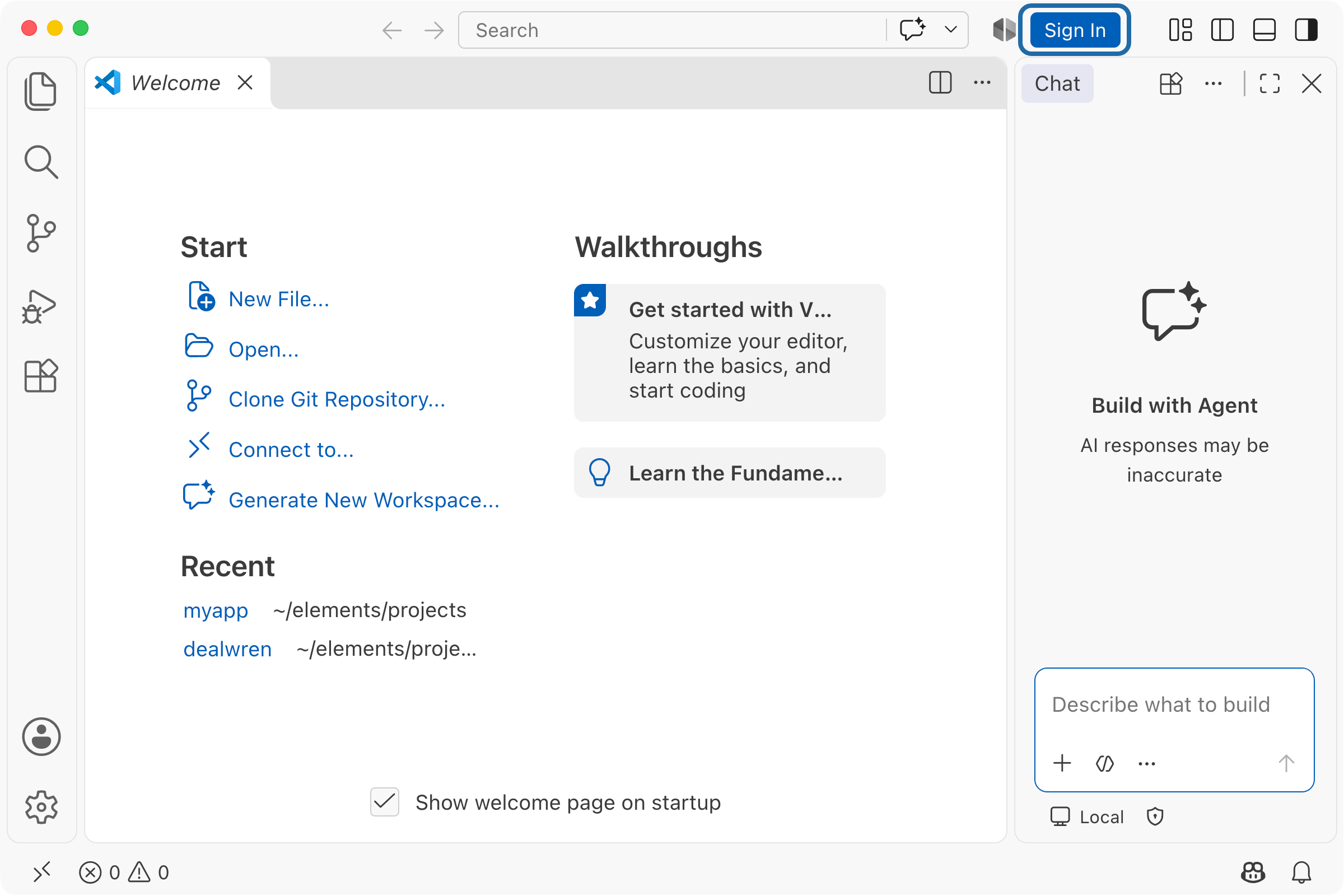
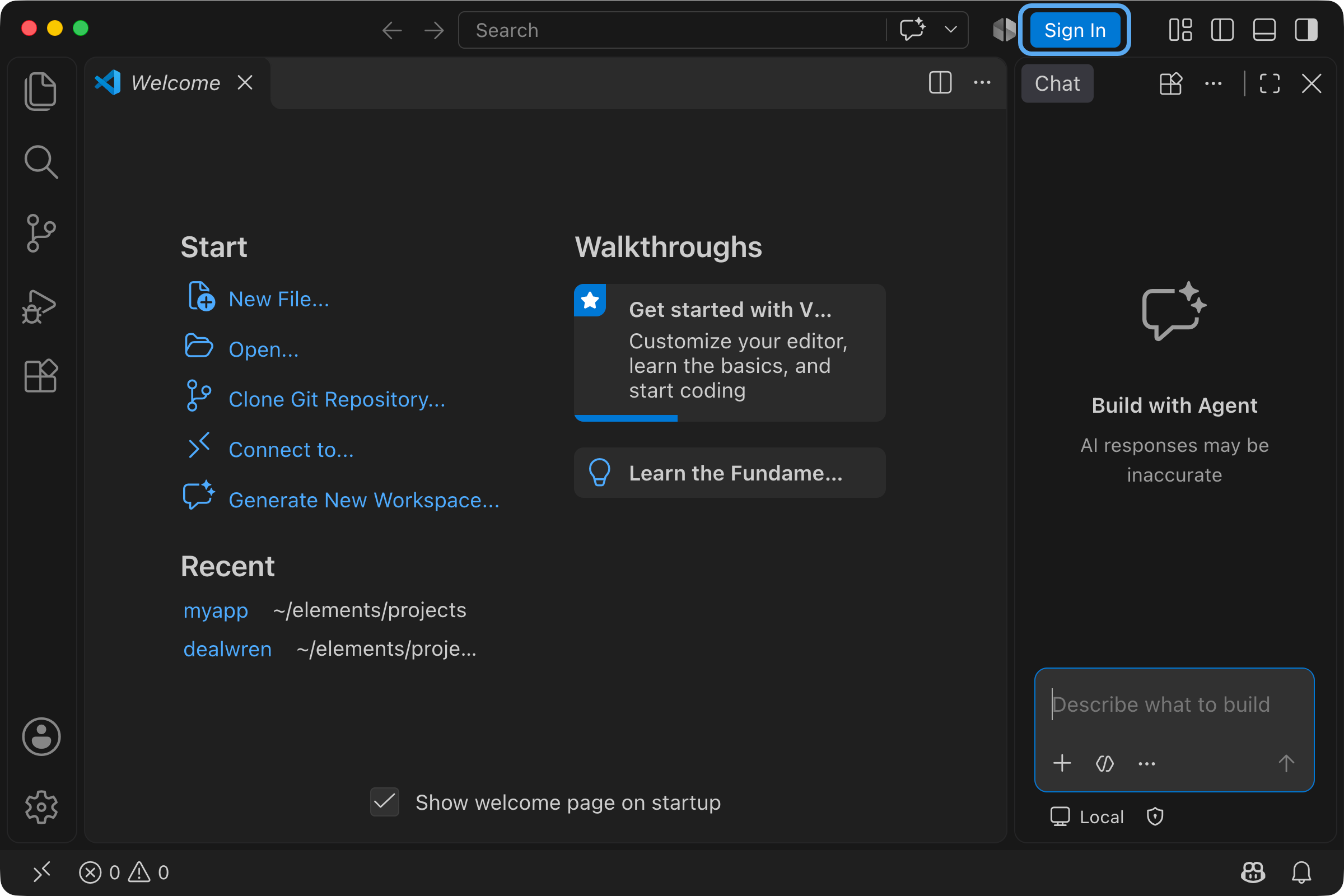
No GitHub account? Create one when you sign in. Copilot has a free plan.
4Install Elements
Sign up to get your install command. Already have an account? Log in
5Create a new app
- When the install finishes, press Shift + Command + P to open the command palette.
- Type "new app" and press Enter.
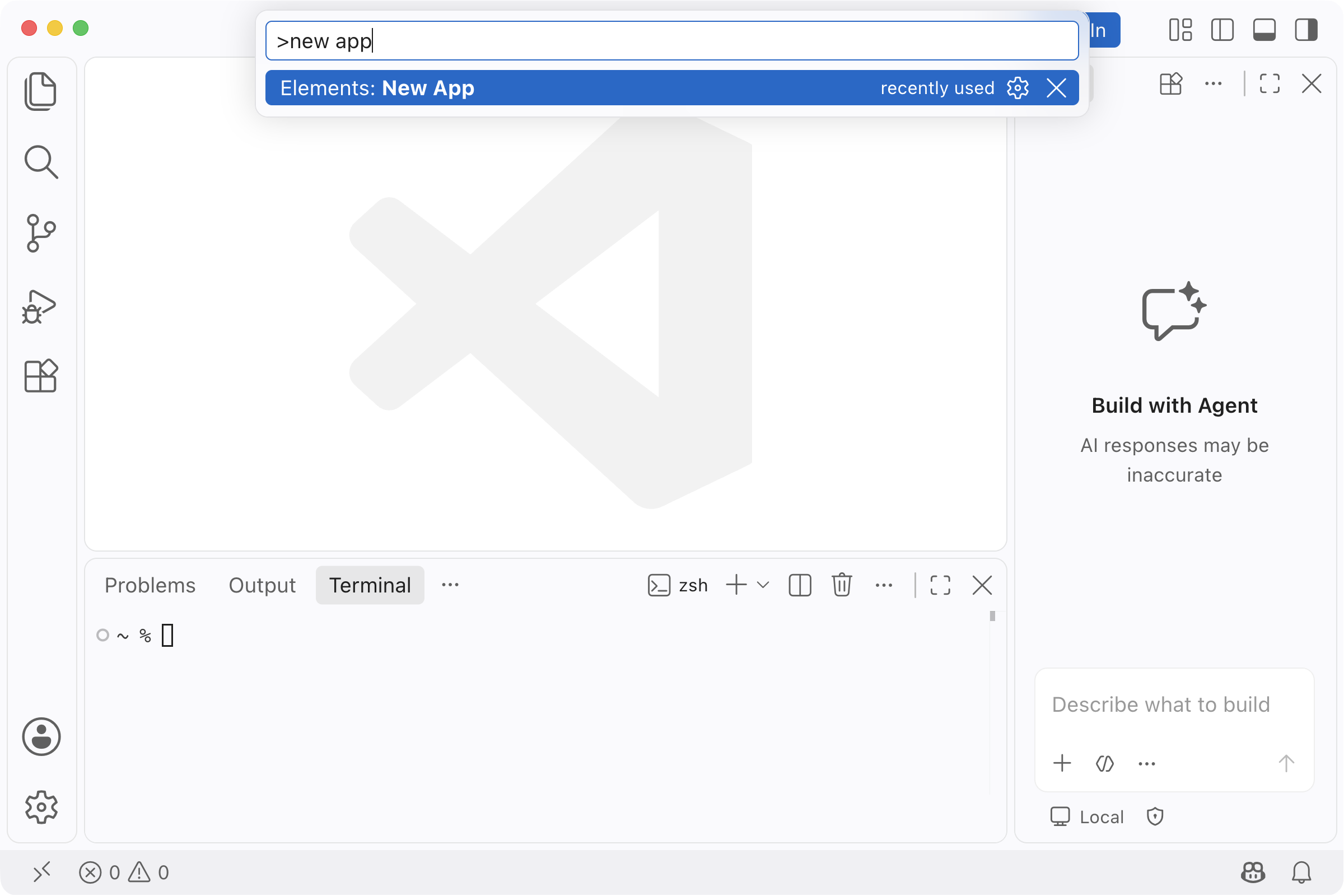
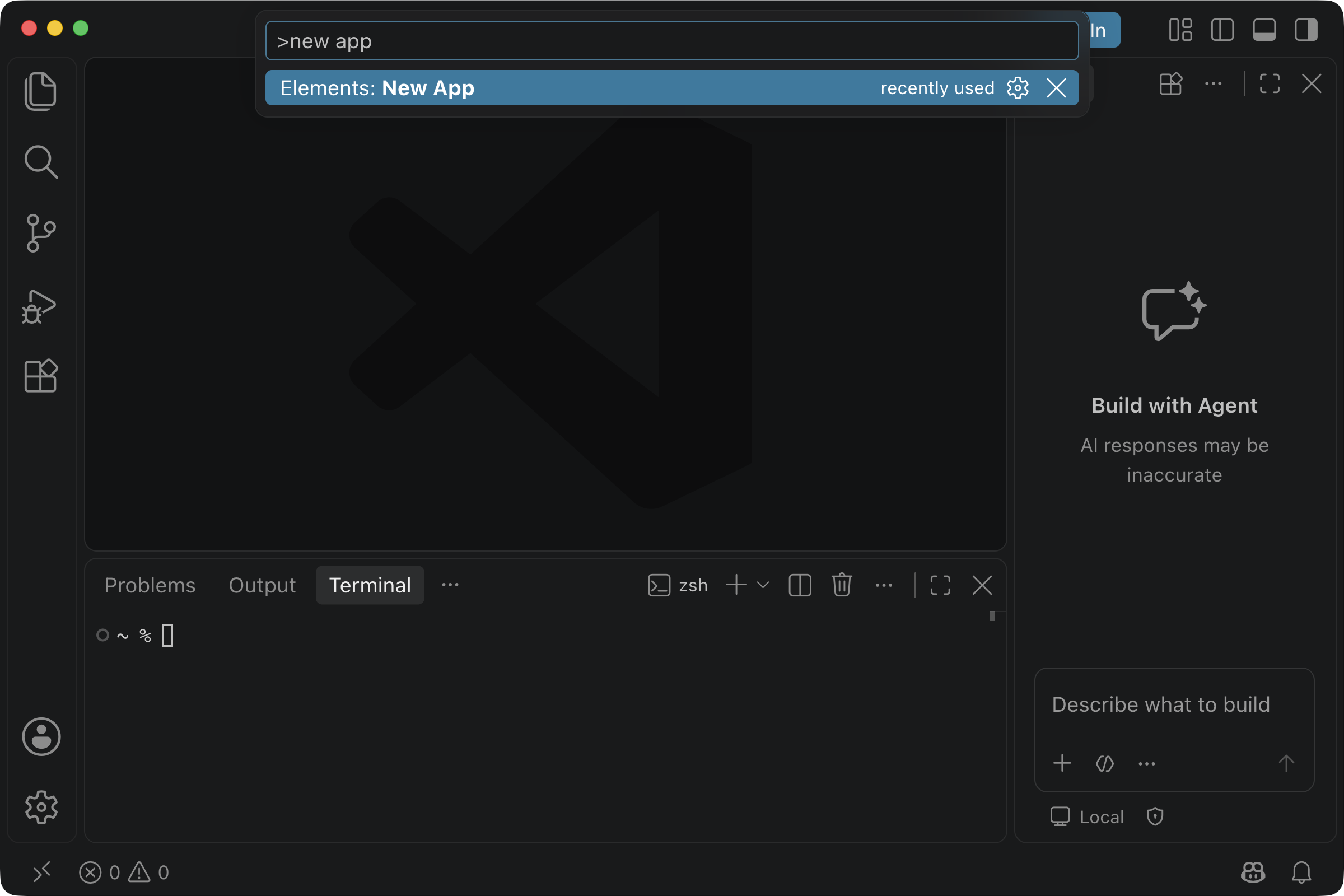
- Type a name for your app and press Enter. Or just press Enter and Elements names it for you.
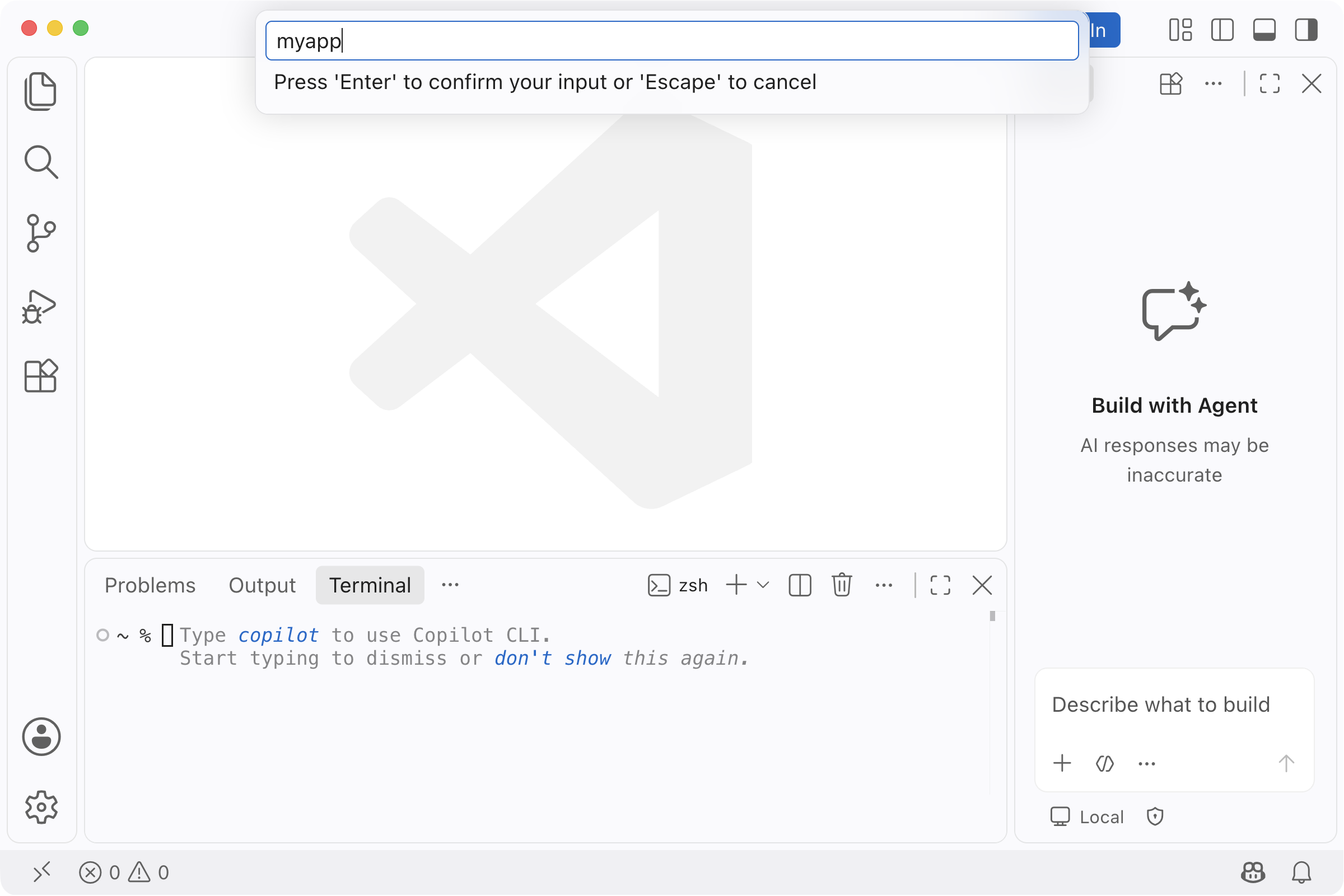
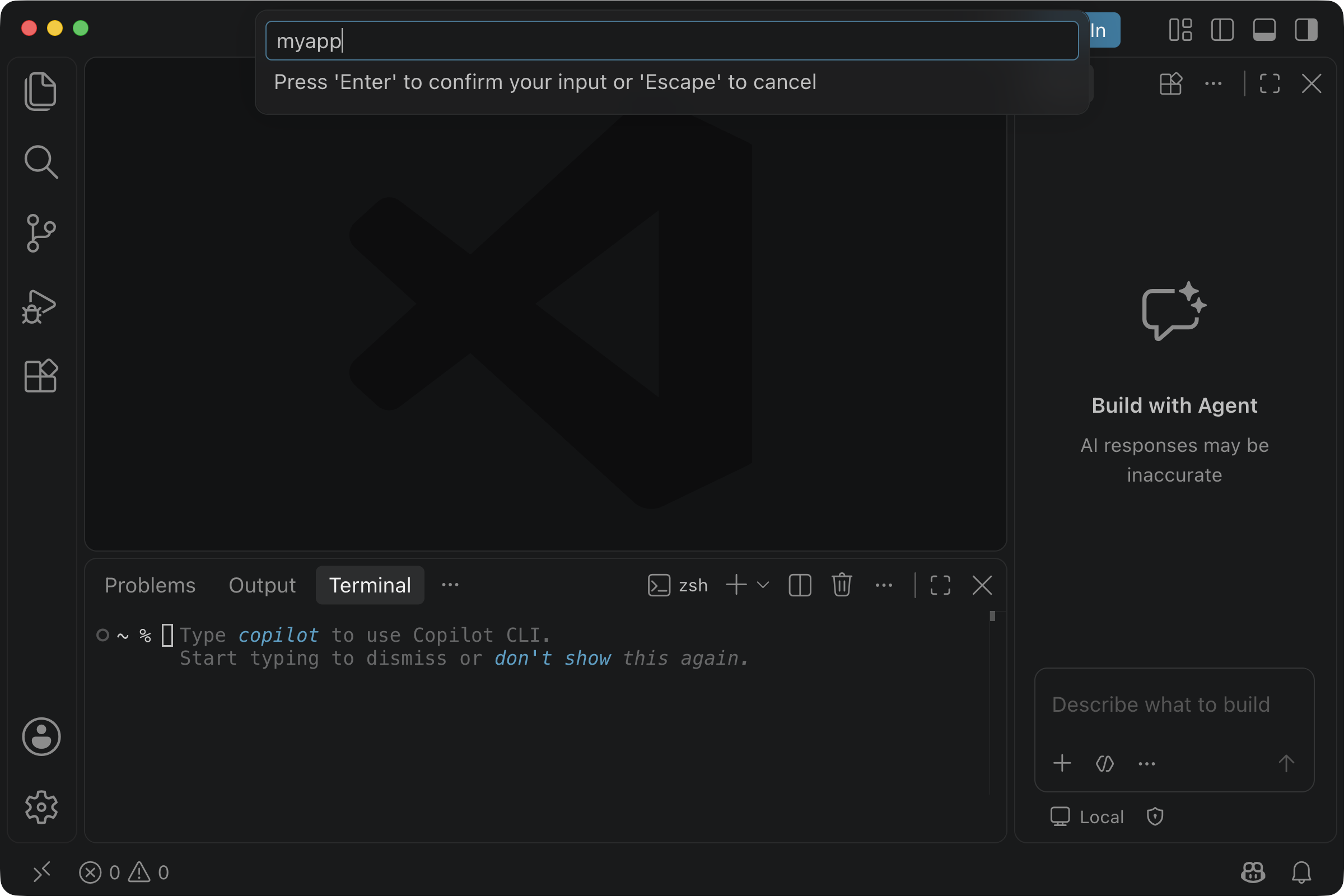
Your app opens in VS Code with the chat and a terminal.
6Start your app
Type
elements startin the terminal and press Enter.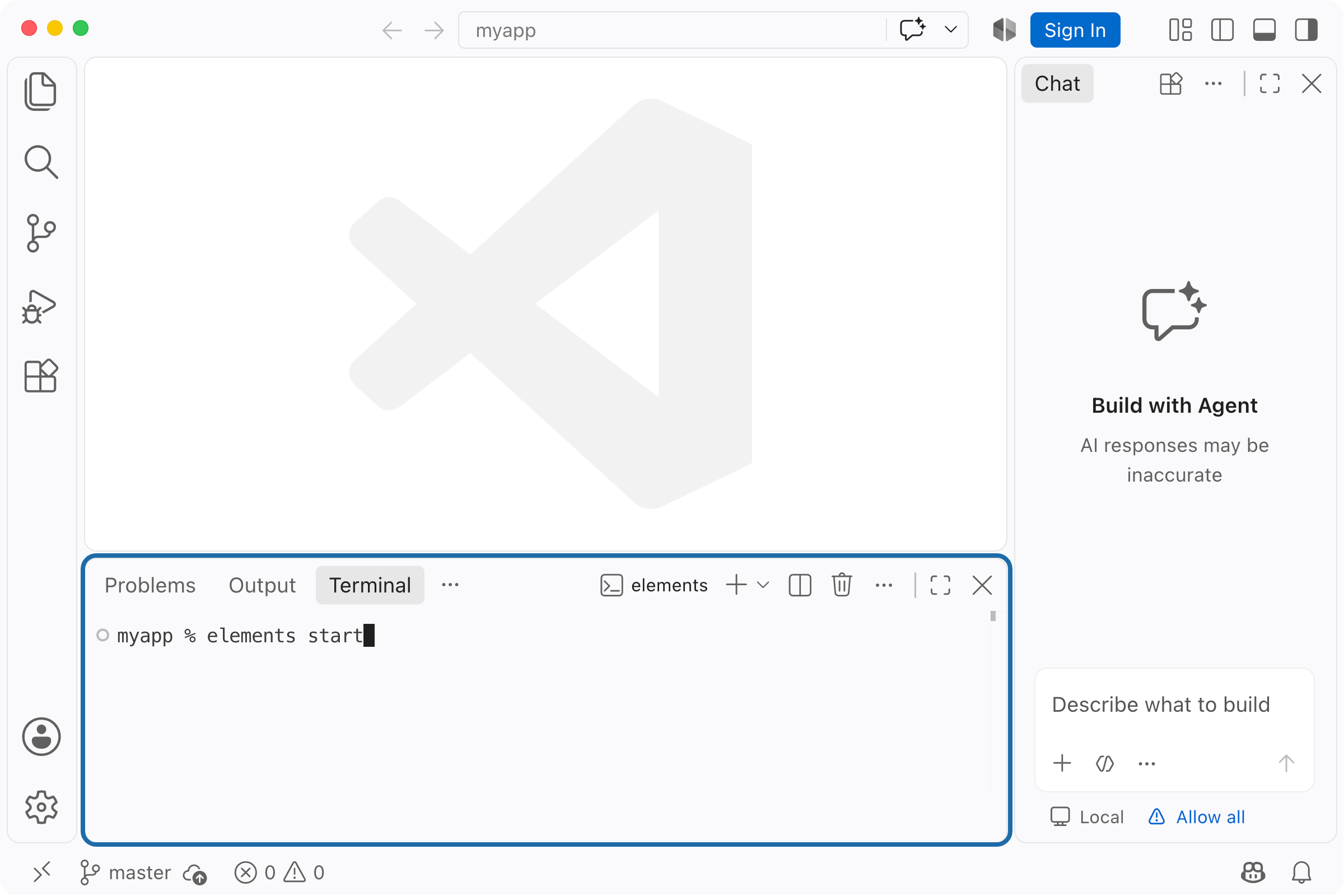
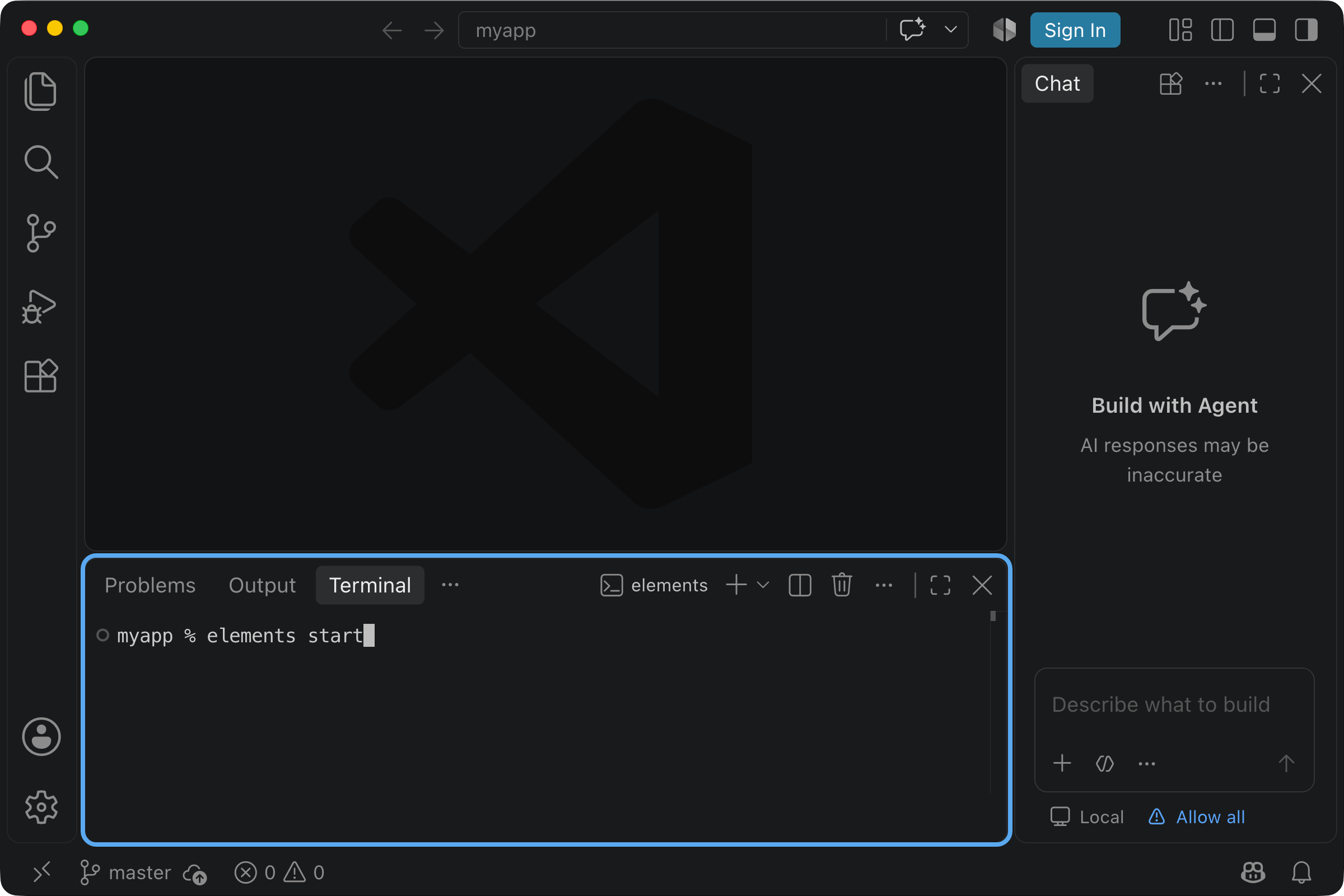
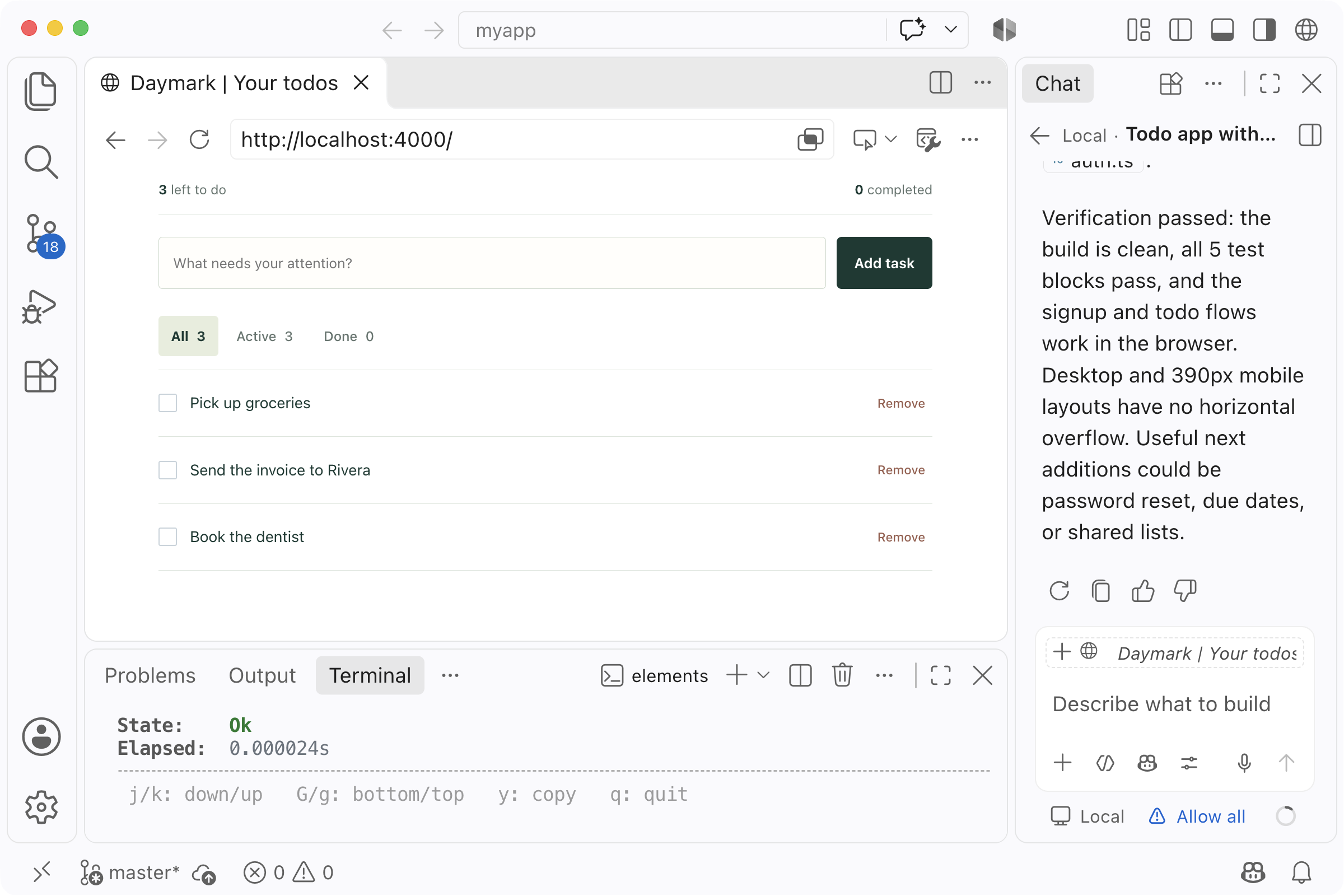
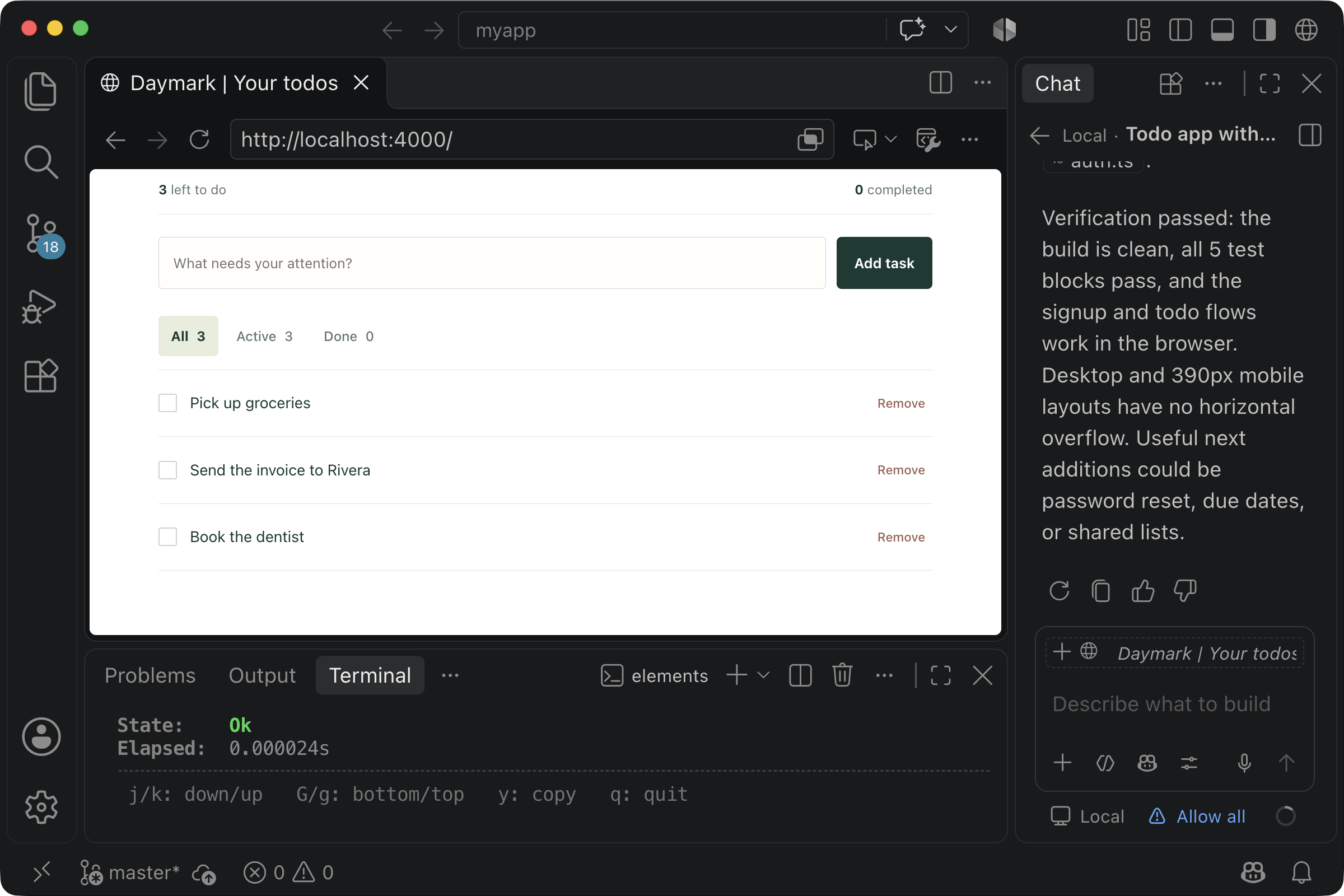
Your app opens in VS Code's browser, with the terminal below it and the chat beside it.
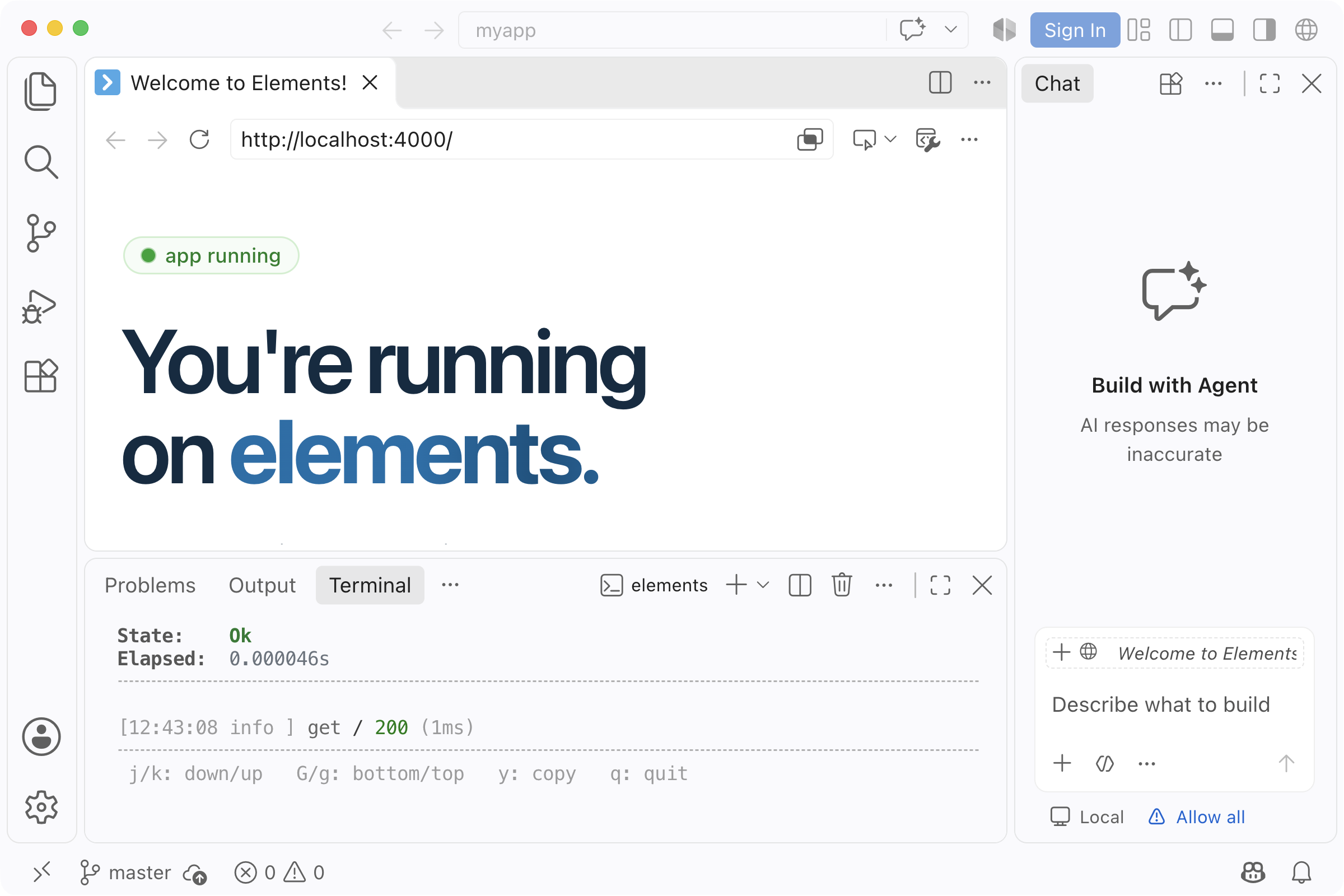
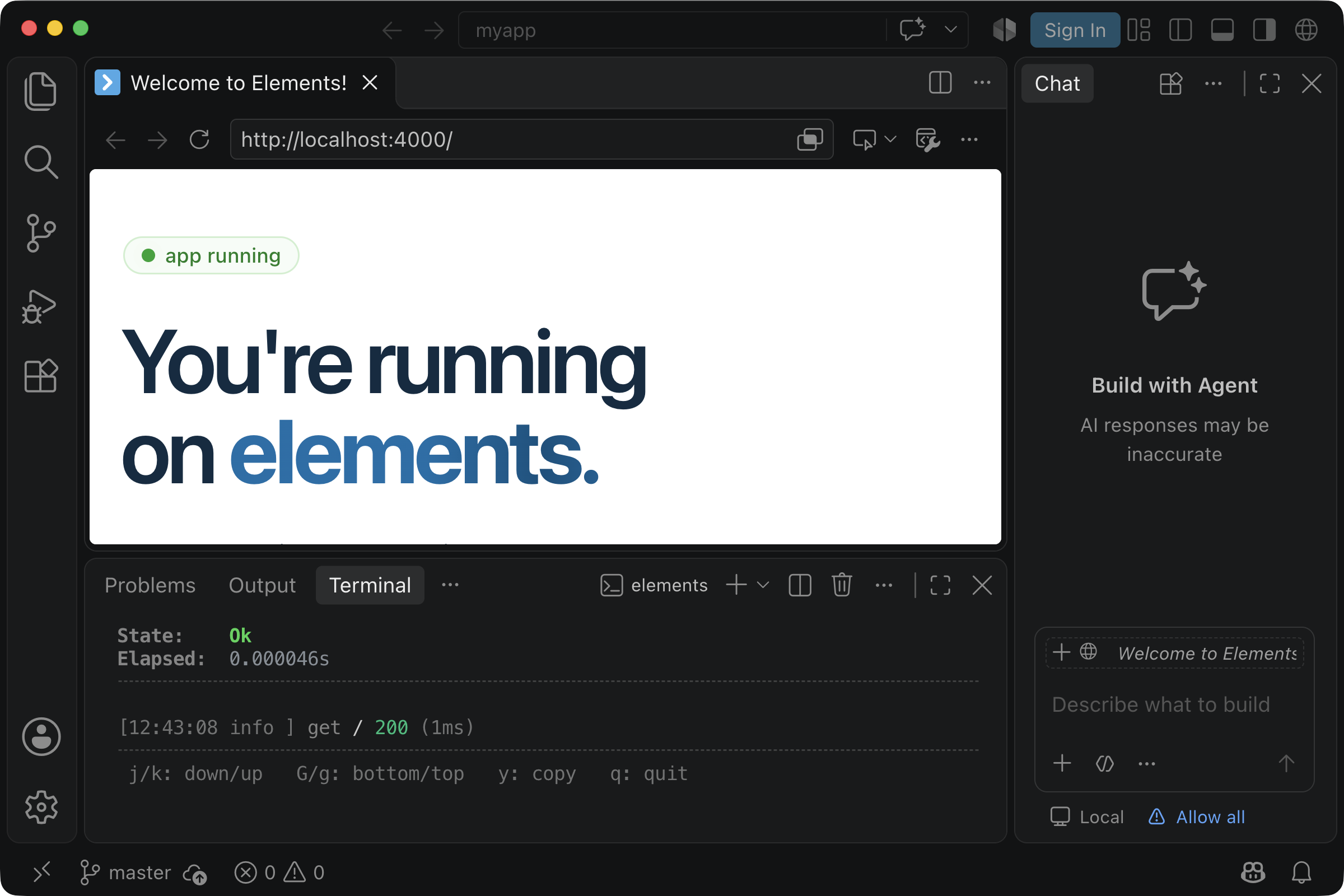
7Build with your agent
Type what you want to build in the chat and press Enter. For example:
Build a todo app with email and password login.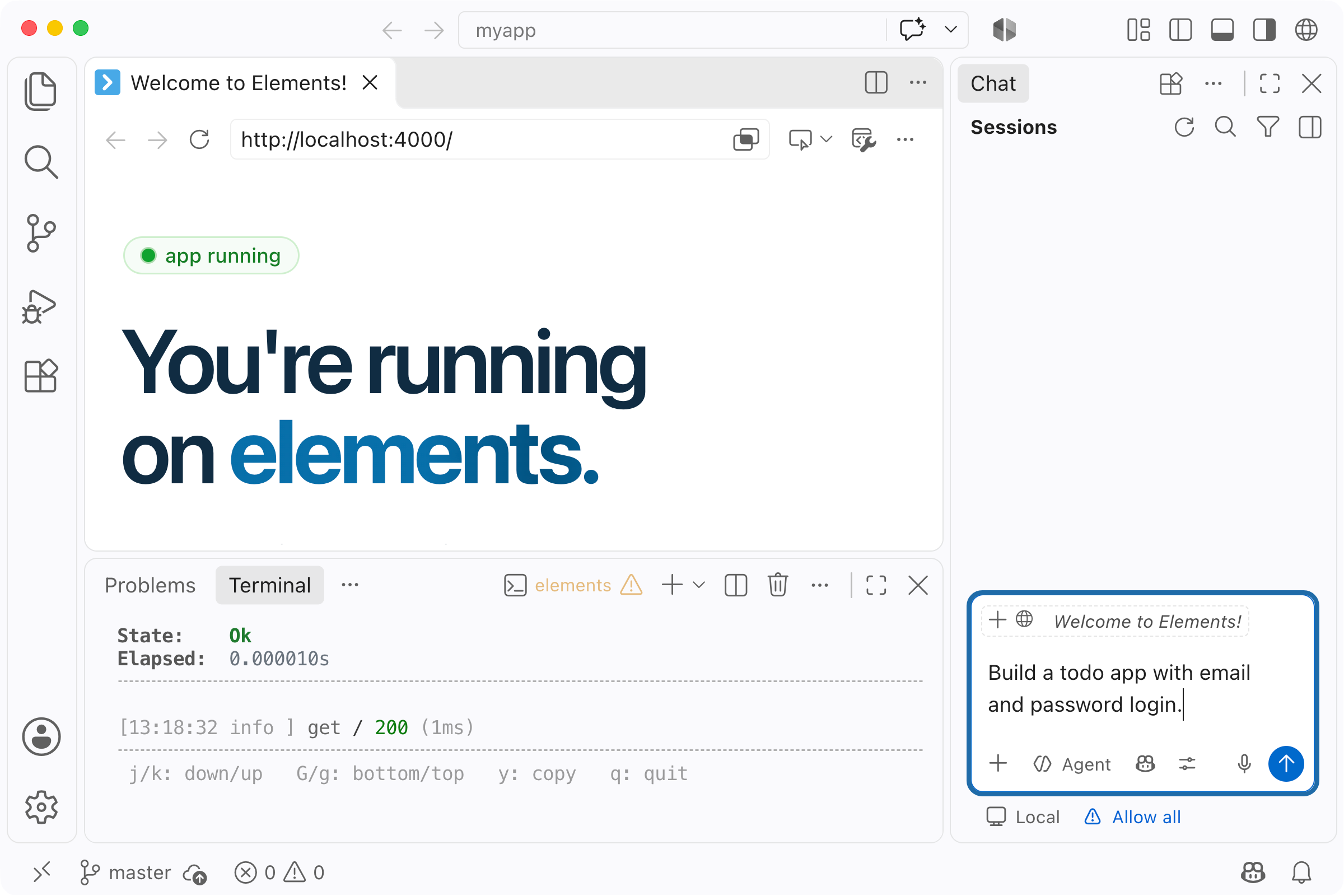
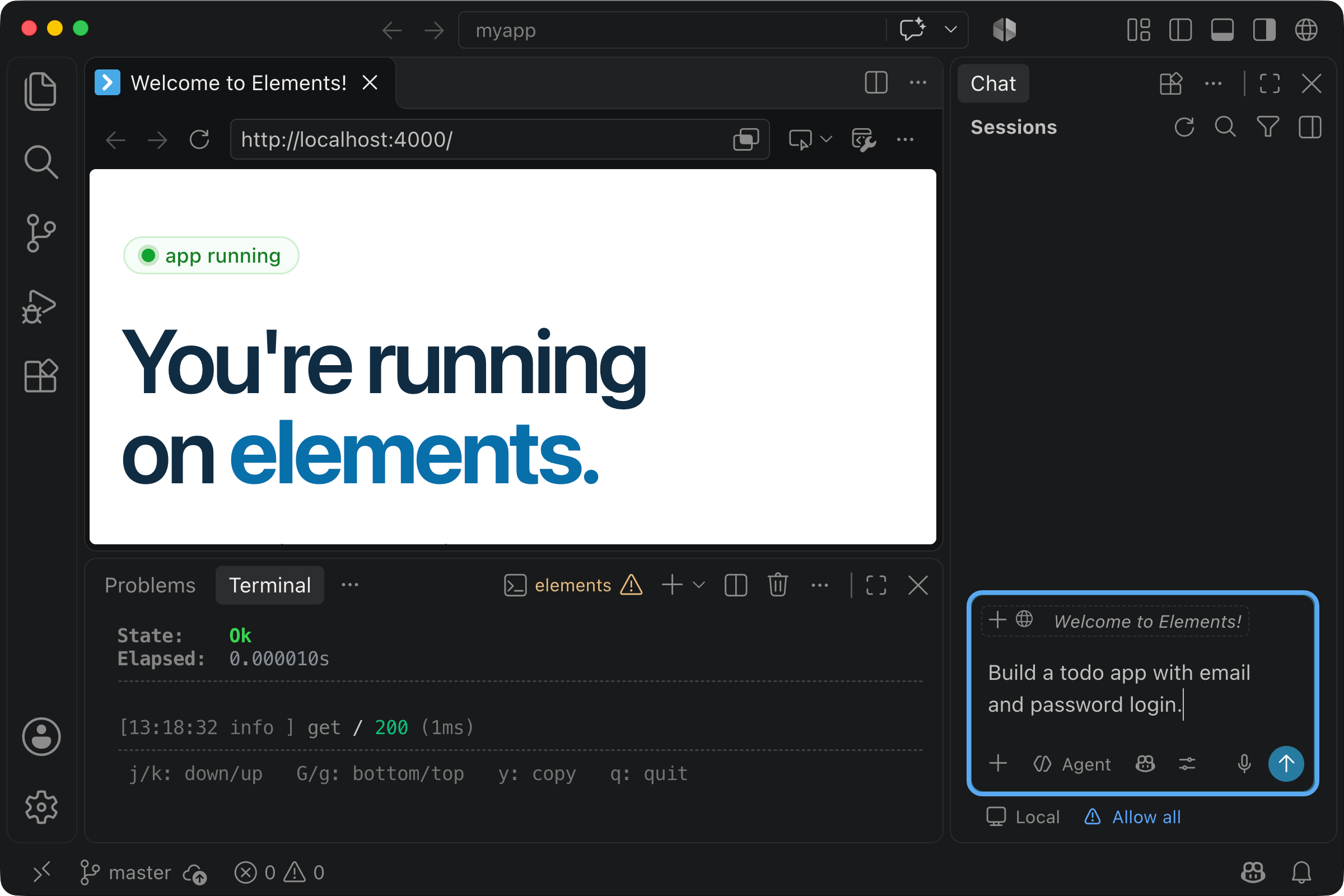
The agent builds it while you watch.
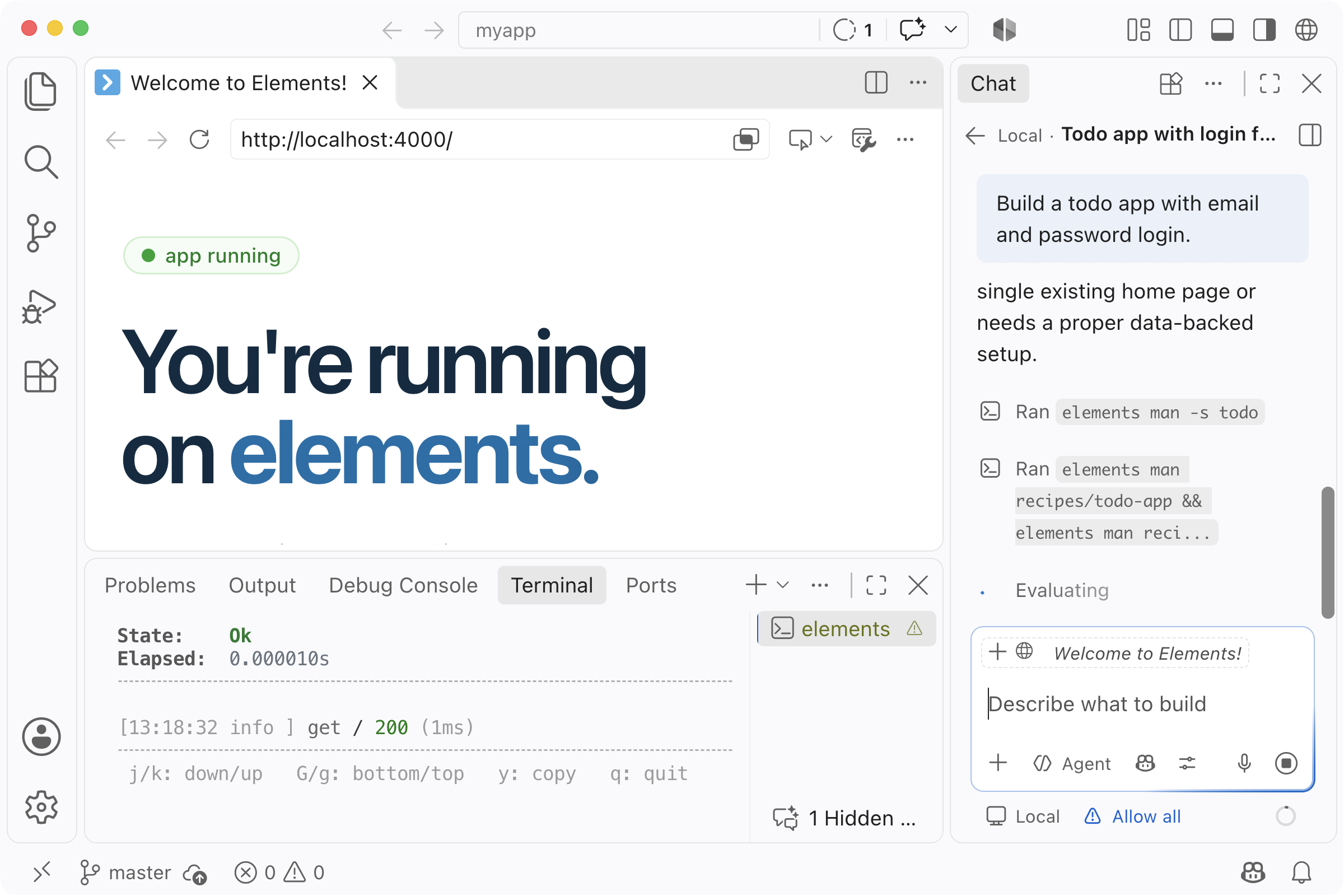
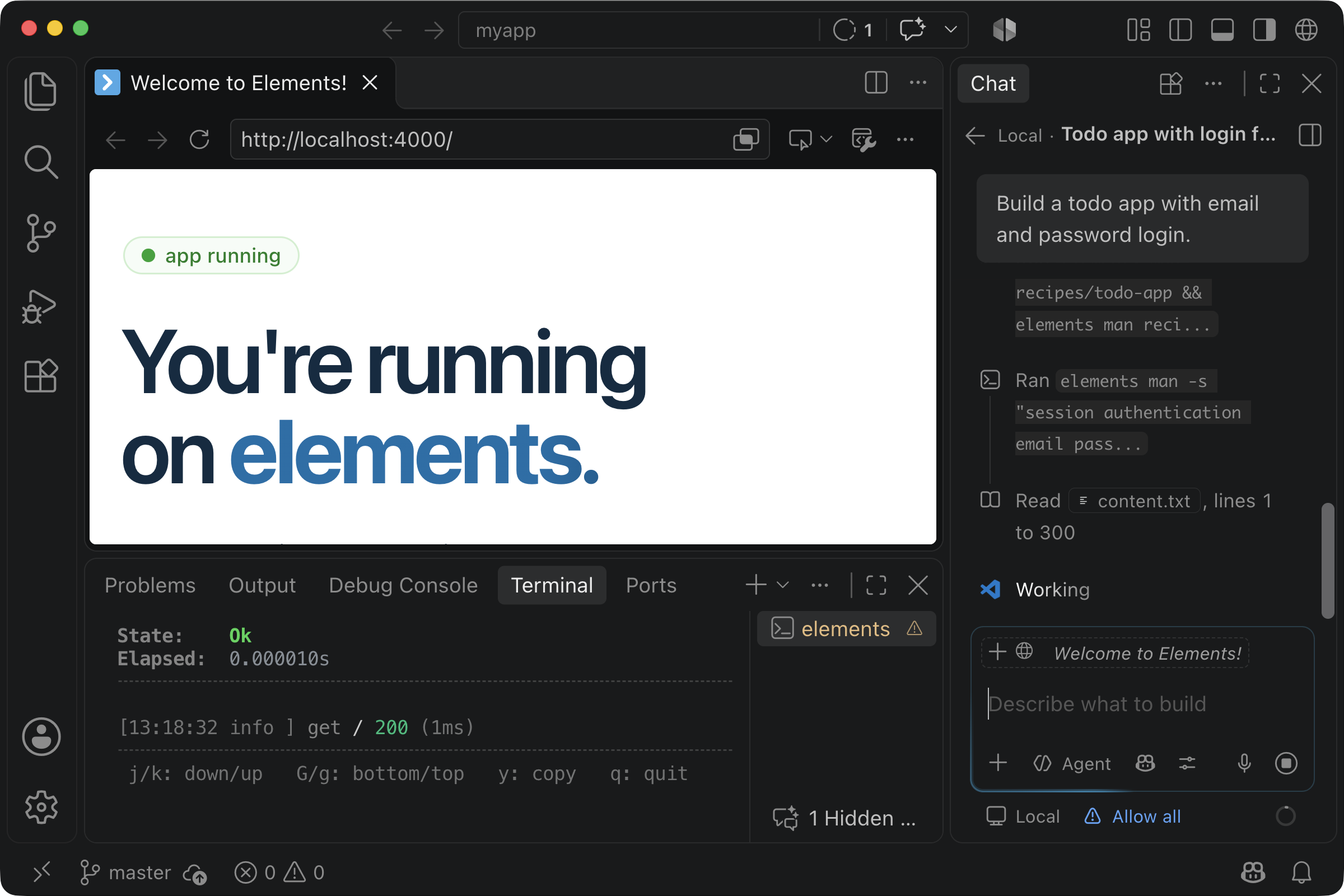
When it's done, your new app is running in VS Code's browser.