Planning poker with live reveals, built by Claude Code on Elements
Rooms joined by link with a name, face-down votes, a reveal with the average and spread, and a CSV of estimated stories.
How it's built
Sizingdeck needed rooms anyone can join from a link, cards that stay face down until the reveal, a table everyone sees change as people vote and a CSV of the results. Each of those is a part of Elements, so the agent spent its 18 minutes on the game itself.
- A live table. Rooms, participants, stories and votes are LiveTables, one view per room. When someone joins, votes or the facilitator moves to the next story, every open copy of the room updates.
- Face-down cards. A card reaches the browser only after the reveal, so everyone sees who has voted while the cards stay face down. The reveal shows the average and the spread.
- Join with a name. A teammate opens the link, types a name and is signed in with a session, in the room a moment later.
- Facilitator controls as function calls. Adding stories, voting, revoting and saving an estimate call server functions straight from the page with
@rpc. Each call checks the caller's seat, and another participant can take over as facilitator. - Estimates as a download. The room exports each estimated story with its estimate, average and vote count as a CSV that opens cleanly in a spreadsheet.
- Data from SQL files. Migrations define the rooms and seed a demo room with five people and seven stories, four already estimated.
Why Elements
Elements is the integrated stack for web apps: a build server and tooling, an app framework, a Postgres database and deployment, engineered as one system. Your editor, tools and one or many agents all connect to the same always-on build server, which runs type checking, program analysis, migrations and tests as the agent builds. Built-in guardrails keep the app structured correctly and secure as it grows from prototype to production.
Run it yourself
Install Elements
Copy the install command.
curl -fsSL https://elements.dev/install | shOpen a terminal in VS Code: choose Terminal › New Terminal from the menu bar at the top of your screen.
Copy and paste the command into the terminal and press Enter.
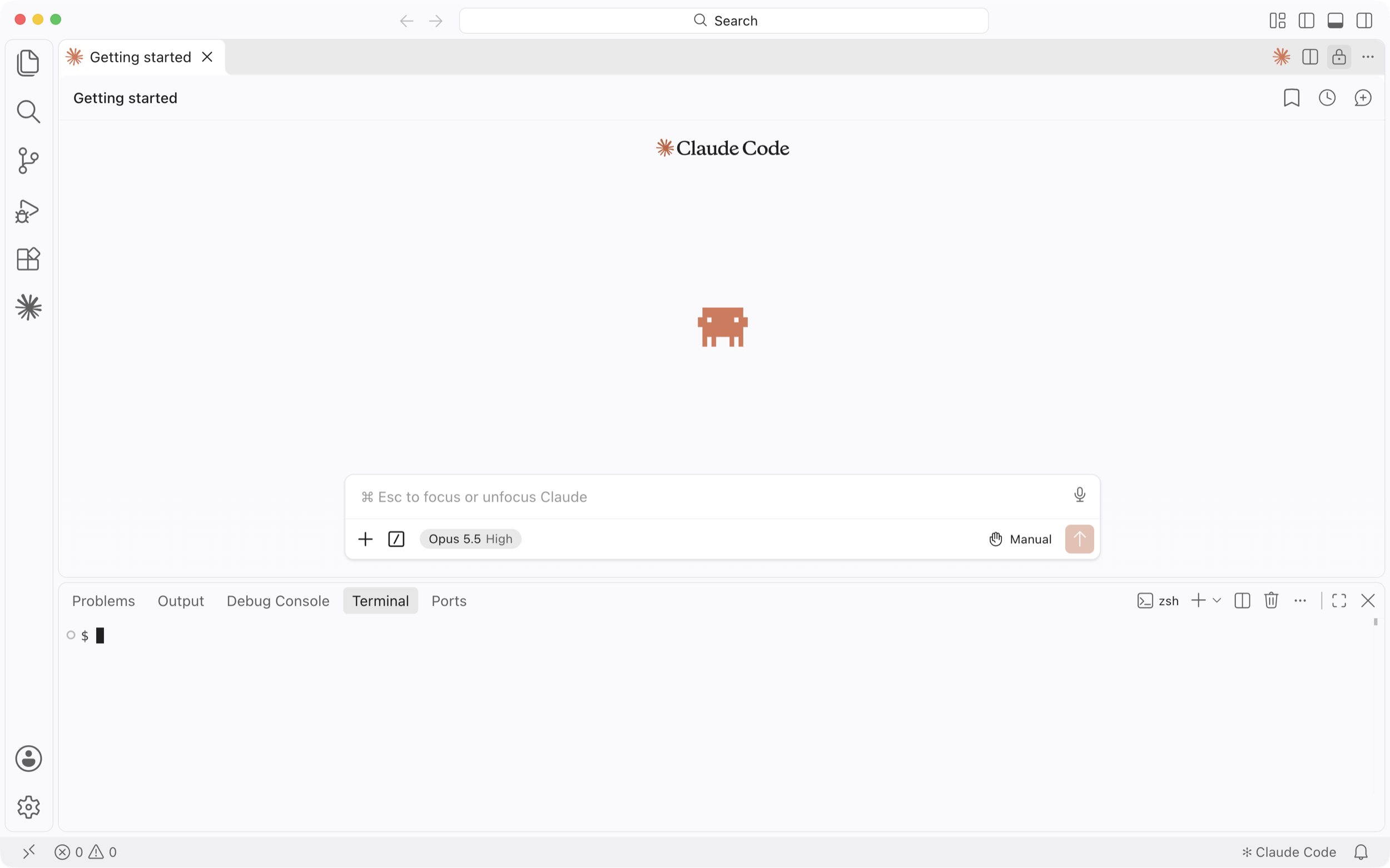
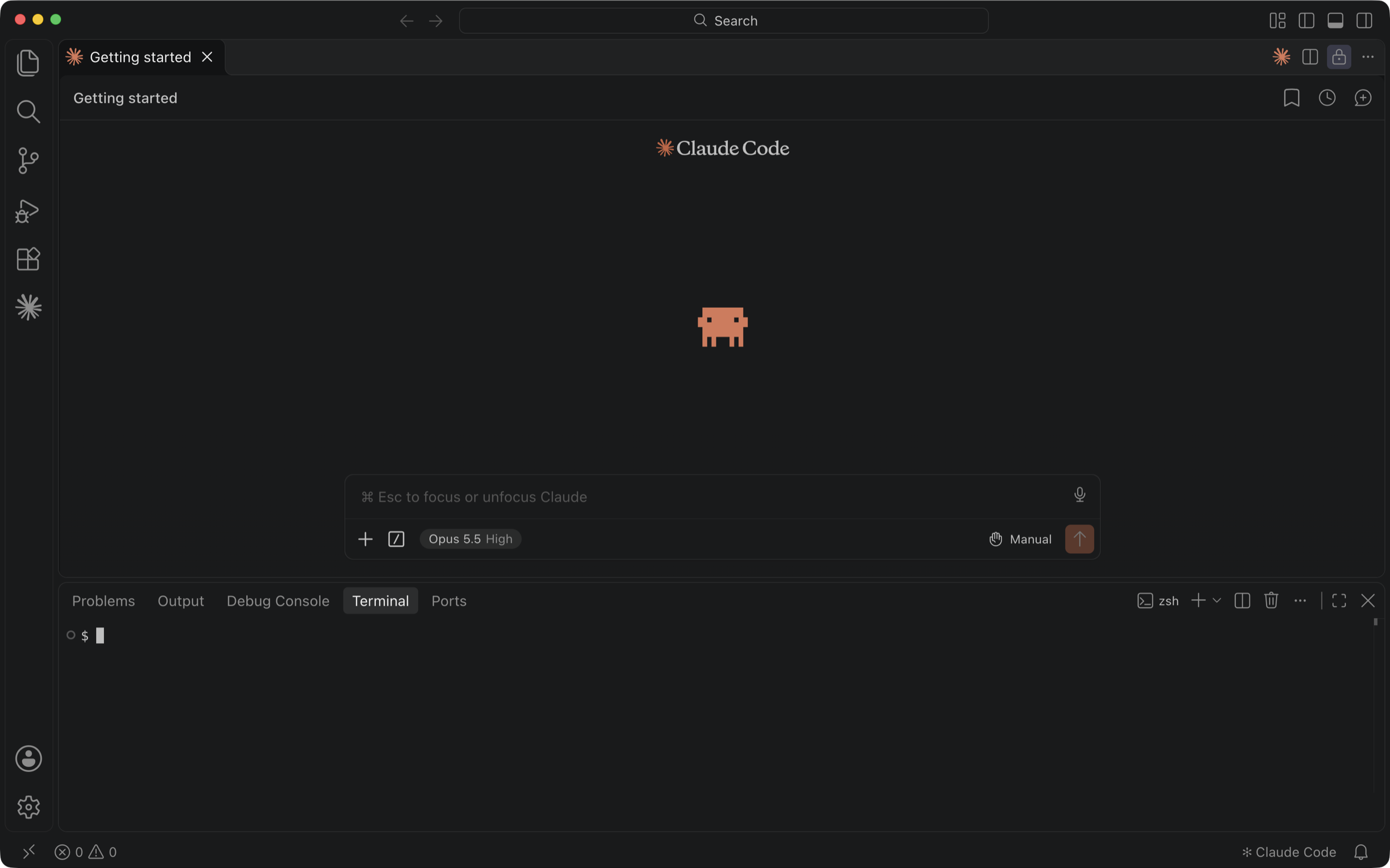 curl -fsSL https://elements.dev/install | sh
Create your copy of this app
When the install finishes, press Shift + Command + P to open the command palette.
Type new app, select Elements: New App in the list and press Enter.
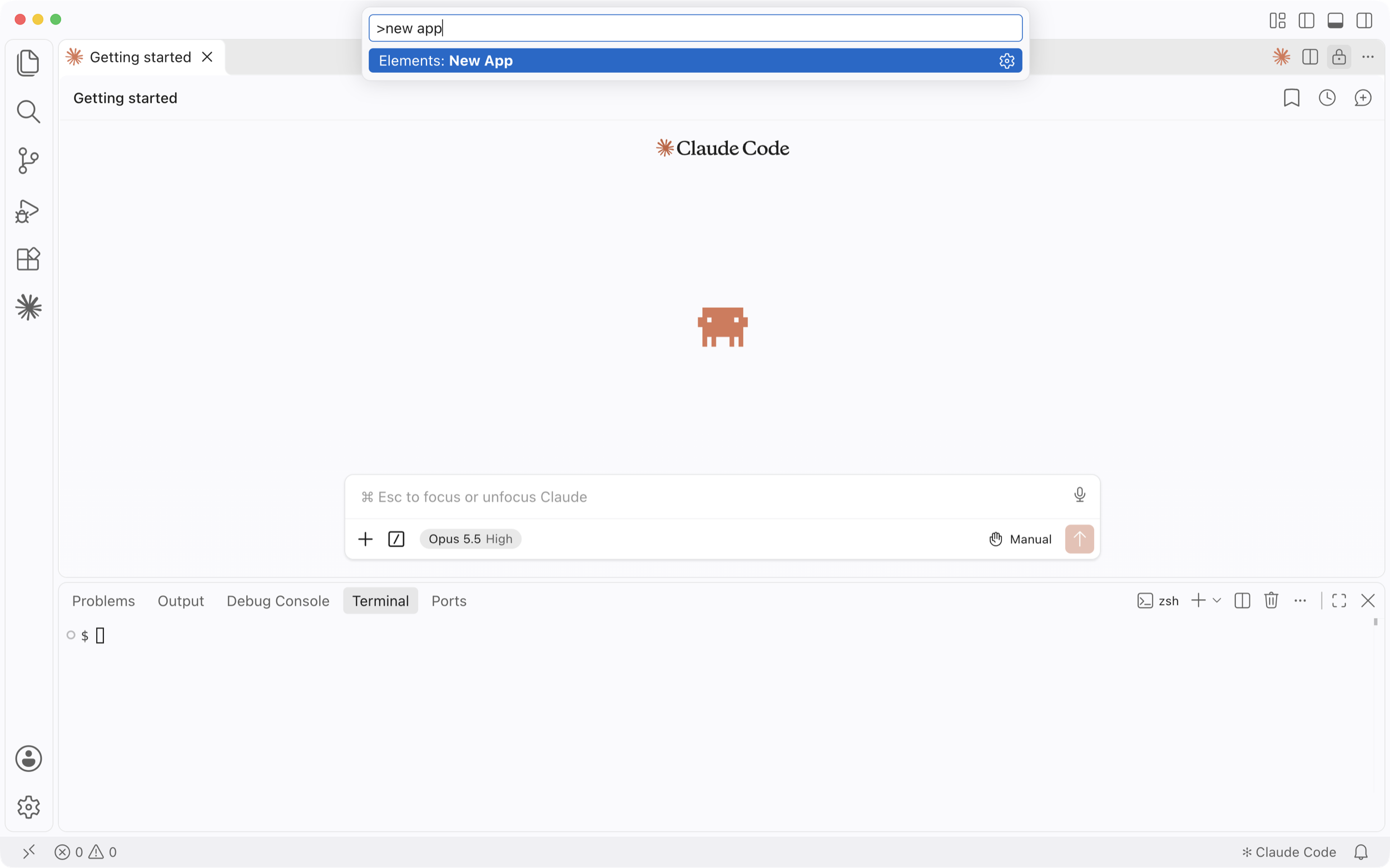
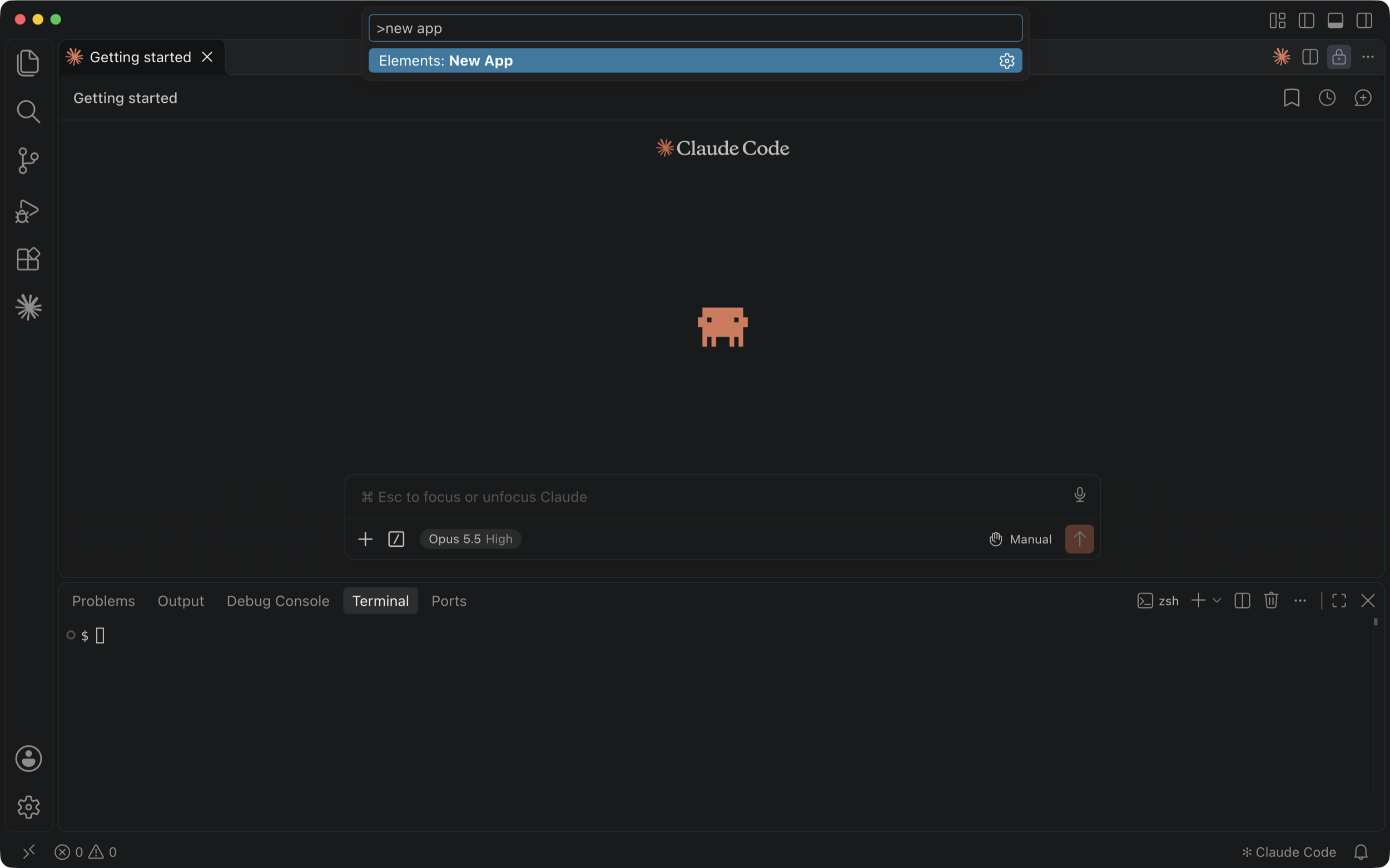
Copy the text.
sizingdeck -scaffold=elementscode/demo-sizingdeck
Paste the text into the Elements: New App name box and press Enter.
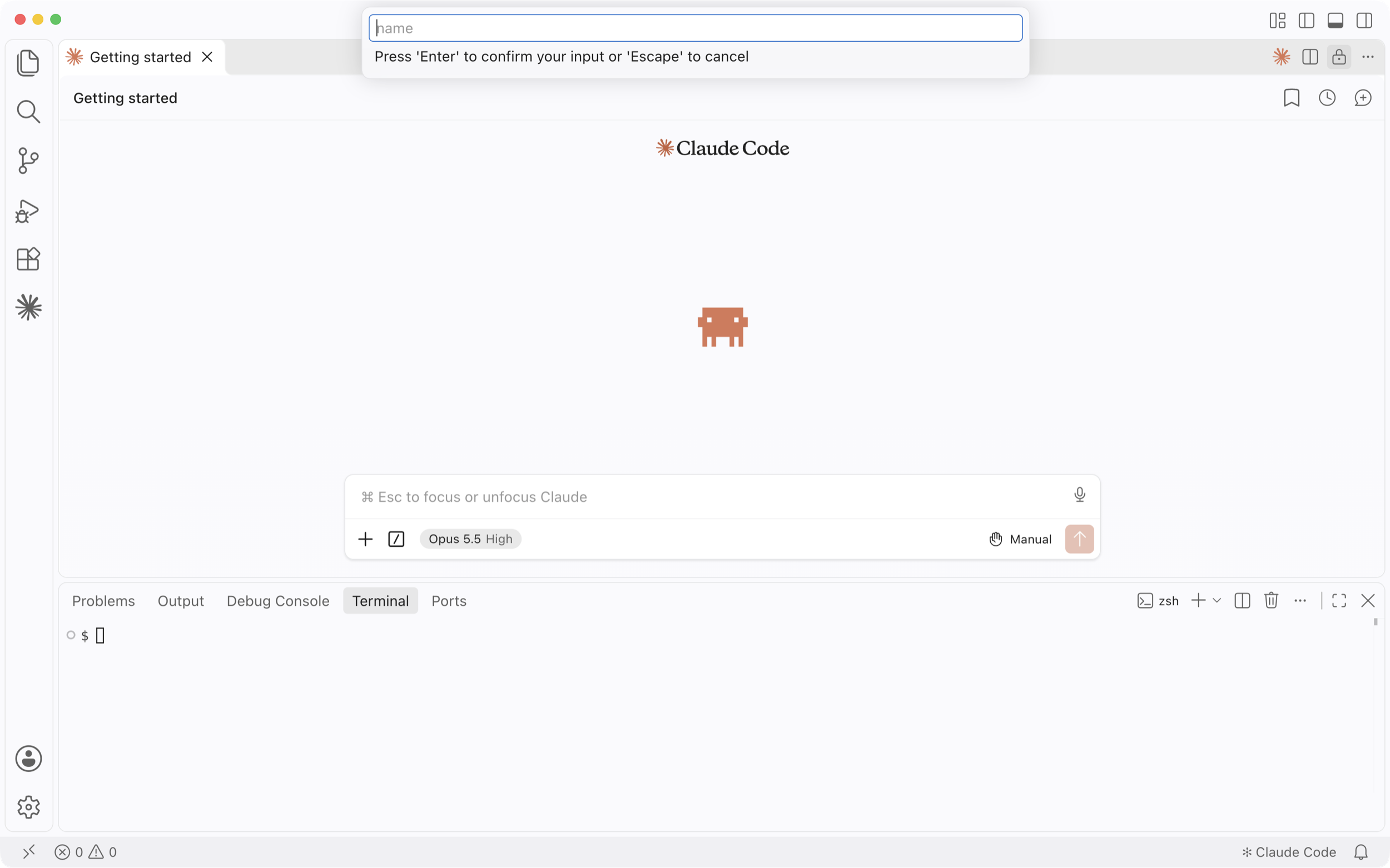
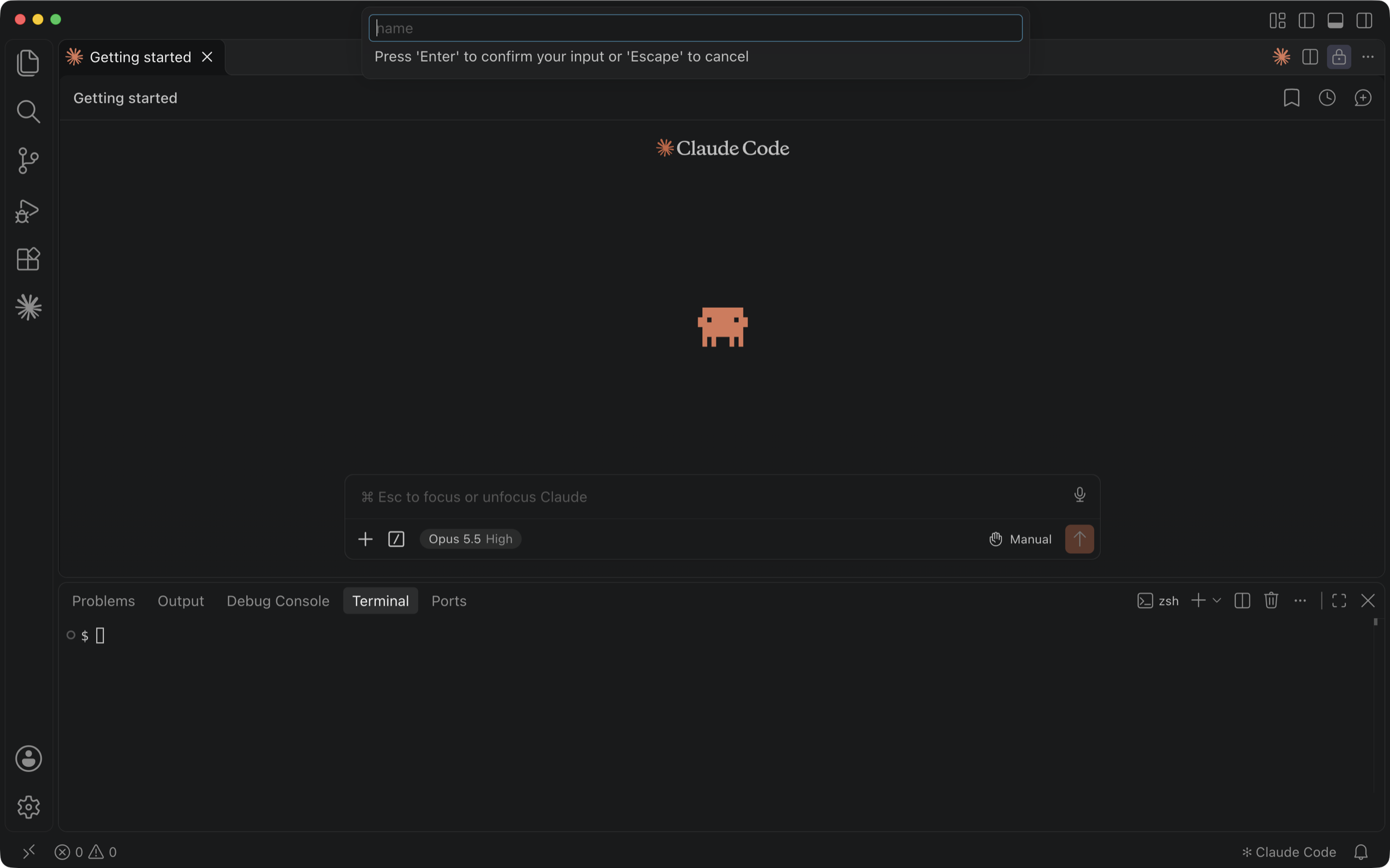 sizingdeck -scaffold=elementscode/demo-sizingdeck
Your copy of this app opens in VS Code with a terminal and Claude Code on the left.
Start your app
Copy the command.
elements startPaste the command into the terminal and press Enter.
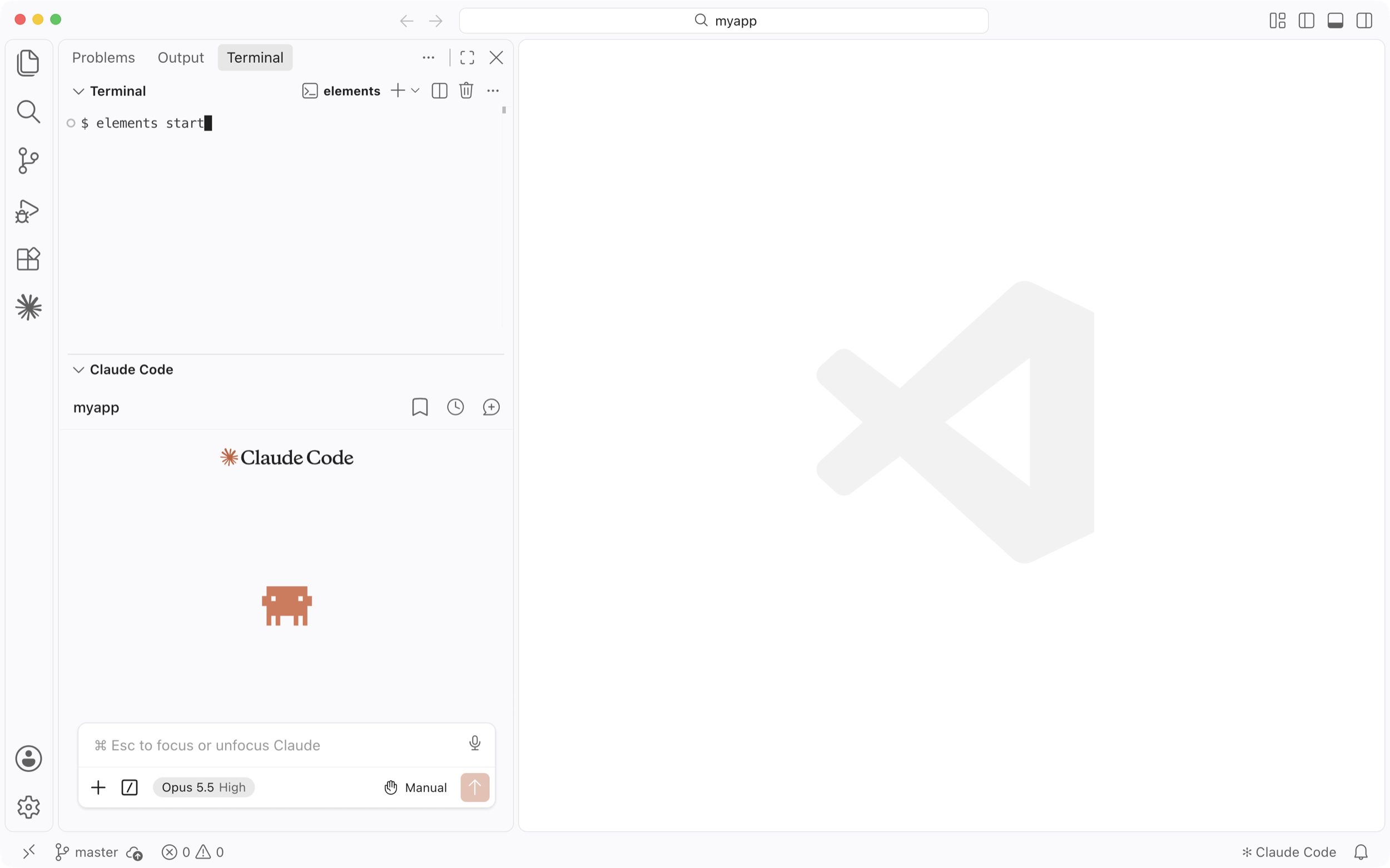
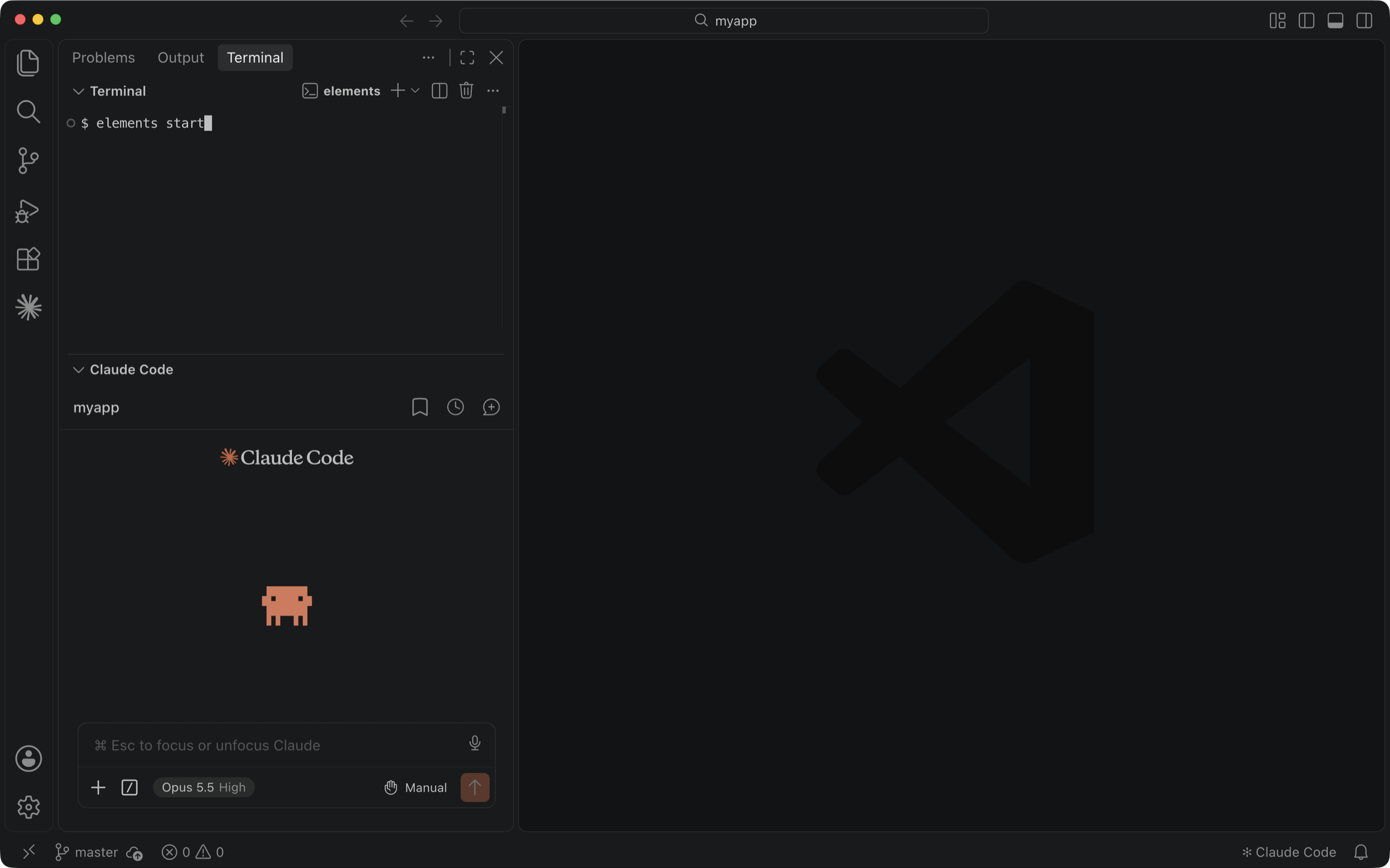
Your app opens in VS Code's browser, next to the terminal and Claude Code.
New to Elements? Read the getting started guide.