Online chess with live, rated games, built by Claude Code on Elements
Open challenges at 3+2, 5+0 and 10+0, live games with clocks and legal moves, spectators, ratings and replays.
How it's built
Checkmoss needed accounts, a lobby that shows who is online, moves and clocks pushed to players and spectators, and scheduled flag checks. Each of those is a part of Elements, so the agent spent its 17 minutes on chess itself.
- Live games. Every move, draw offer and resignation publishes the game's full state on a channel. Both players and every spectator listen for that game, so the board, clocks and move list stay in step on every screen.
- Who is online. A page's live connection marks its player online and offline, and the lobby's channel pushes that list along with open challenges and games in progress.
- Moves as function calls. The board calls
@rpcfunctions to move, offer a draw or resign. The server checks the move is legal, runs the clock and records it in one locked transaction, and a checkmate moves both players' ratings in that same transaction. - Flag falls on a schedule. A one-line cron schedule runs a job every minute that ends games whose clock ran out with nobody watching. Open pages report a flag fall themselves, and the server decides.
- Sessions. Players sign up with a username and sign in with either the username or the email.
- Data from SQL files. Migrations define the schema and seed four rated players, twelve finished games, one game in progress and an open challenge. The project server applied each one as soon as it was saved.
Why Elements
Elements is the integrated stack for web apps: a build server and tooling, an app framework, a Postgres database and deployment, engineered as one system. Your editor, tools and one or many agents all connect to the same always-on build server, which runs type checking, program analysis, migrations and tests as the agent builds. Built-in guardrails keep the app structured correctly and secure as it grows from prototype to production.
Run it yourself
Install Elements
Copy the install command.
curl -fsSL https://elements.dev/install | shOpen a terminal in VS Code: choose Terminal › New Terminal from the menu bar at the top of your screen.
Copy and paste the command into the terminal and press Enter.
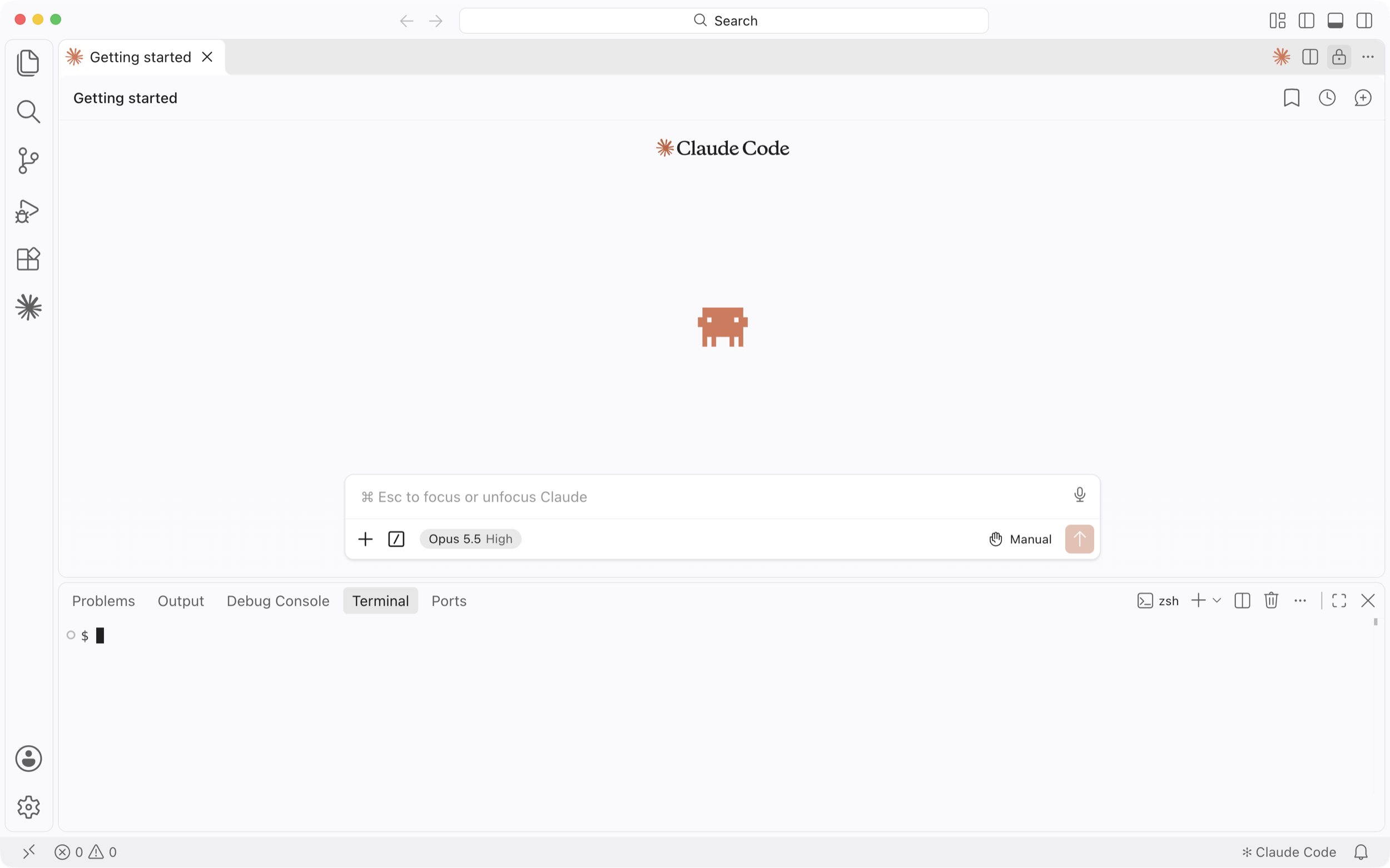
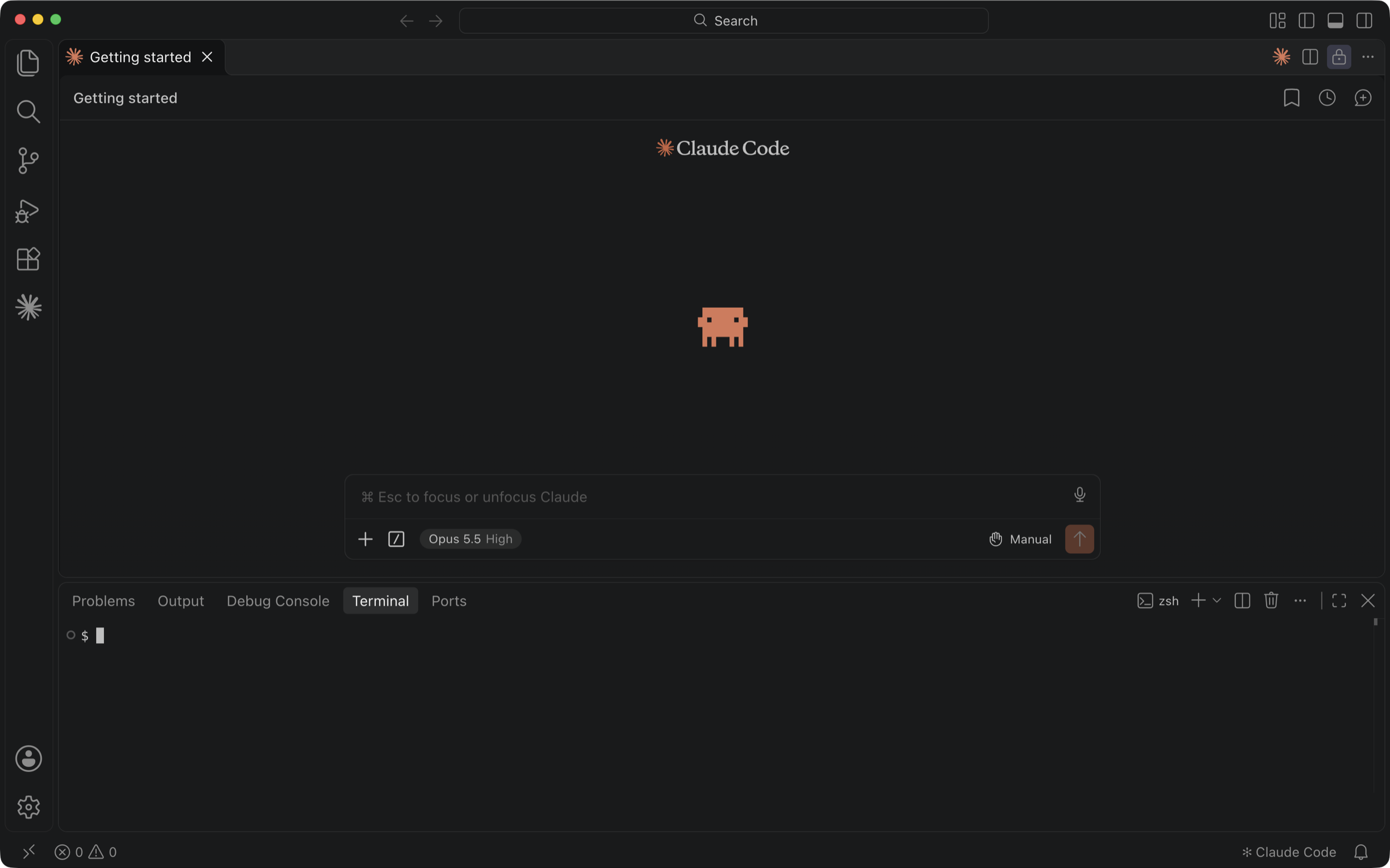 curl -fsSL https://elements.dev/install | sh
Create your copy of this app
When the install finishes, press Shift + Command + P to open the command palette.
Type new app, select Elements: New App in the list and press Enter.
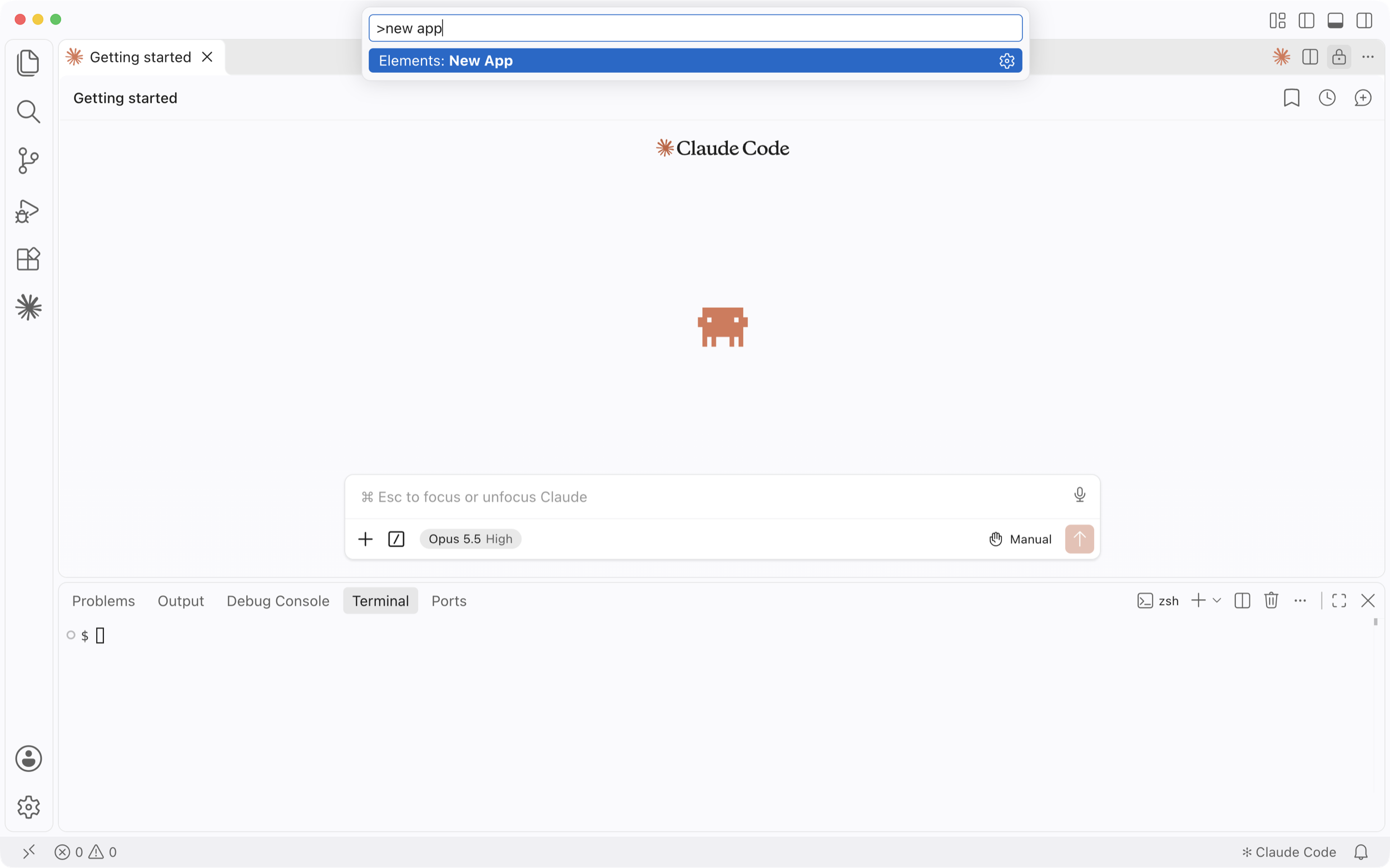
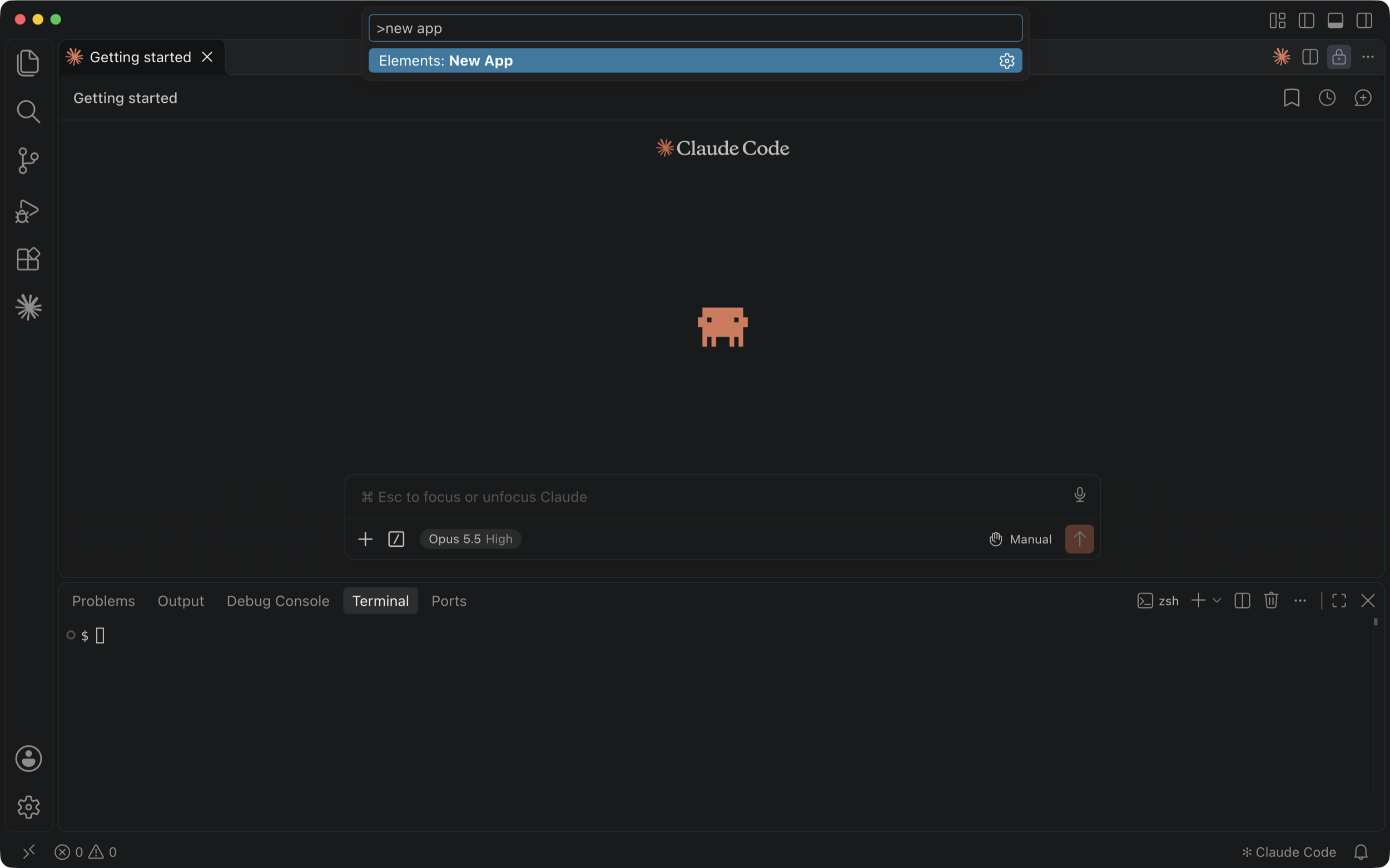
Copy the text.
checkmoss -scaffold=elementscode/demo-checkmoss
Paste the text into the Elements: New App name box and press Enter.
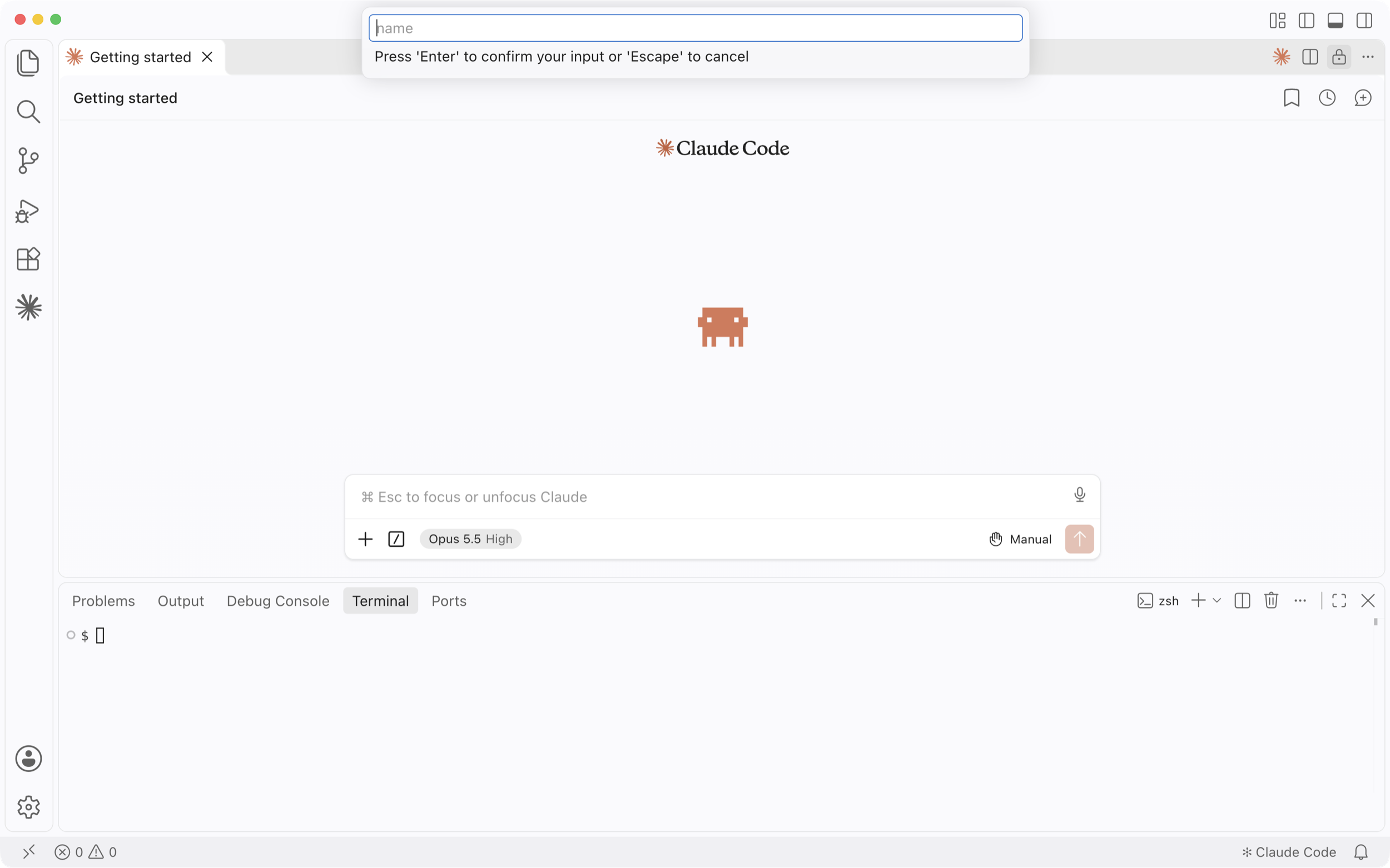
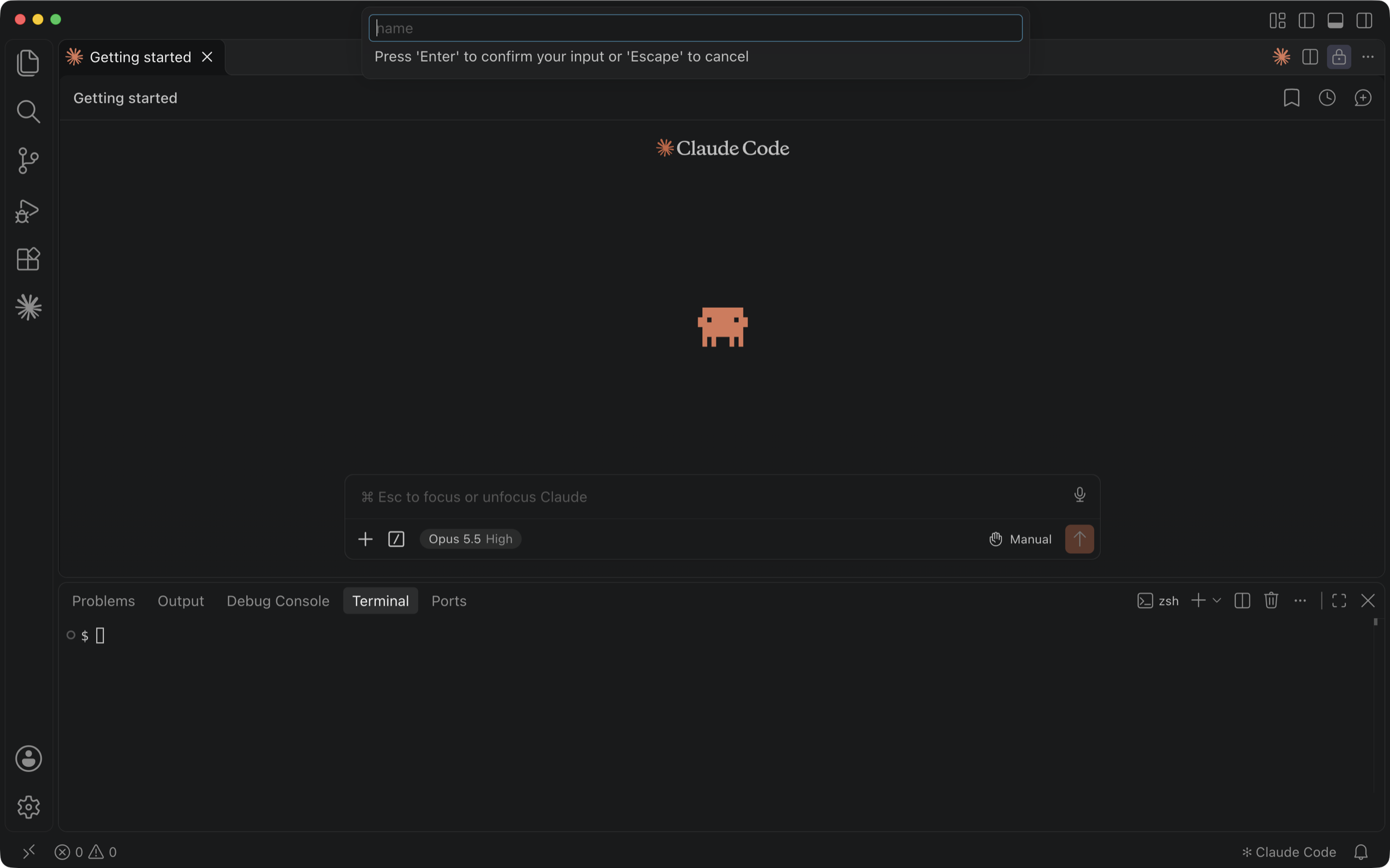 checkmoss -scaffold=elementscode/demo-checkmoss
Your copy of this app opens in VS Code with a terminal and Claude Code on the left.
Start your app
Copy the command.
elements startPaste the command into the terminal and press Enter.
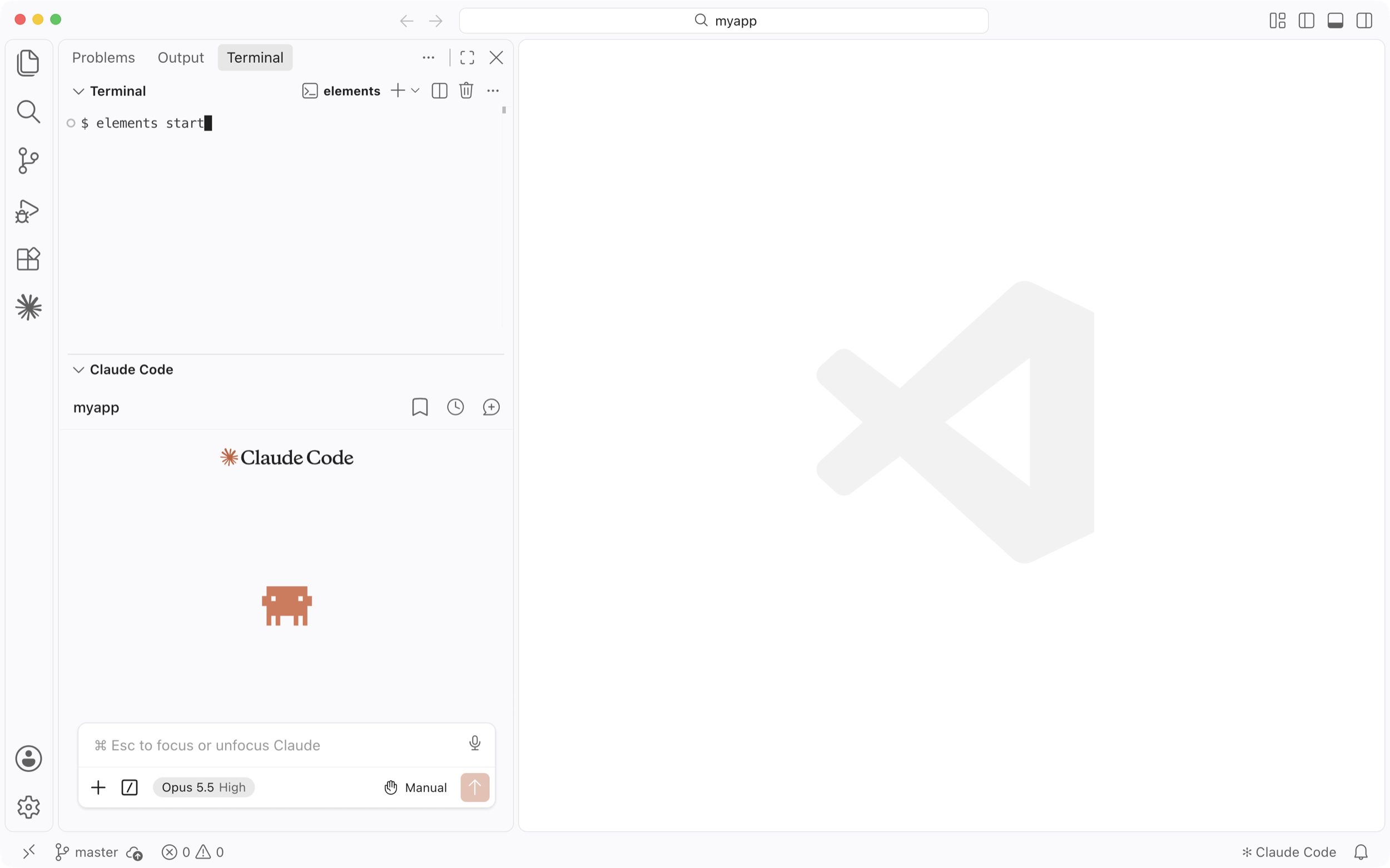
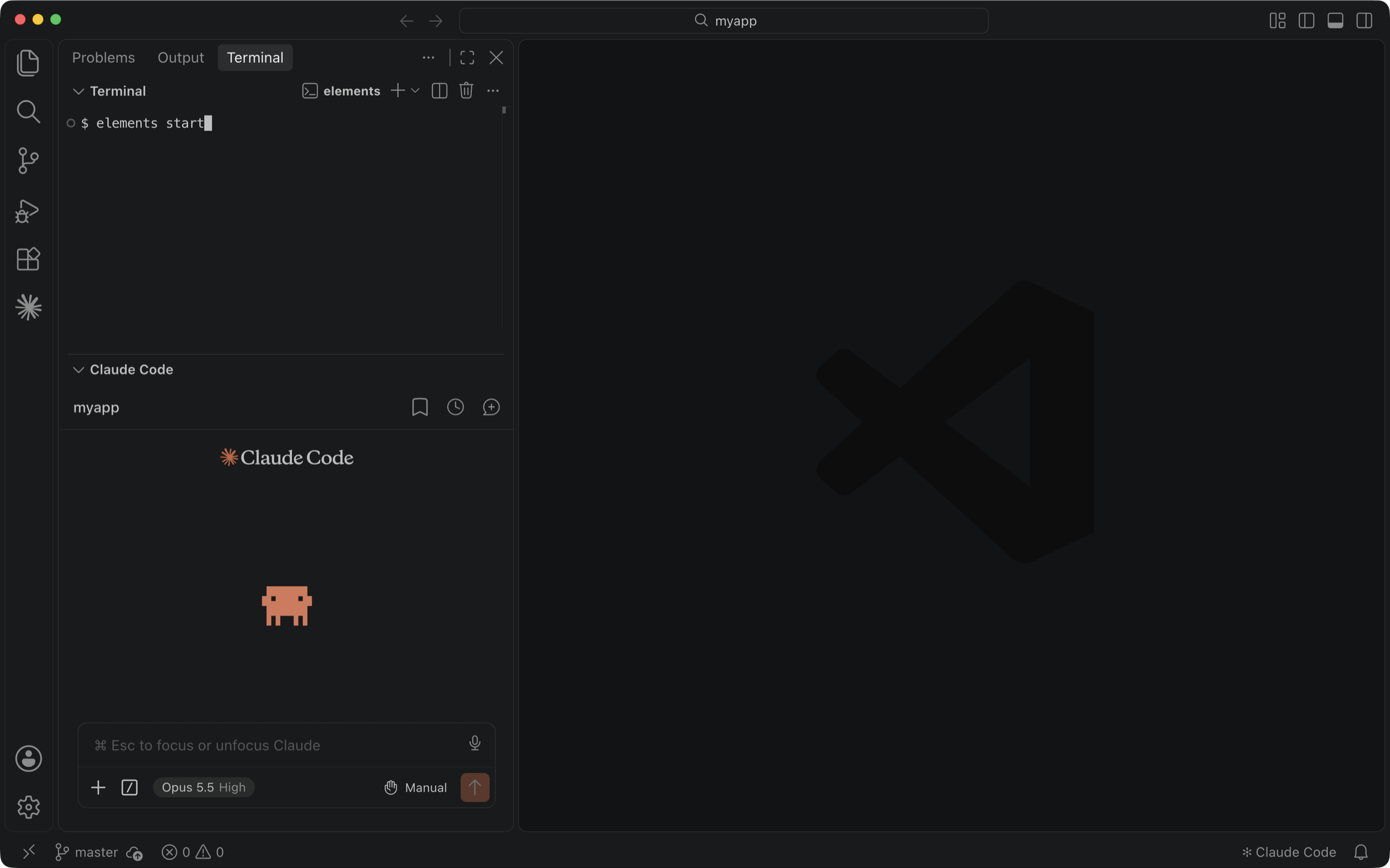
Your app opens in VS Code's browser, next to the terminal and Claude Code.
New to Elements? Read the getting started guide.