Live Q&A and polls for events, built by Claude Code on Elements
Join codes, audience questions ranked by upvotes, live polls and word clouds, and a presenter screen for the projector.
How it's built
Micpass needed questions, votes and poll results that move on every phone and the projector at once, moderation for the host, and an audience that joins with a code and no account. Each of those is a part of Elements, so the agent spent its 20 minutes on the Q&A app itself.
- Live questions, votes and polls. Events, questions, votes, polls and answers are LiveTables, so a vote reorders the questions and a poll answer grows its bar on every phone and the projector the moment it is cast.
- Votes straight from the page. The audience upvotes and answers polls by writing to the live tables, and the server checks each write: one vote per question, one answer per poll, only on a live question or an open poll.
- Moderation. Only the event's host approves, hides, pins or marks a question answered, and a moderated event holds new questions until the host approves them.
- Server calls as function calls. Creating an event mints a short join code, joining turns a typed code into the event page, and asking a question is one more
@rpccall. - An audience with no account. Each browser keeps its own voter id, which the server uses to count one vote per person.
- Data from SQL files. Migrations define the app and seed a host and one event with 13 questions, 167 votes, two finished polls and a draft poll ready to open.
Why Elements
Elements is the integrated stack for web apps: a build server and tooling, an app framework, a Postgres database and deployment, engineered as one system. Your editor, tools and one or many agents all connect to the same always-on build server, which runs type checking, program analysis, migrations and tests as the agent builds. Built-in guardrails keep the app structured correctly and secure as it grows from prototype to production.
Run it yourself
Install Elements
Copy the install command.
curl -fsSL https://elements.dev/install | shOpen a terminal in VS Code: choose Terminal › New Terminal from the menu bar at the top of your screen.
Copy and paste the command into the terminal and press Enter.
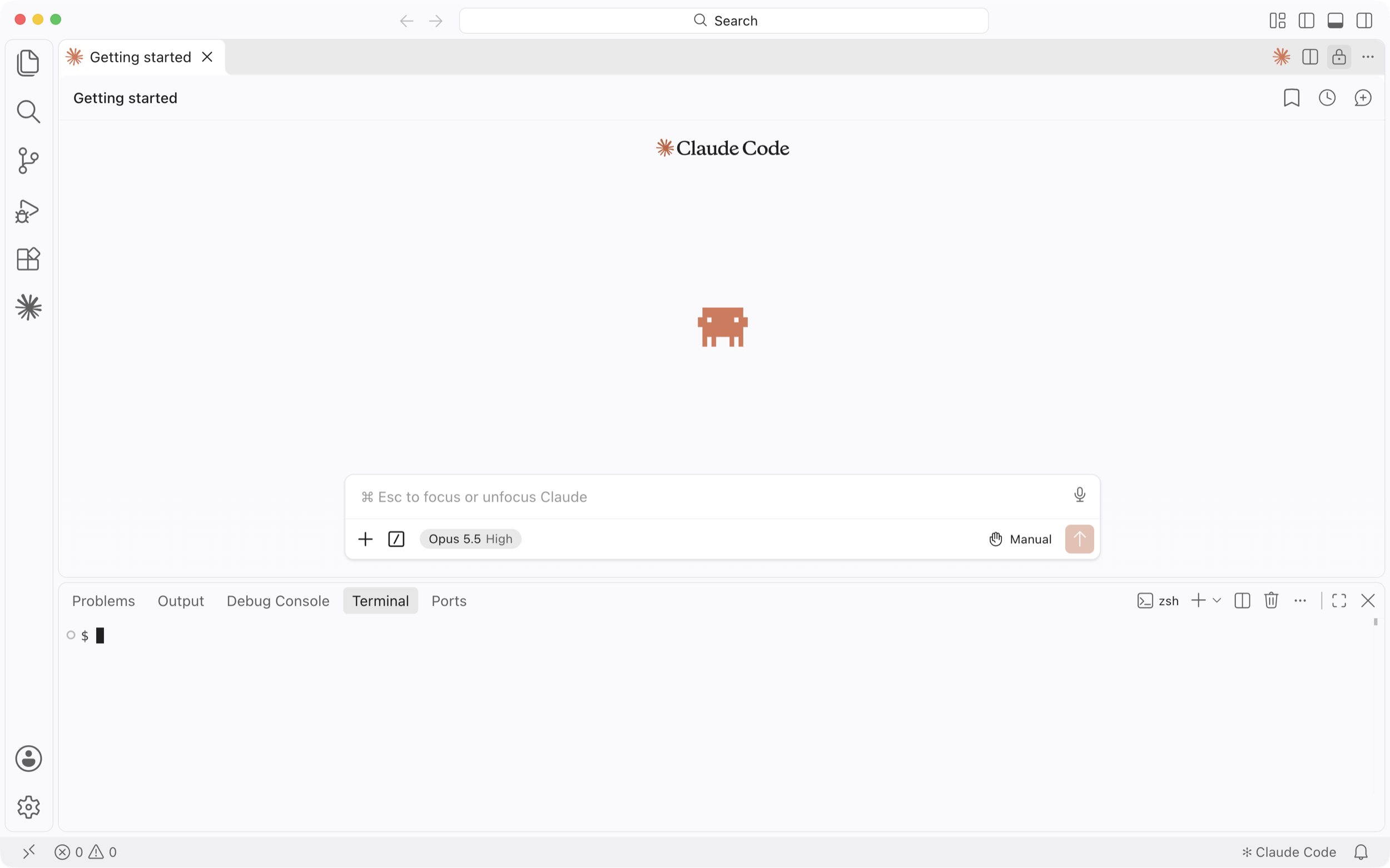
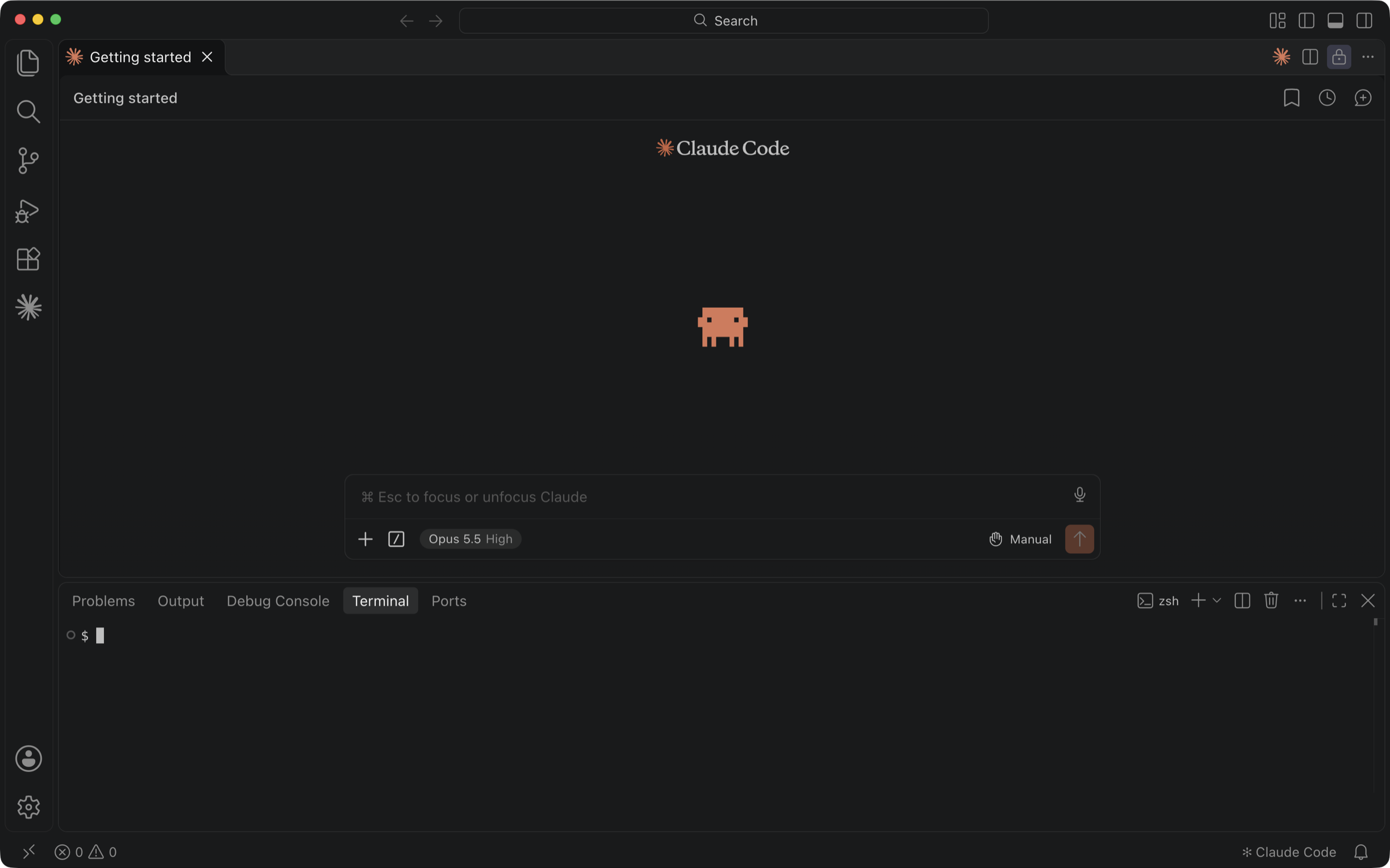 curl -fsSL https://elements.dev/install | sh
Create your copy of this app
When the install finishes, press Shift + Command + P to open the command palette.
Type new app, select Elements: New App in the list and press Enter.
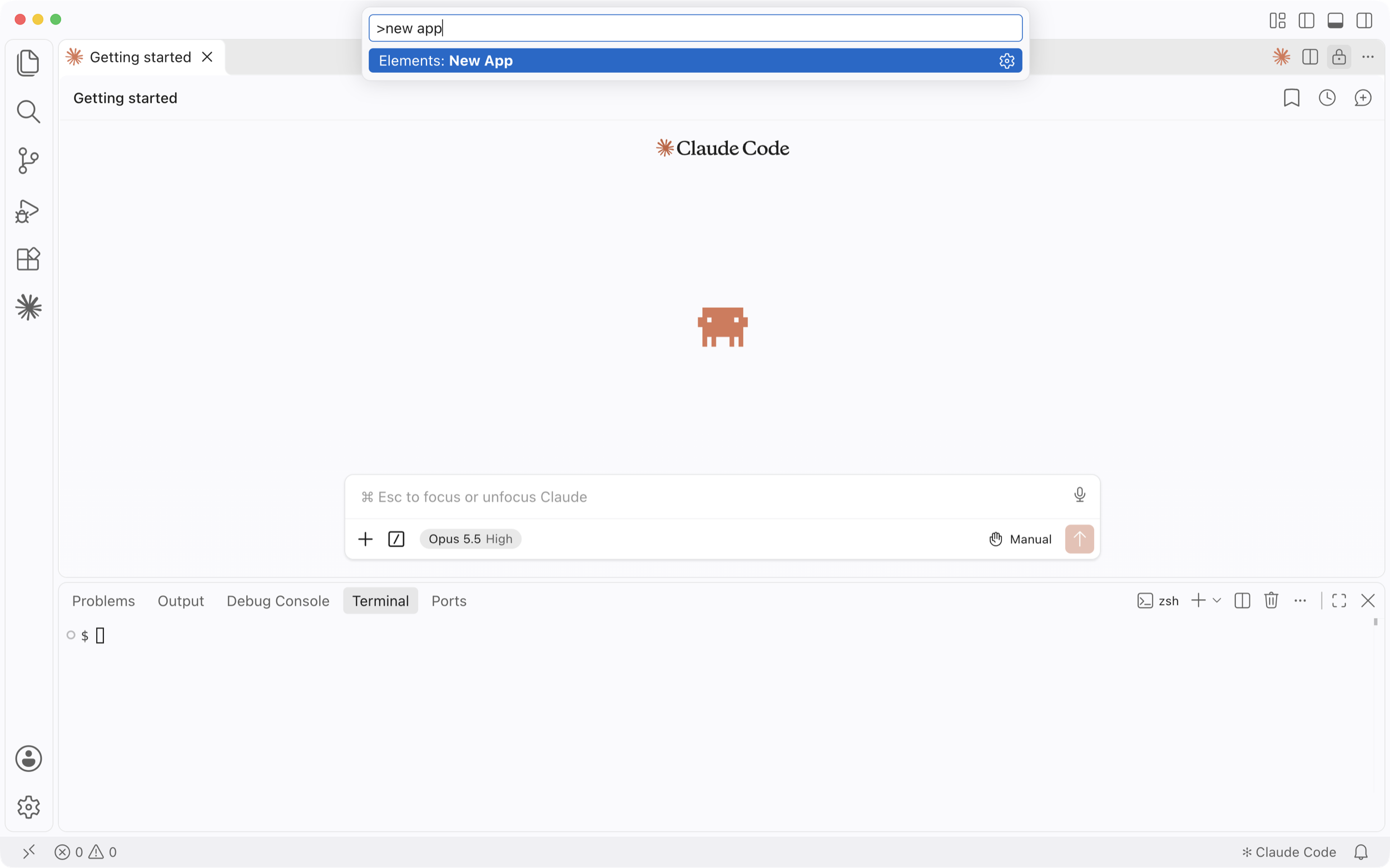
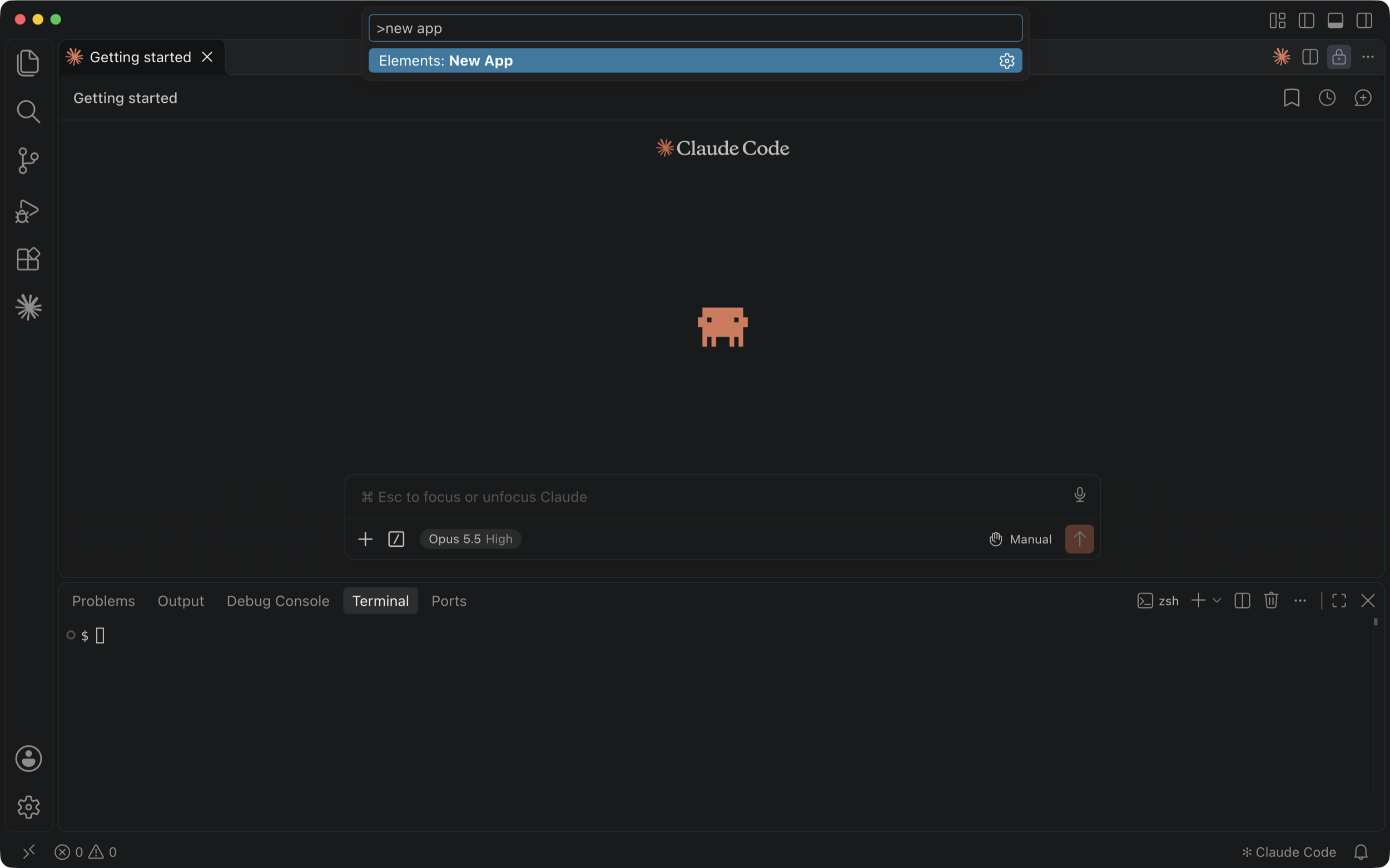
Copy the text.
micpass -scaffold=elementscode/demo-micpass
Paste the text into the Elements: New App name box and press Enter.
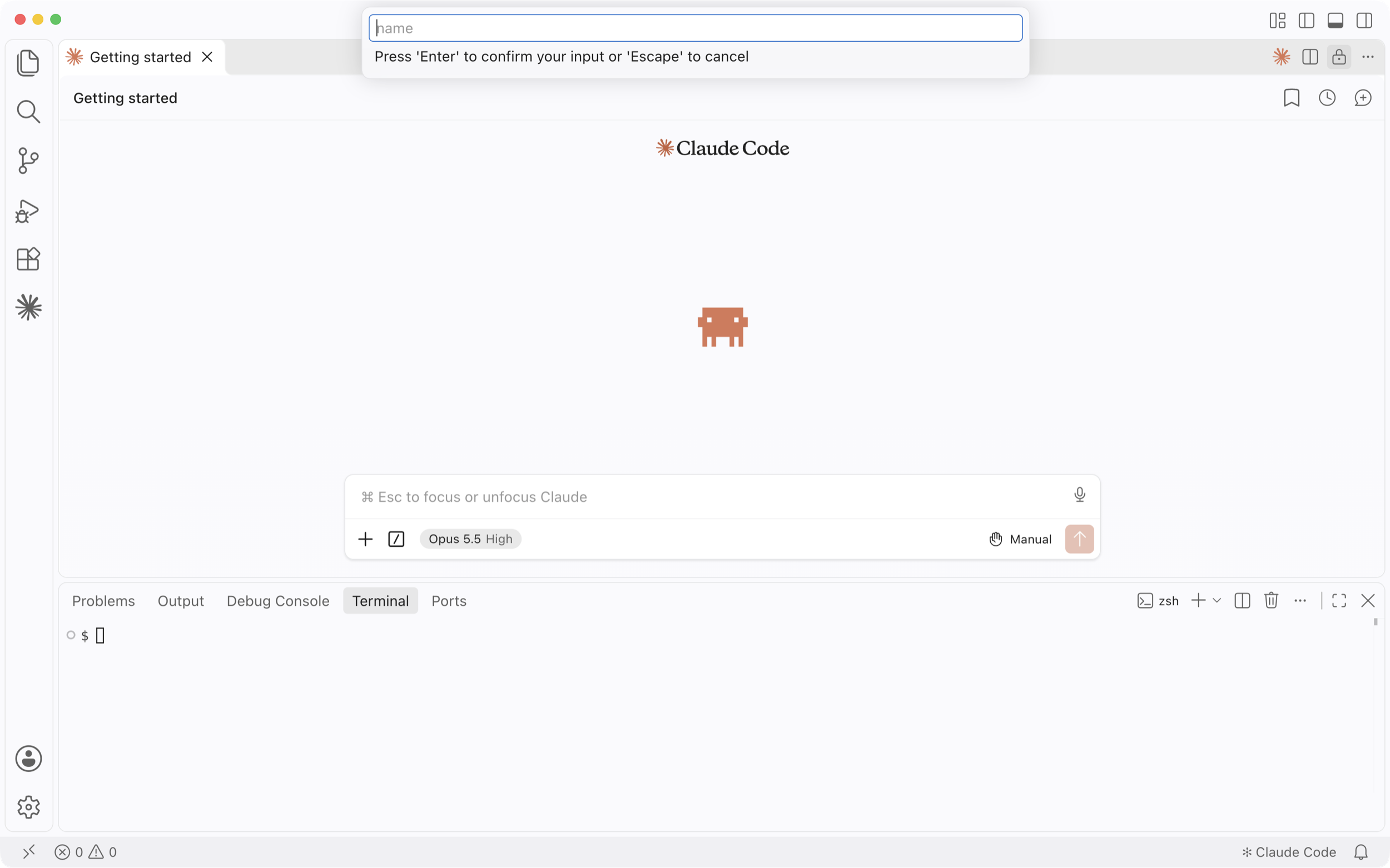
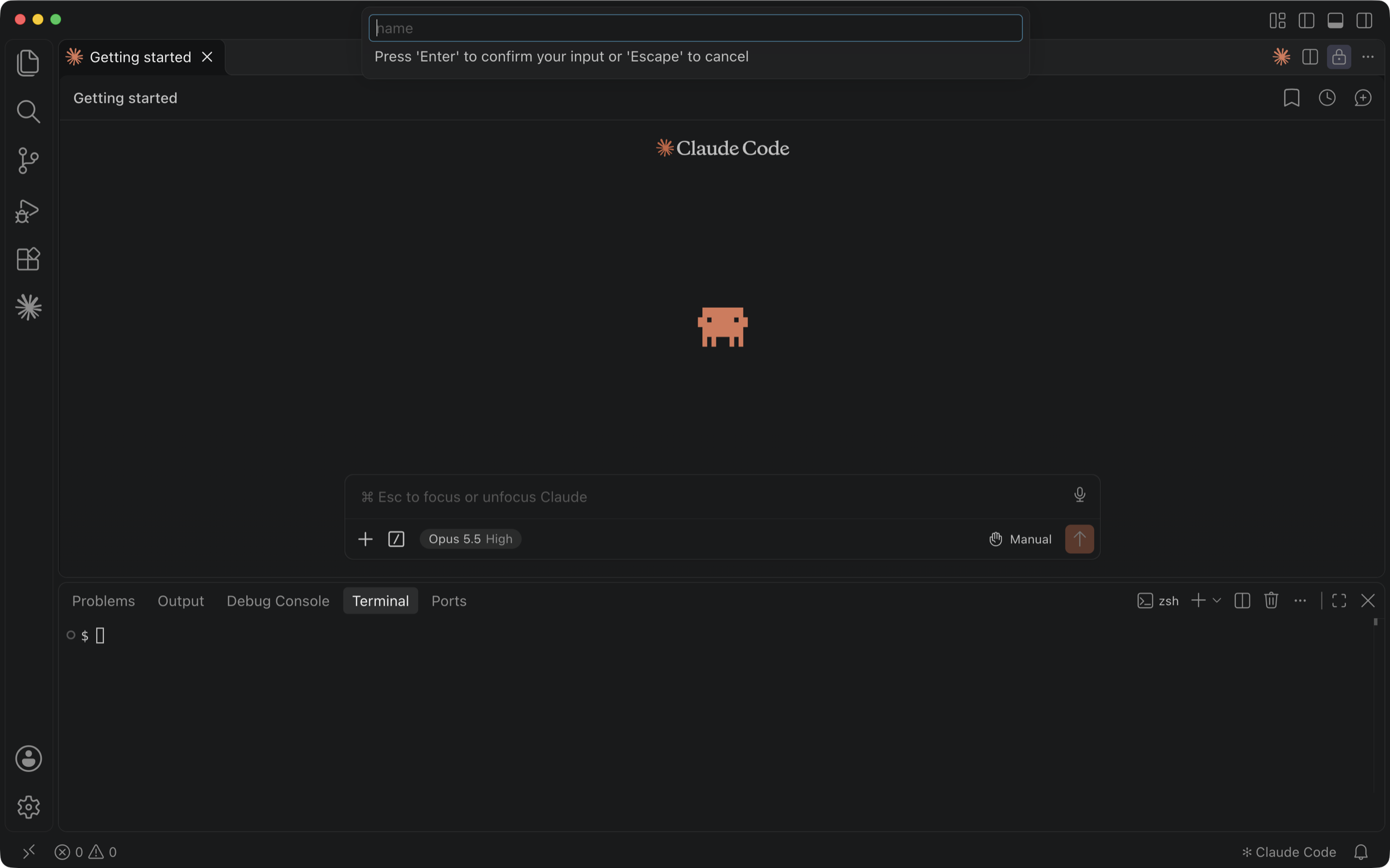 micpass -scaffold=elementscode/demo-micpass
Your copy of this app opens in VS Code with a terminal and Claude Code on the left.
Start your app
Copy the command.
elements startPaste the command into the terminal and press Enter.
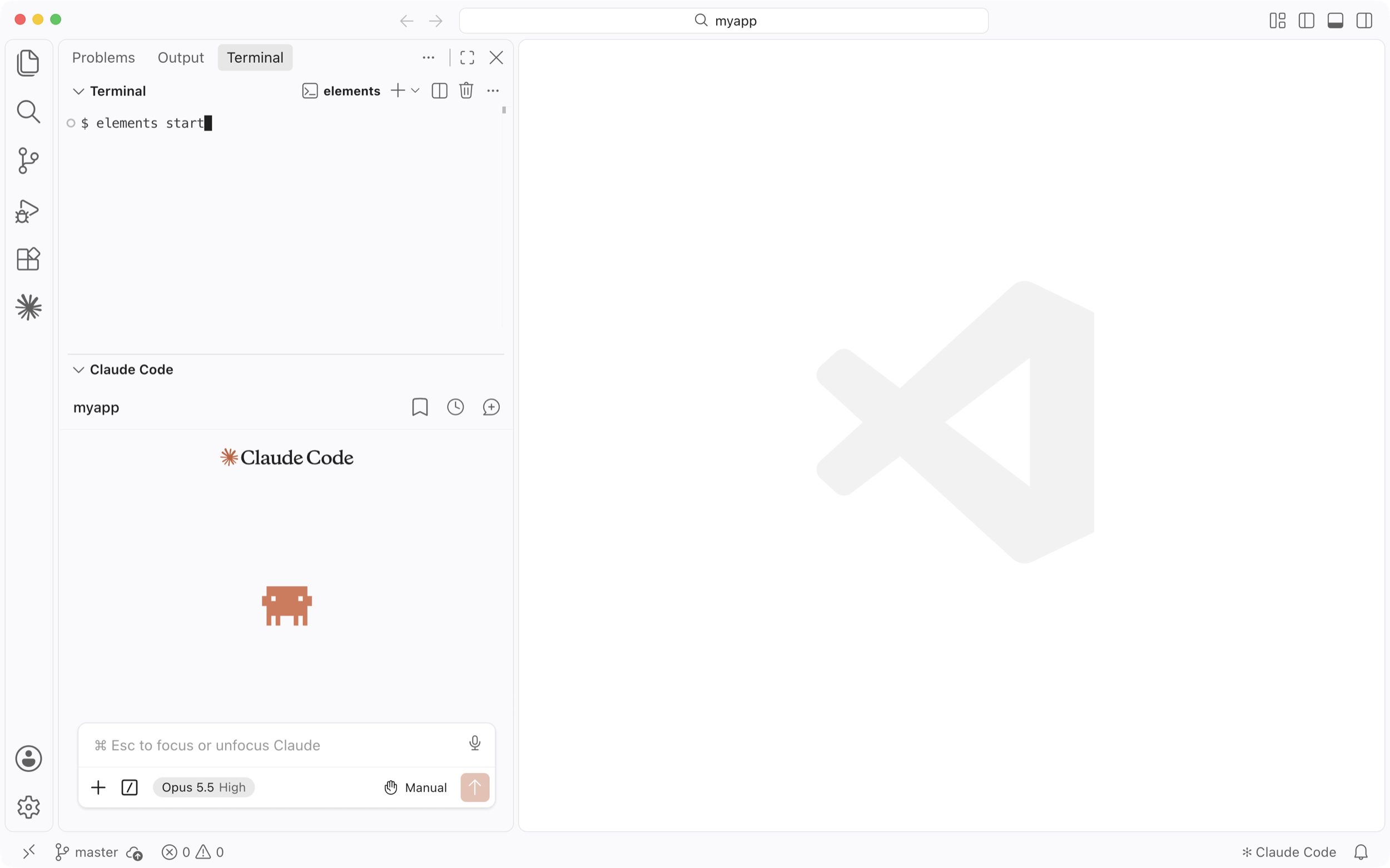
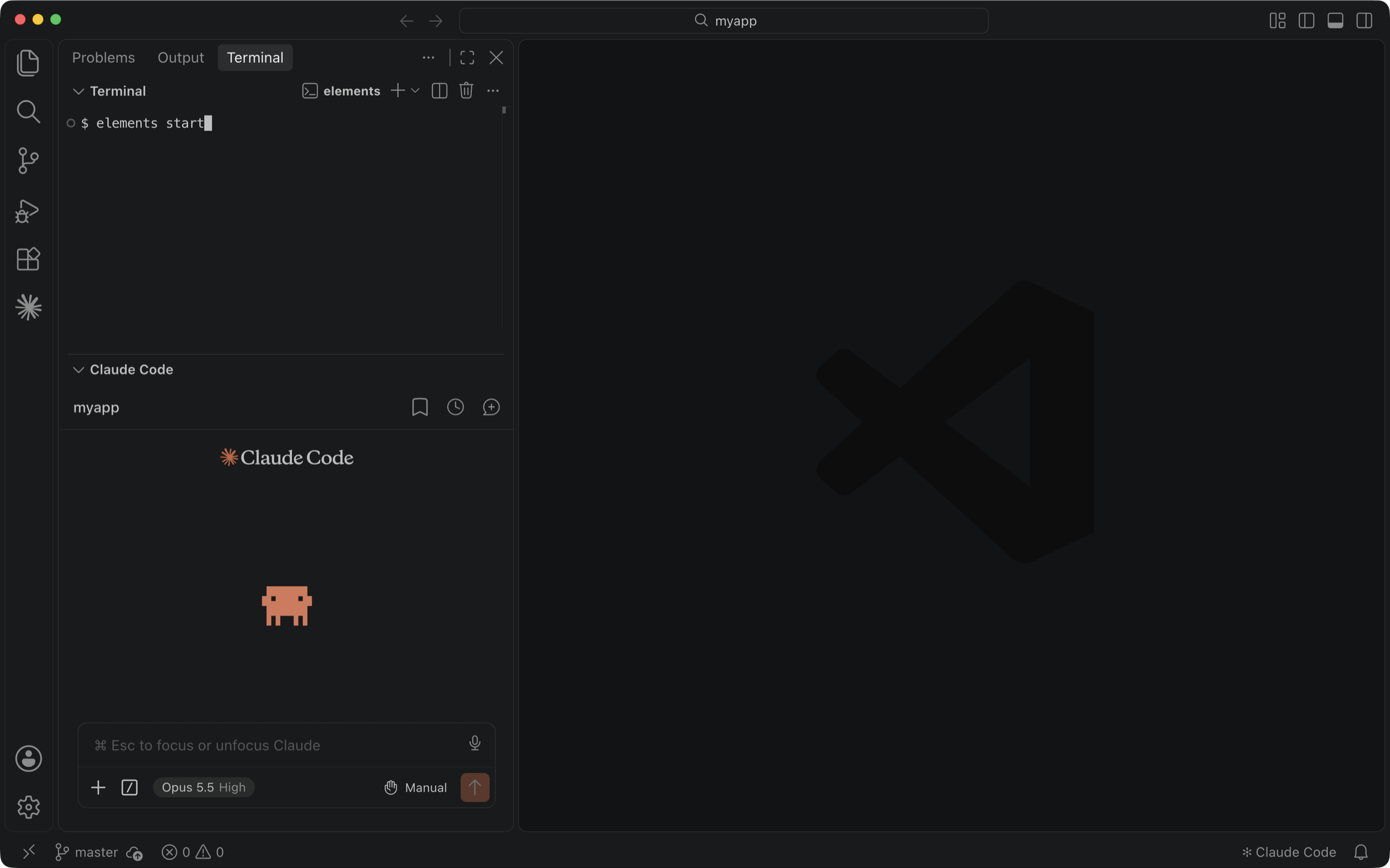
Your app opens in VS Code's browser, next to the terminal and Claude Code.
New to Elements? Read the getting started guide.