A shared whiteboard with live cursors, built by Claude Code on Elements
Sticky notes, pen, shapes and arrows on shared boards, with named live cursors, real-time edits and per-person undo.
How it's built
Sketchmoor needed boards that several people draw on at once, named cursors that follow each person's pointer, strokes that appear as they are drawn, undo for each person and accounts with shared links. Each of those is a part of Elements, so the agent spent its 22 minutes on the whiteboard itself.
- Shapes that sync. Shapes are a LiveTable, one view per board. Notes, pen strokes, rectangles, arrows and text are rows, and the board adds and moves them straight through the view, so every open copy updates as each edit lands.
- Cursors and strokes in flight. A channel carries what is seen but never stored: each person's named cursor, the stroke under their pen and a shape mid-drag. Each browser drops its own echo.
- Undo for each person. Erasing marks a shape as deleted, so it can come back. Each person keeps their own undo and redo steps, applied through the same view.
- Shared by link. Opening a board's link adds the signed-in user to its members, and every edit checks that membership.
- Thumbnails from the data. The board list shows each board drawn as an SVG from its shapes, cached until the next edit.
- Data and sessions from SQL. Migrations define the boards and seed three demo accounts sharing two boards, a sprint retro of sticky notes and an architecture sketch. Each person signs in with a session.
Why Elements
Elements is the integrated stack for web apps: a build server and tooling, an app framework, a Postgres database and deployment, engineered as one system. Your editor, tools and one or many agents all connect to the same always-on build server, which runs type checking, program analysis, migrations and tests as the agent builds. Built-in guardrails keep the app structured correctly and secure as it grows from prototype to production.
Run it yourself
Install Elements
Copy the install command.
curl -fsSL https://elements.dev/install | shOpen a terminal in VS Code: choose Terminal › New Terminal from the menu bar at the top of your screen.
Copy and paste the command into the terminal and press Enter.
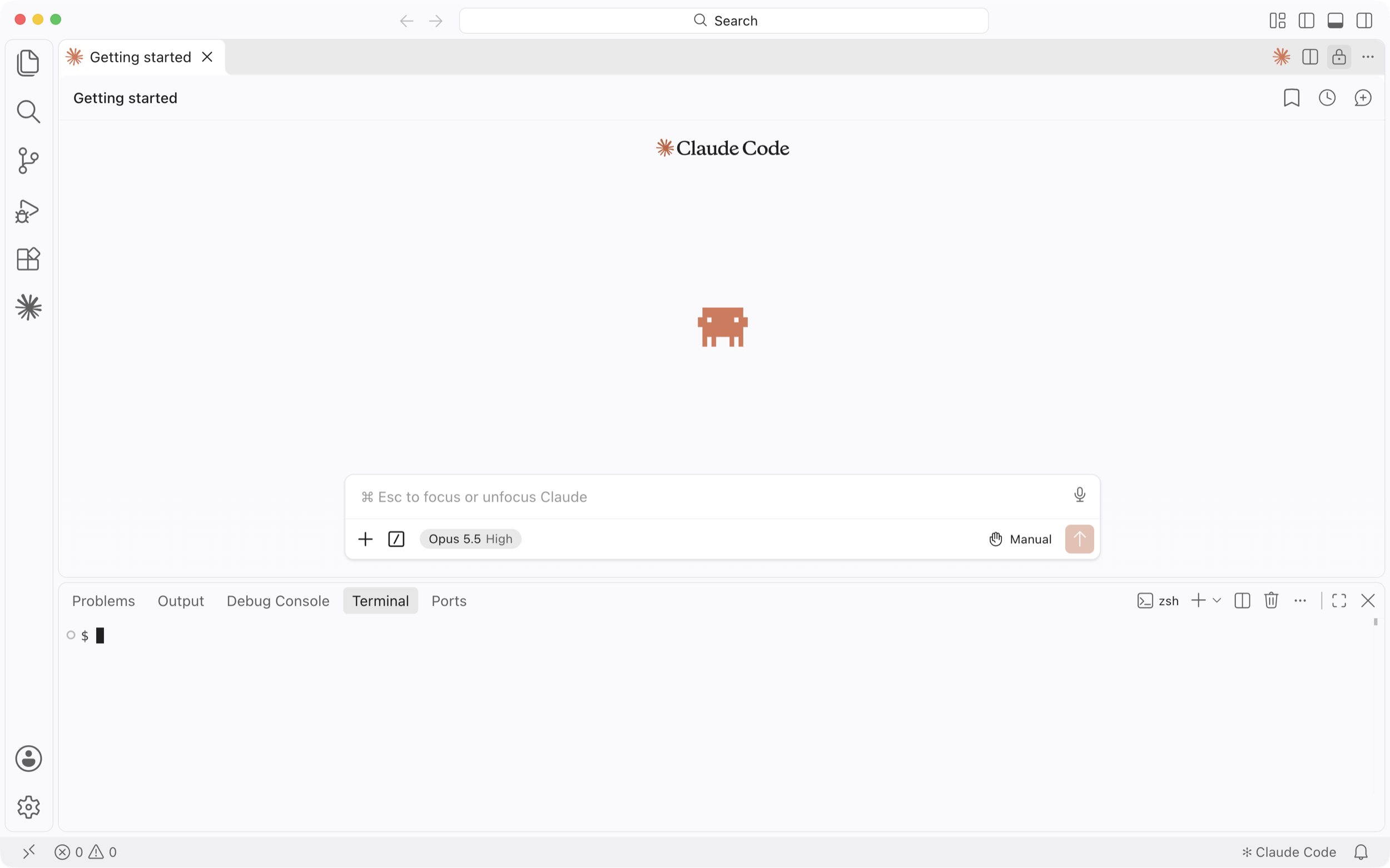
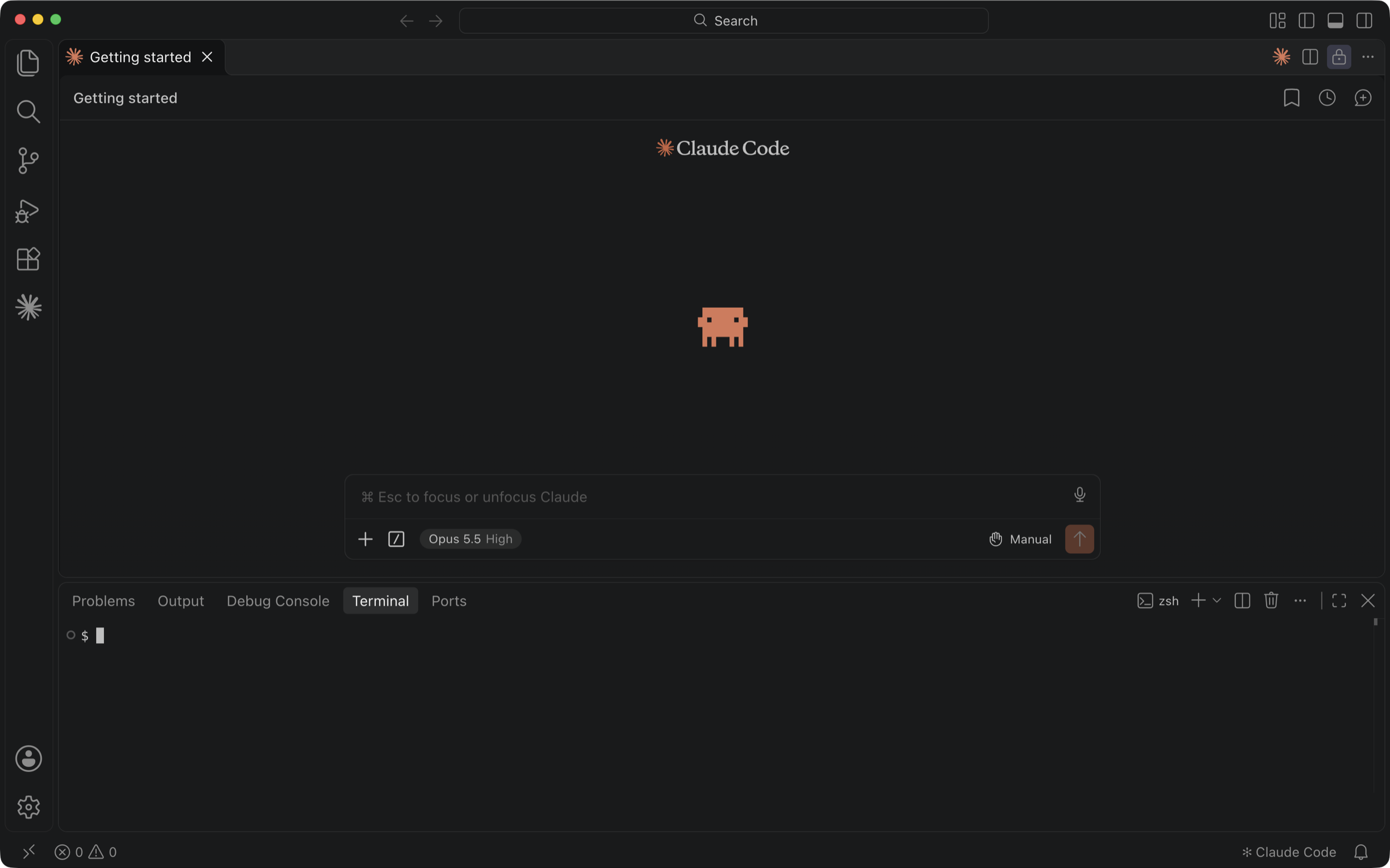 curl -fsSL https://elements.dev/install | sh
Create your copy of this app
When the install finishes, press Shift + Command + P to open the command palette.
Type new app, select Elements: New App in the list and press Enter.
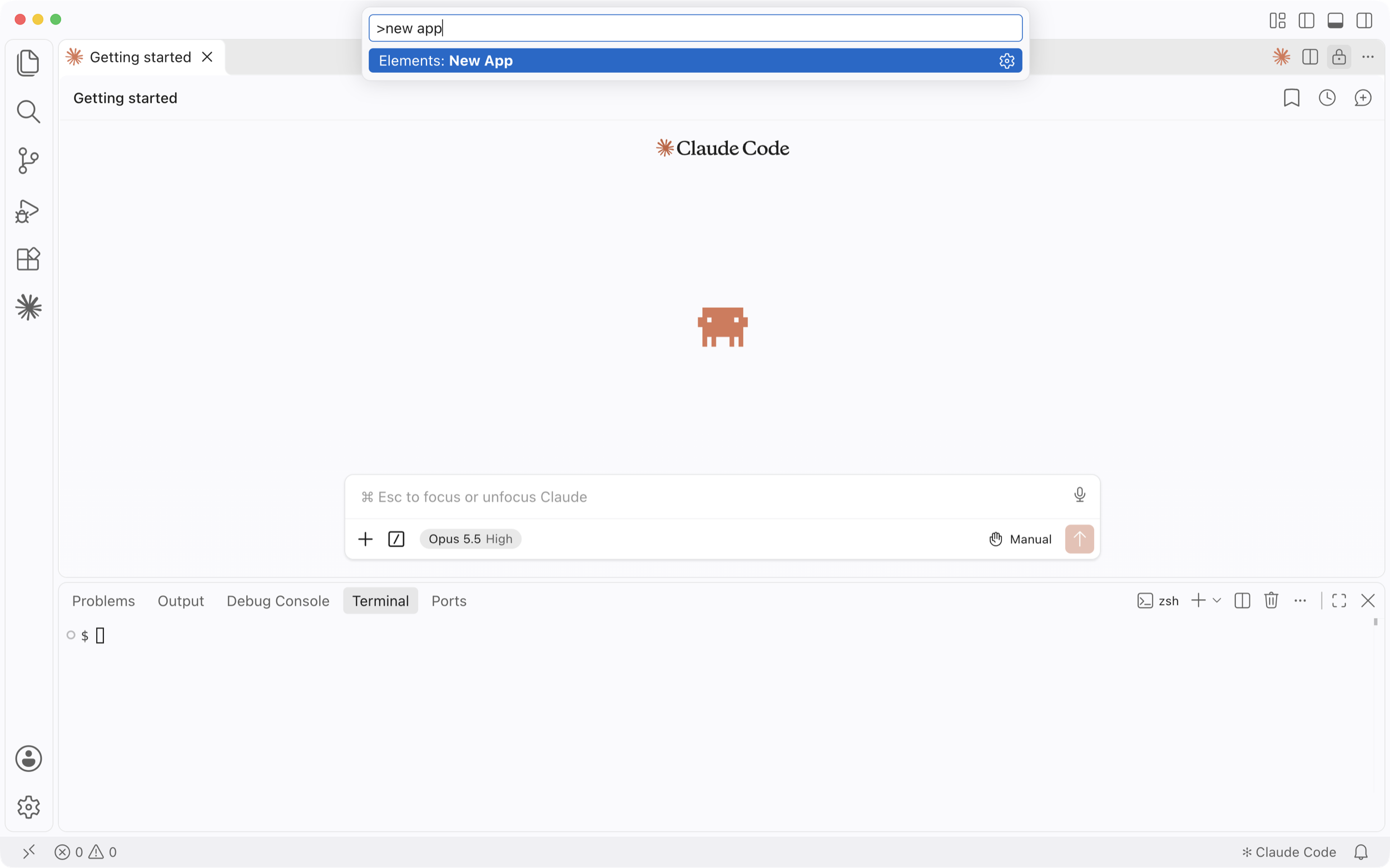
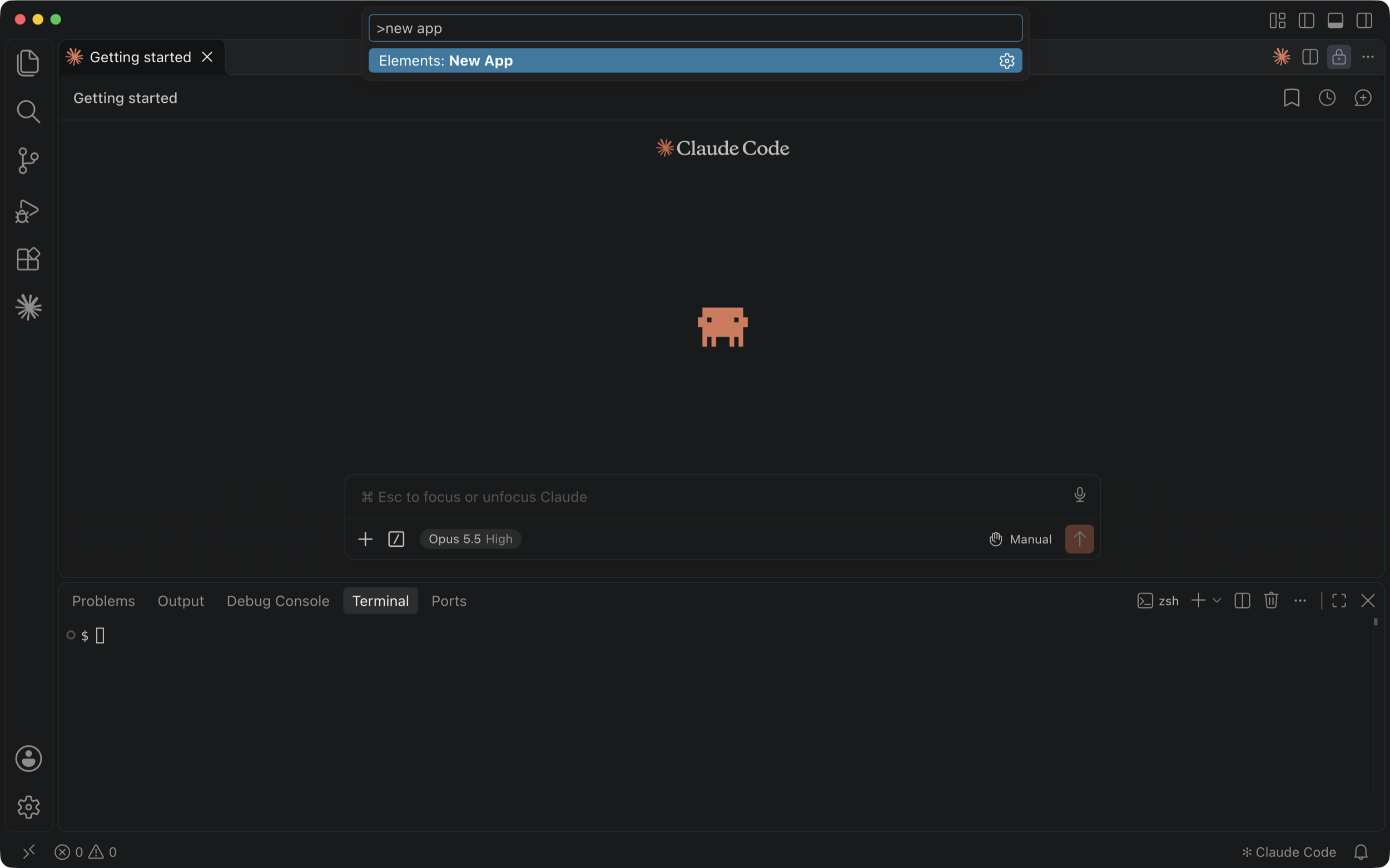
Copy the text.
sketchmoor -scaffold=elementscode/demo-sketchmoor
Paste the text into the Elements: New App name box and press Enter.
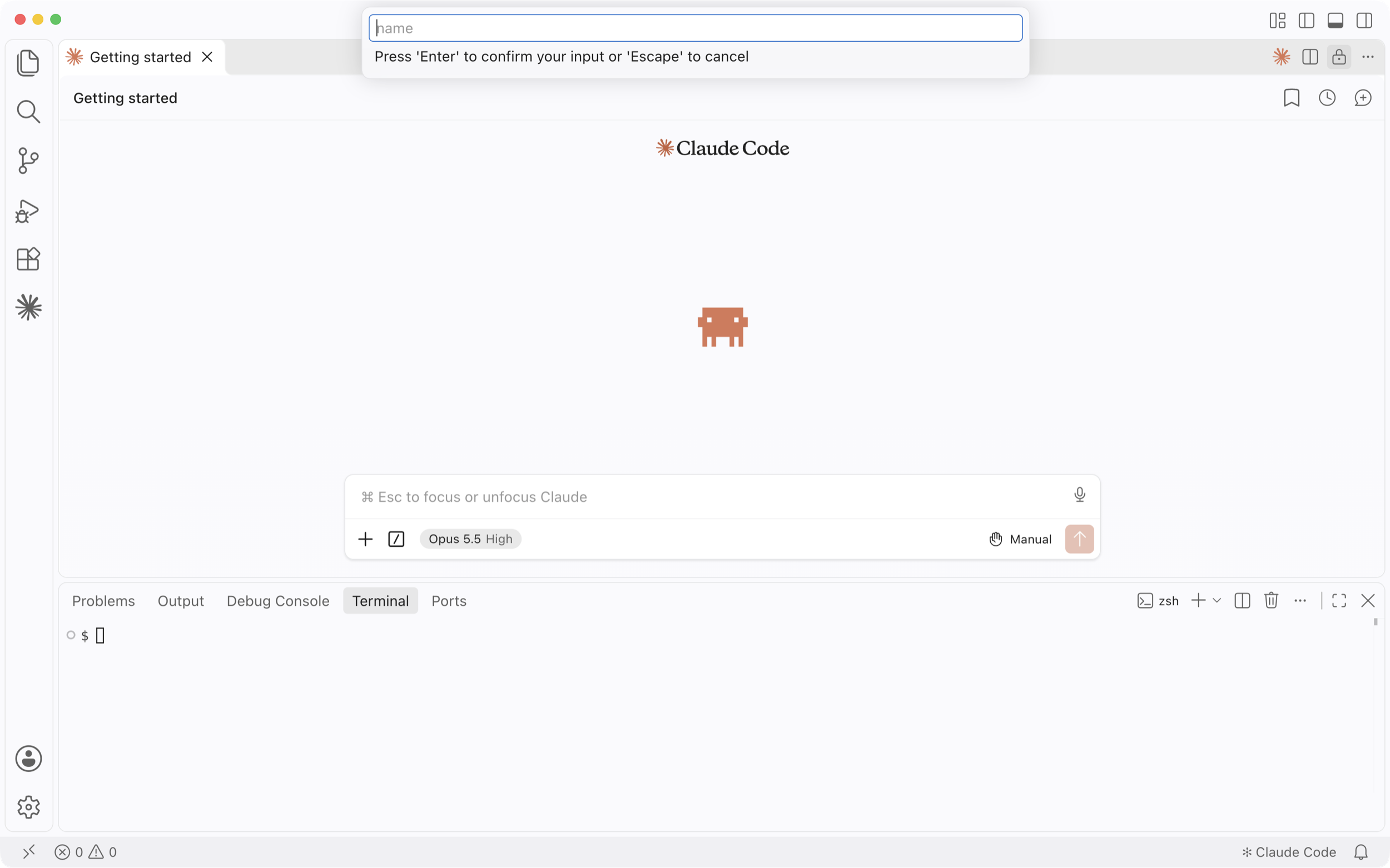
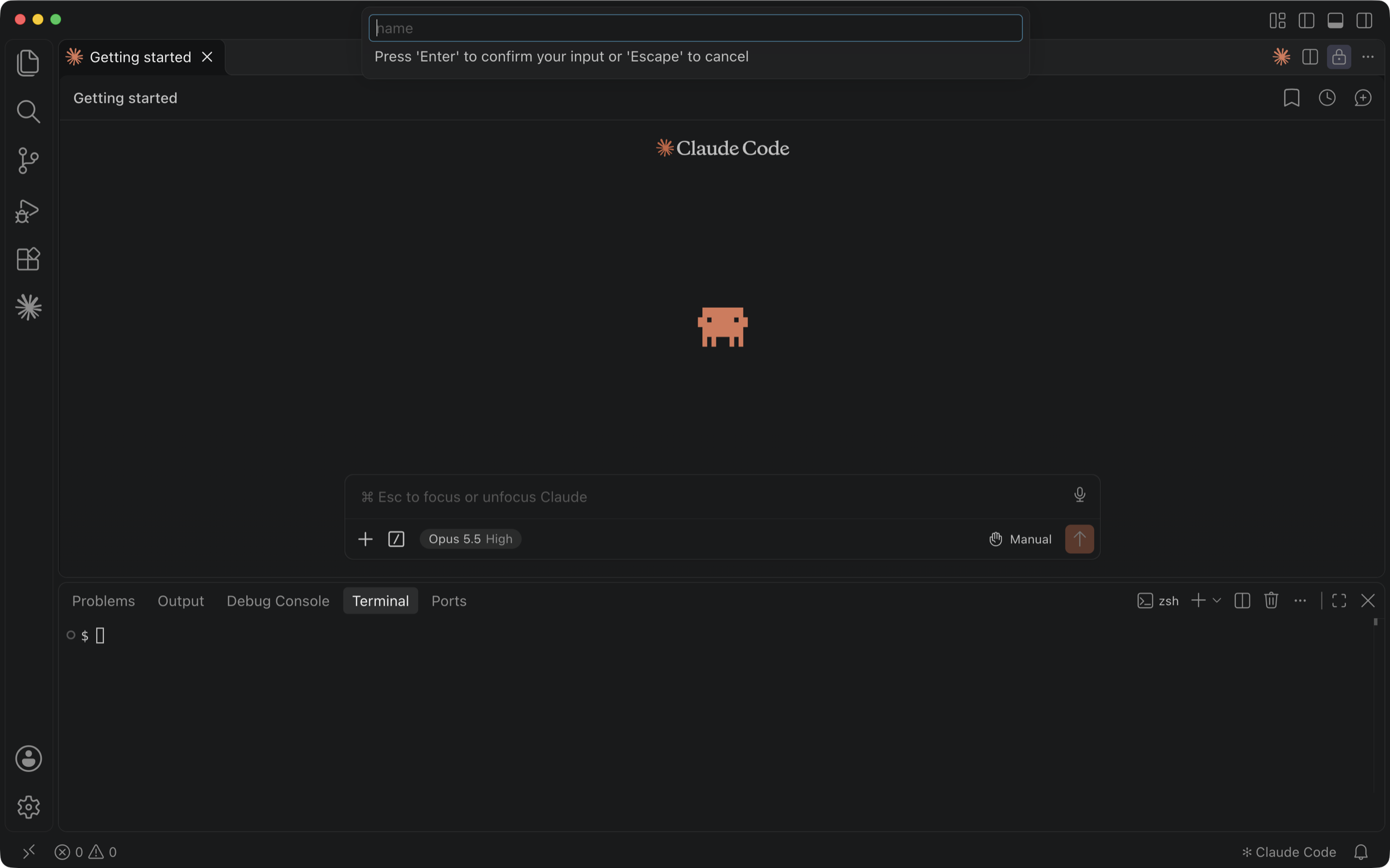 sketchmoor -scaffold=elementscode/demo-sketchmoor
Your copy of this app opens in VS Code with a terminal and Claude Code on the left.
Start your app
Copy the command.
elements startPaste the command into the terminal and press Enter.
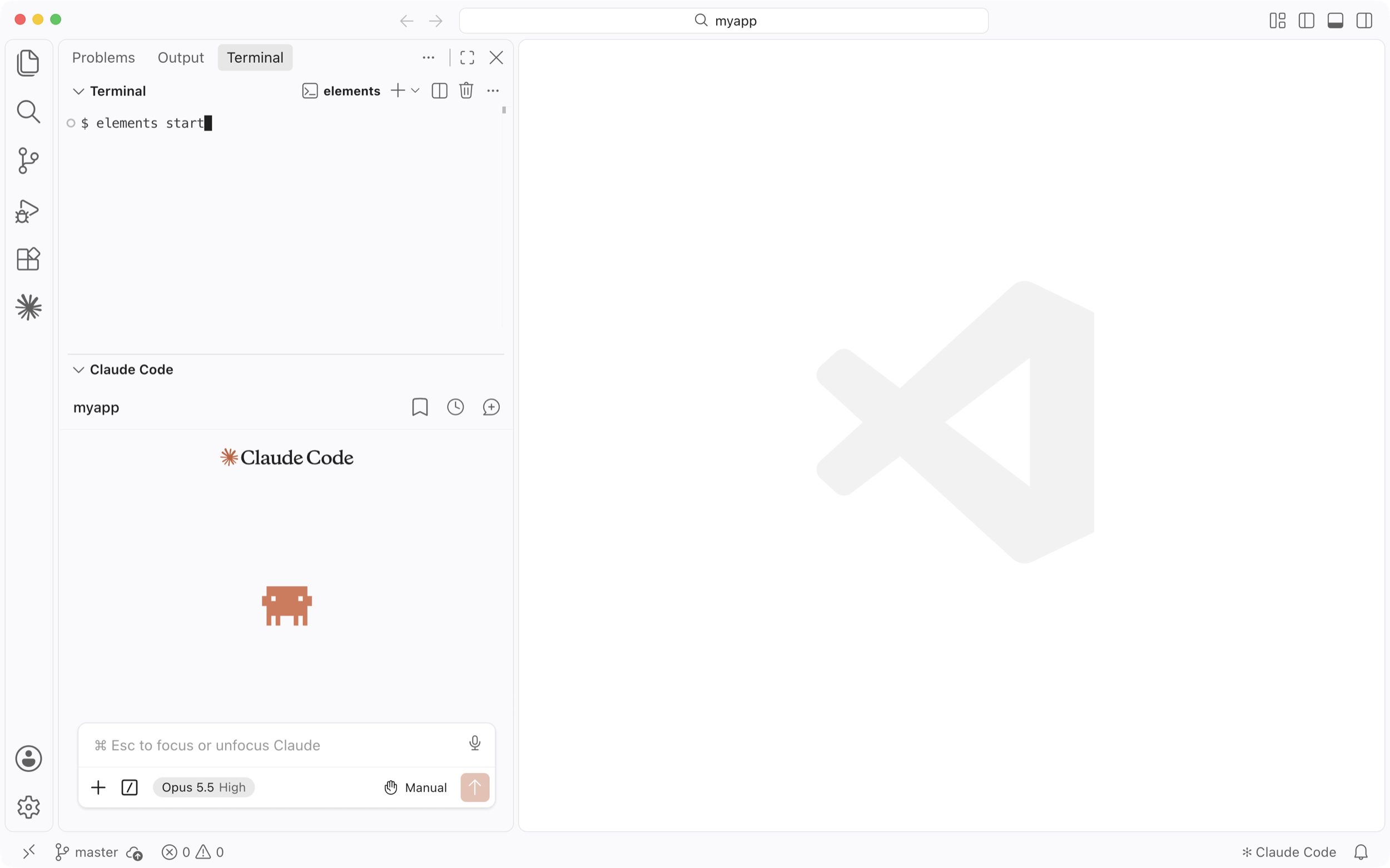
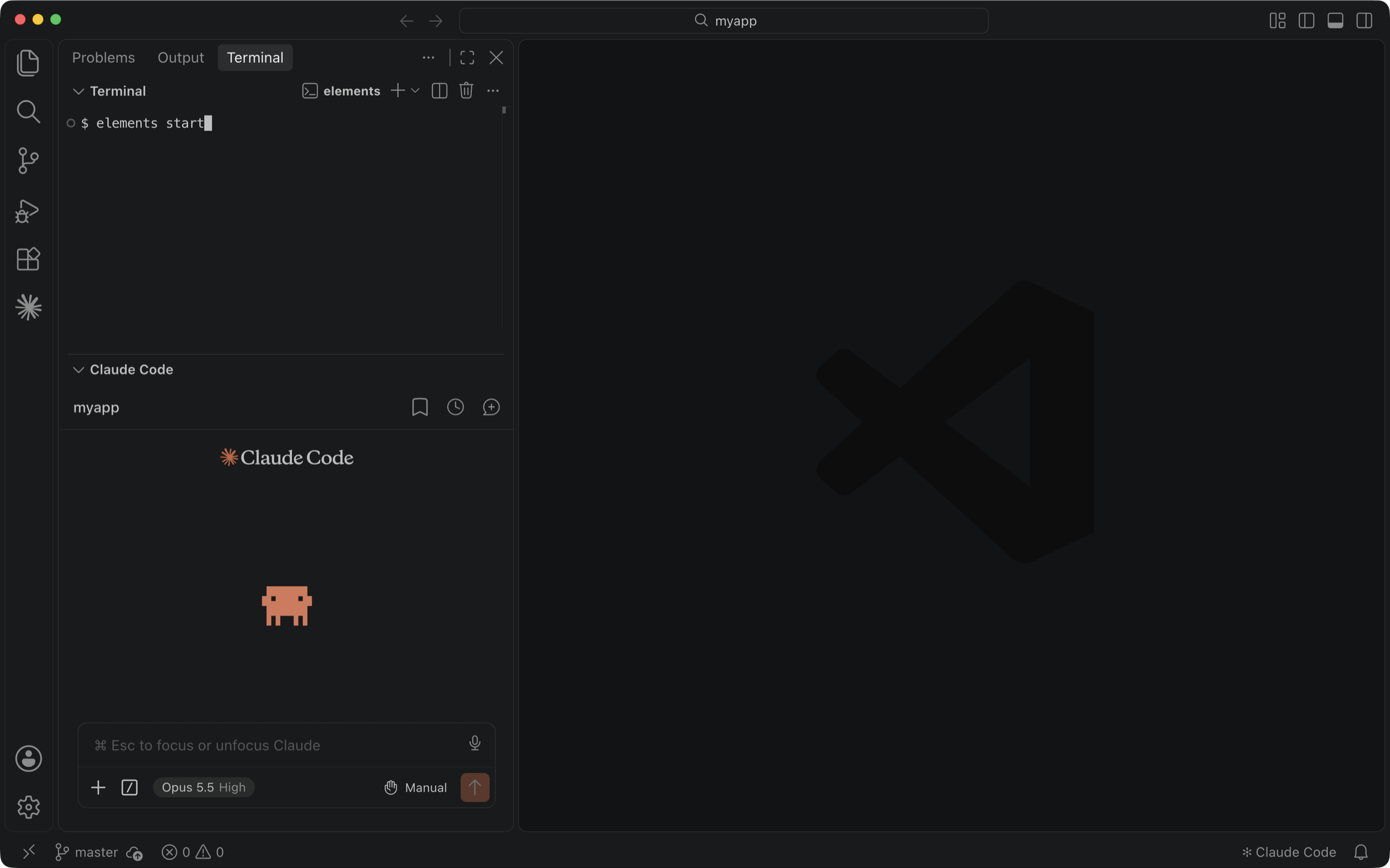
Your app opens in VS Code's browser, next to the terminal and Claude Code.
New to Elements? Read the getting started guide.