A link aggregator with threaded comments, built by Claude Code on Elements
Links and text posts ranked by votes and age, newest and top pages, threaded comments, karma and reply emails, all live.
How it's built
Upvotehall needed votes that move scores on every open page, a front page ranked by votes and age, live threaded comments, and an email when someone replies. Each of those is a part of Elements, so the agent spent its 16 minutes on the community itself.
- Live posts and scores. Posts are a LiveTable opened by rank for the front page, by time for newest and by author for profiles, 25 at a time. Database triggers keep each post's score and comment count, and a notify trigger carries every change to the open lists.
- Votes through a view. Votes are LiveTables opened for the signed-in reader, so a vote is an insert or delete through the view, with the voter set from the session.
- Live threads. Comments are a LiveTable opened per post. A new comment appears in every open copy of the thread and schedules its reply email in the same transaction.
- Ranking on a schedule. A SQL function scores each post by votes and age, and one cron line runs a job every five minutes that re-ranks the last two weeks, so the front page keeps moving.
- Reply emails and karma. A background job emails the author of the parent comment or post. A profile's karma counts the votes other people gave that user's posts and comments.
- Data from SQL files. Two migrations define the schema and its triggers, then seed eight users, thirty posts over the last four days, votes, and comment threads several levels deep.
Why Elements
Elements is the integrated stack for web apps: a build server and tooling, an app framework, a Postgres database and deployment, engineered as one system. Your editor, tools and one or many agents all connect to the same always-on build server, which runs type checking, program analysis, migrations and tests as the agent builds. Built-in guardrails keep the app structured correctly and secure as it grows from prototype to production.
Run it yourself
Install Elements
Copy the install command.
curl -fsSL https://elements.dev/install | shOpen a terminal in VS Code: choose Terminal › New Terminal from the menu bar at the top of your screen.
Copy and paste the command into the terminal and press Enter.
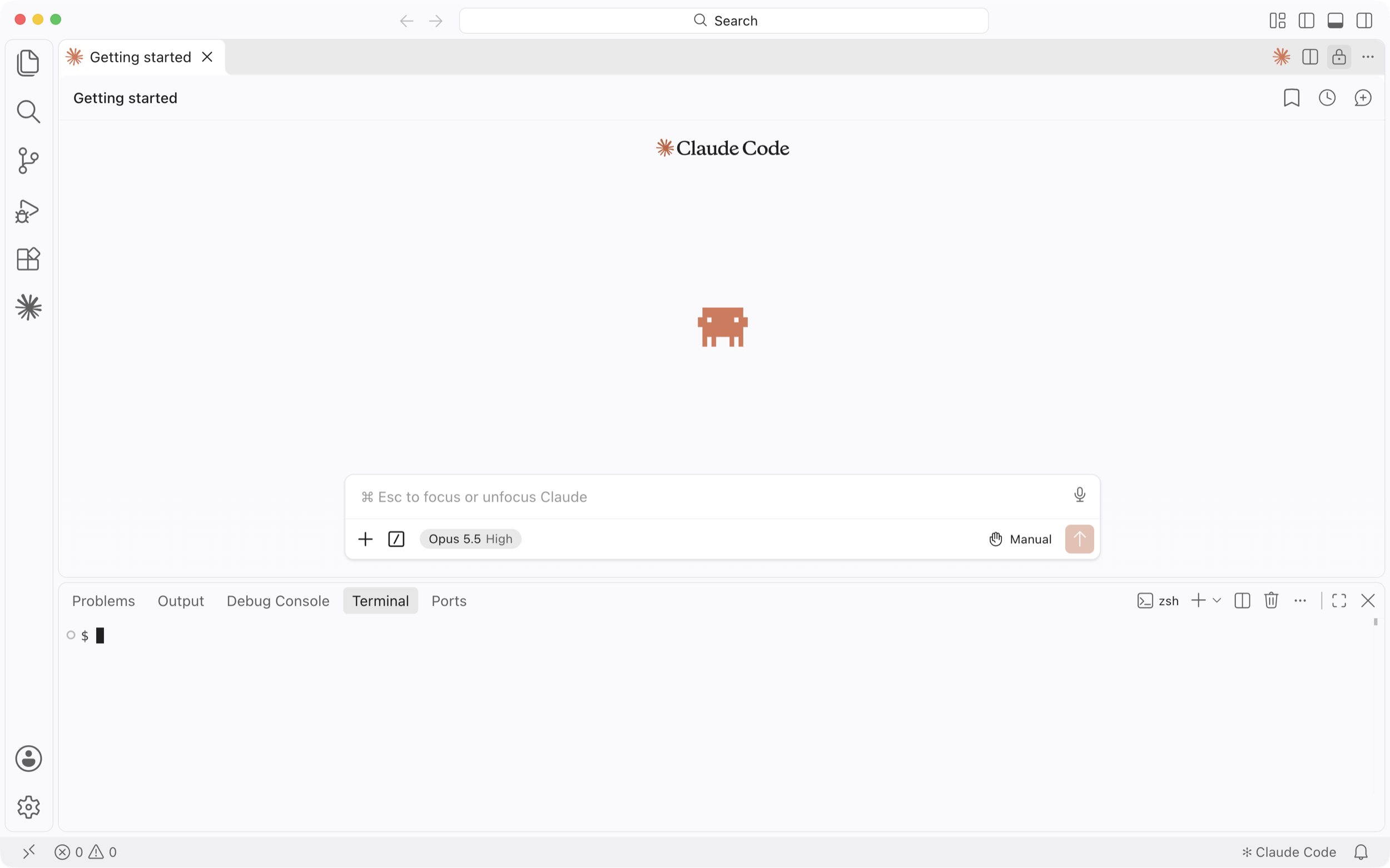
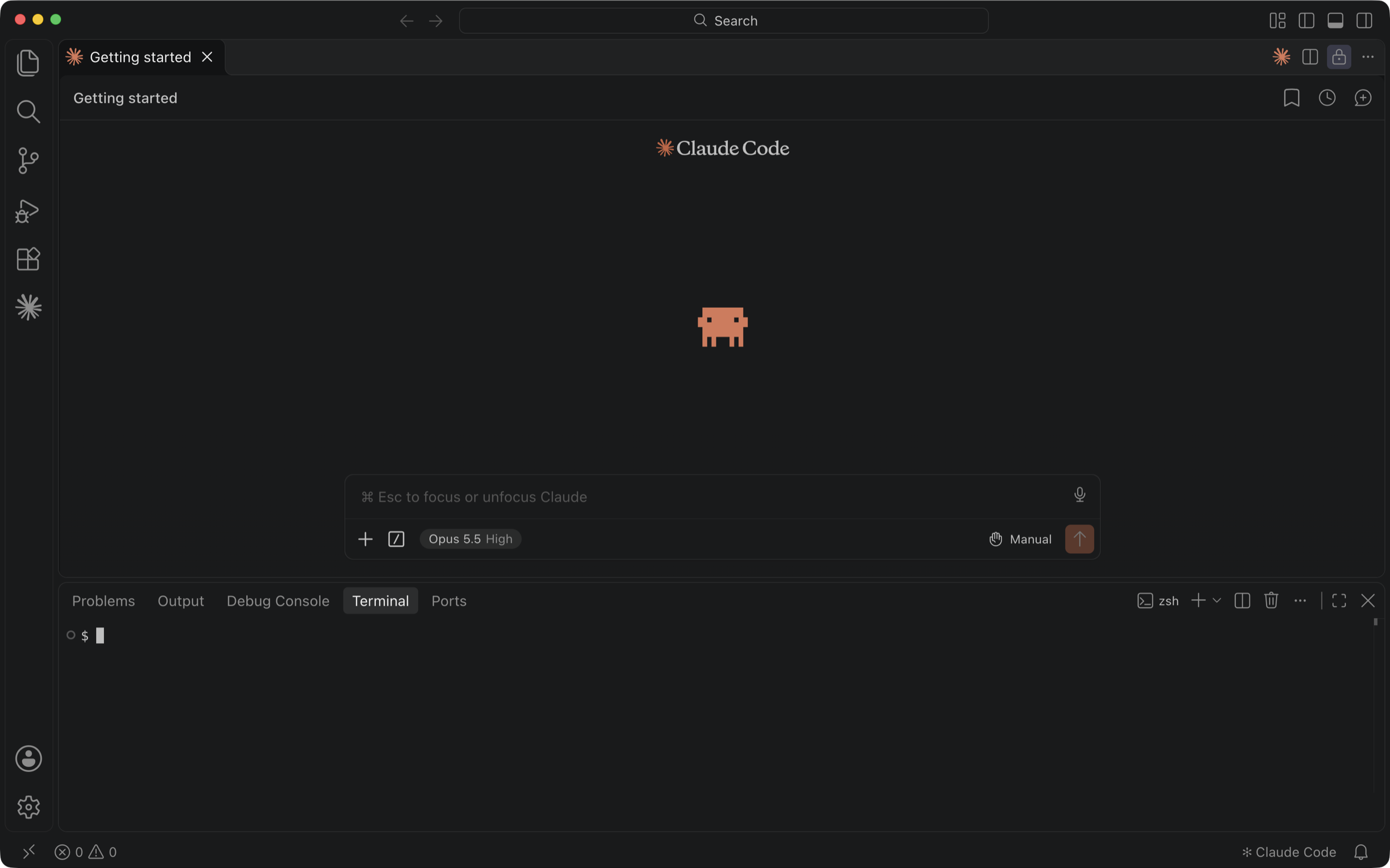 curl -fsSL https://elements.dev/install | sh
Create your copy of this app
When the install finishes, press Shift + Command + P to open the command palette.
Type new app, select Elements: New App in the list and press Enter.
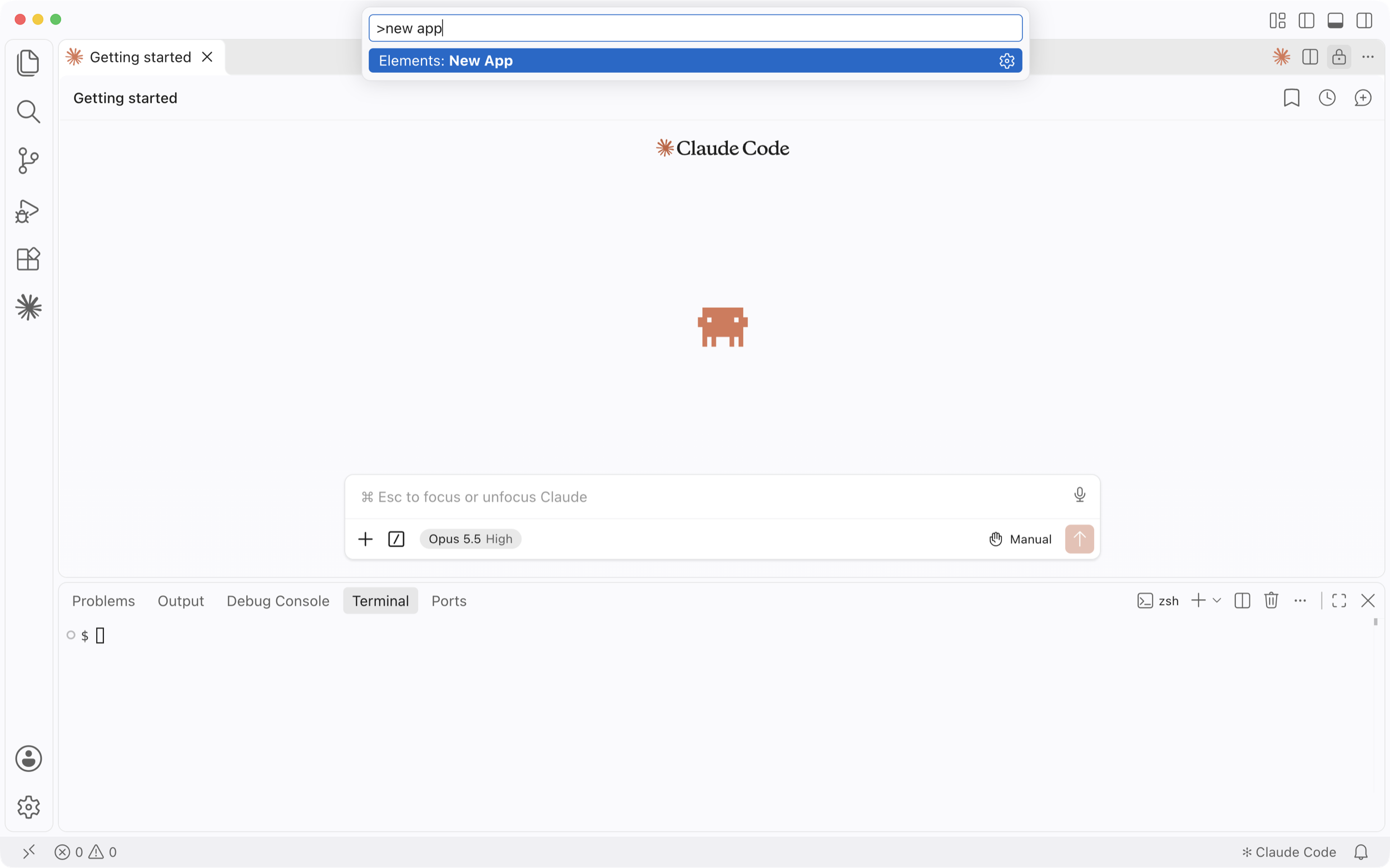
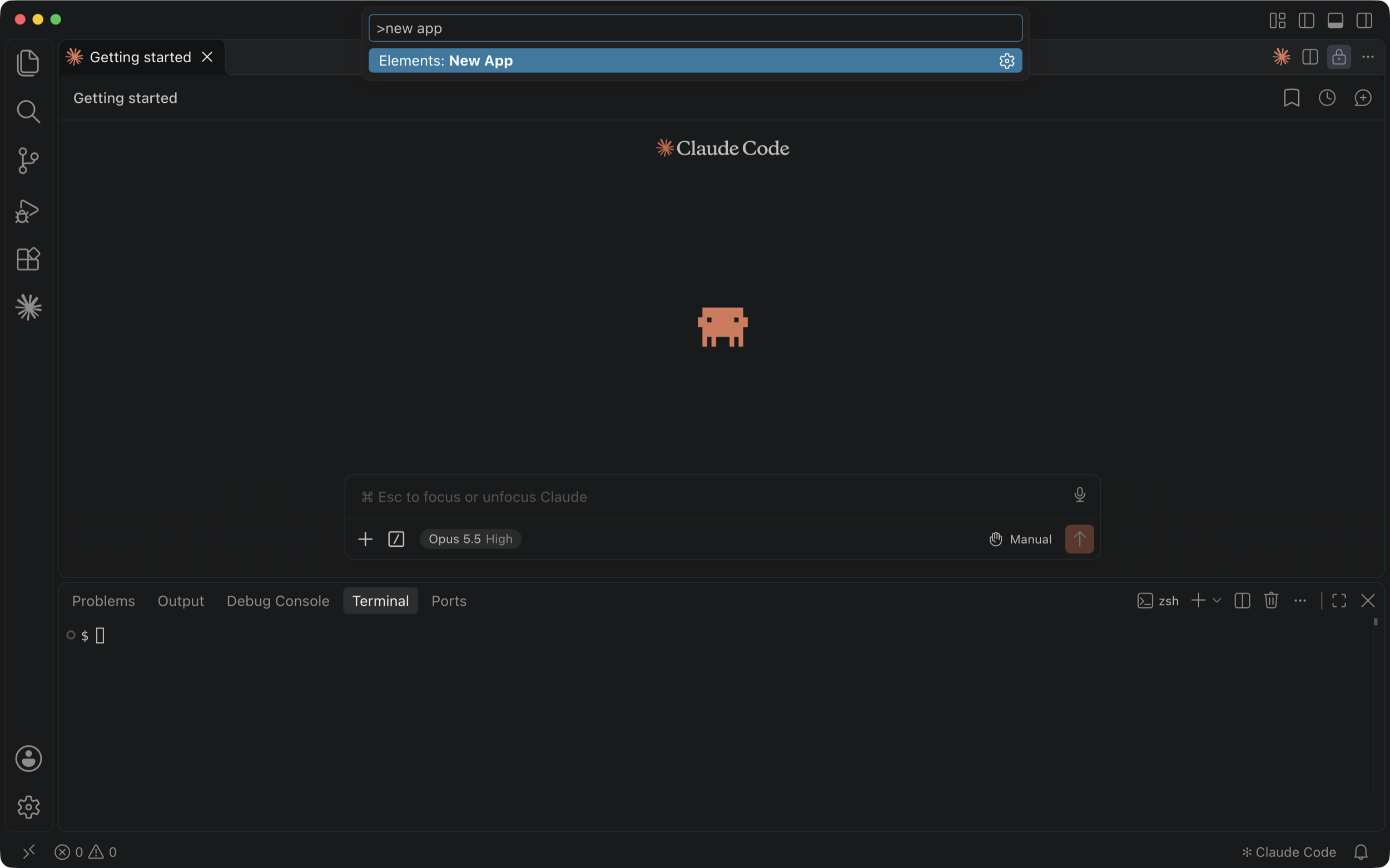
Copy the text.
upvotehall -scaffold=elementscode/demo-upvotehall
Paste the text into the Elements: New App name box and press Enter.
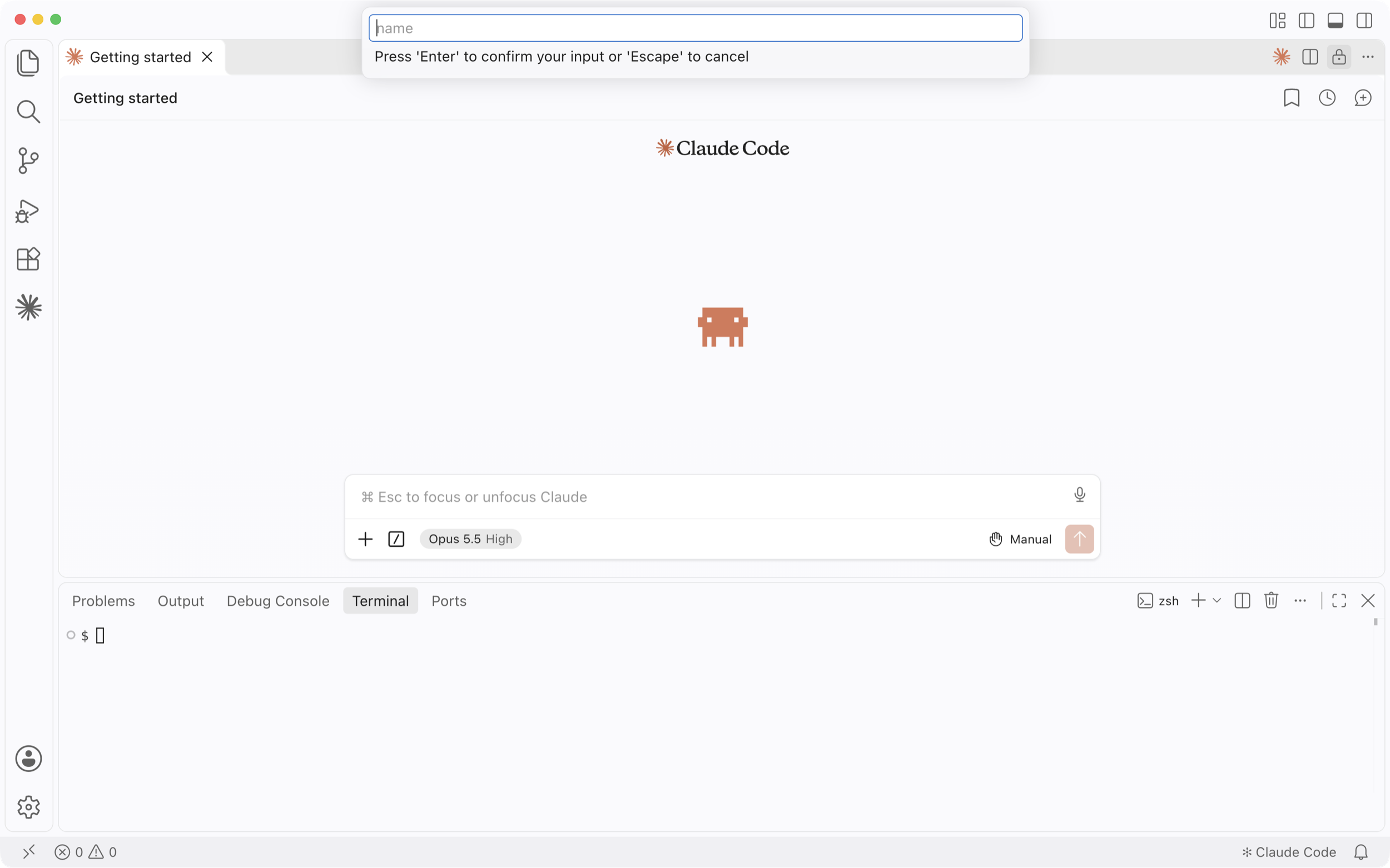
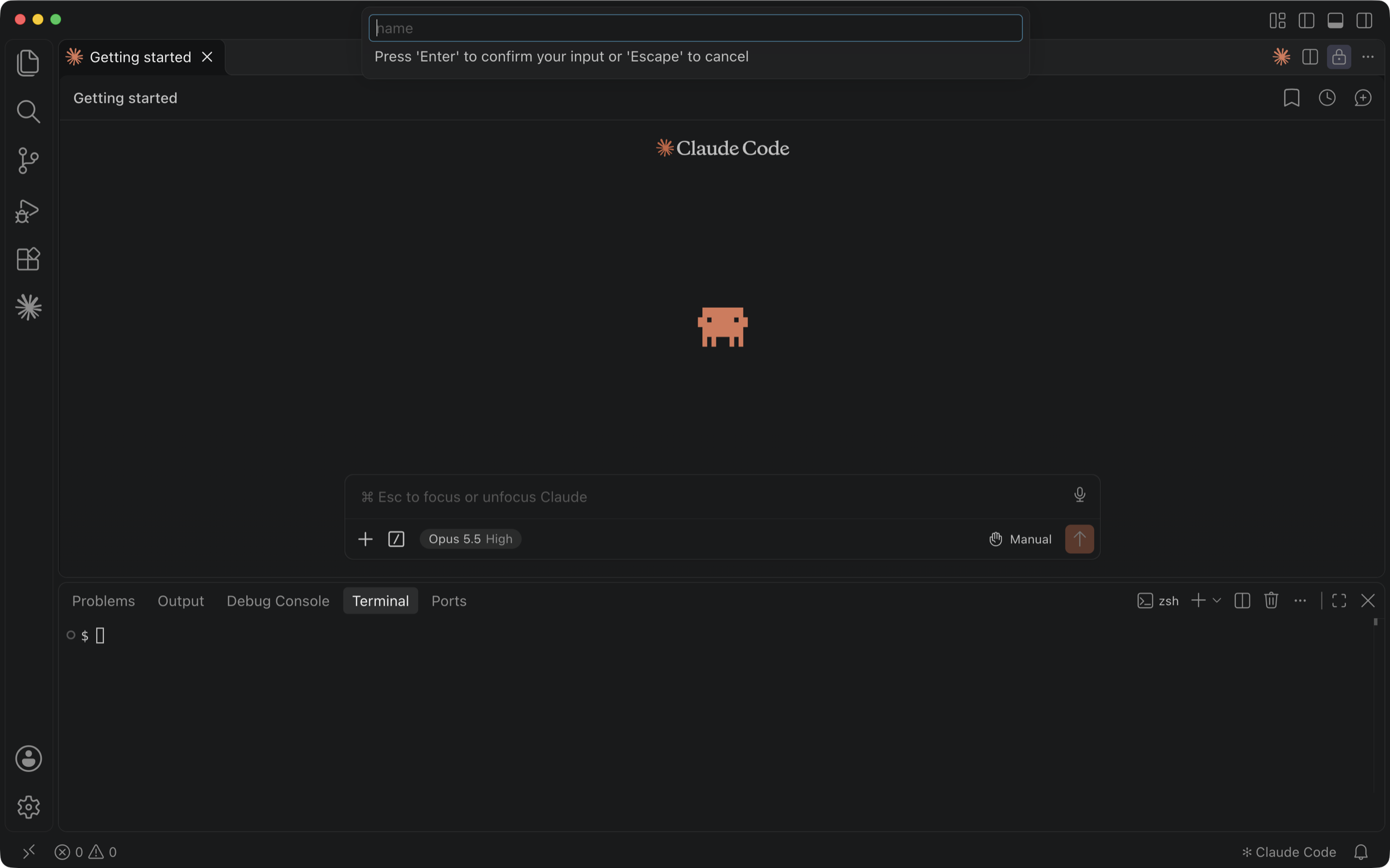 upvotehall -scaffold=elementscode/demo-upvotehall
Your copy of this app opens in VS Code with a terminal and Claude Code on the left.
Start your app
Copy the command.
elements startPaste the command into the terminal and press Enter.
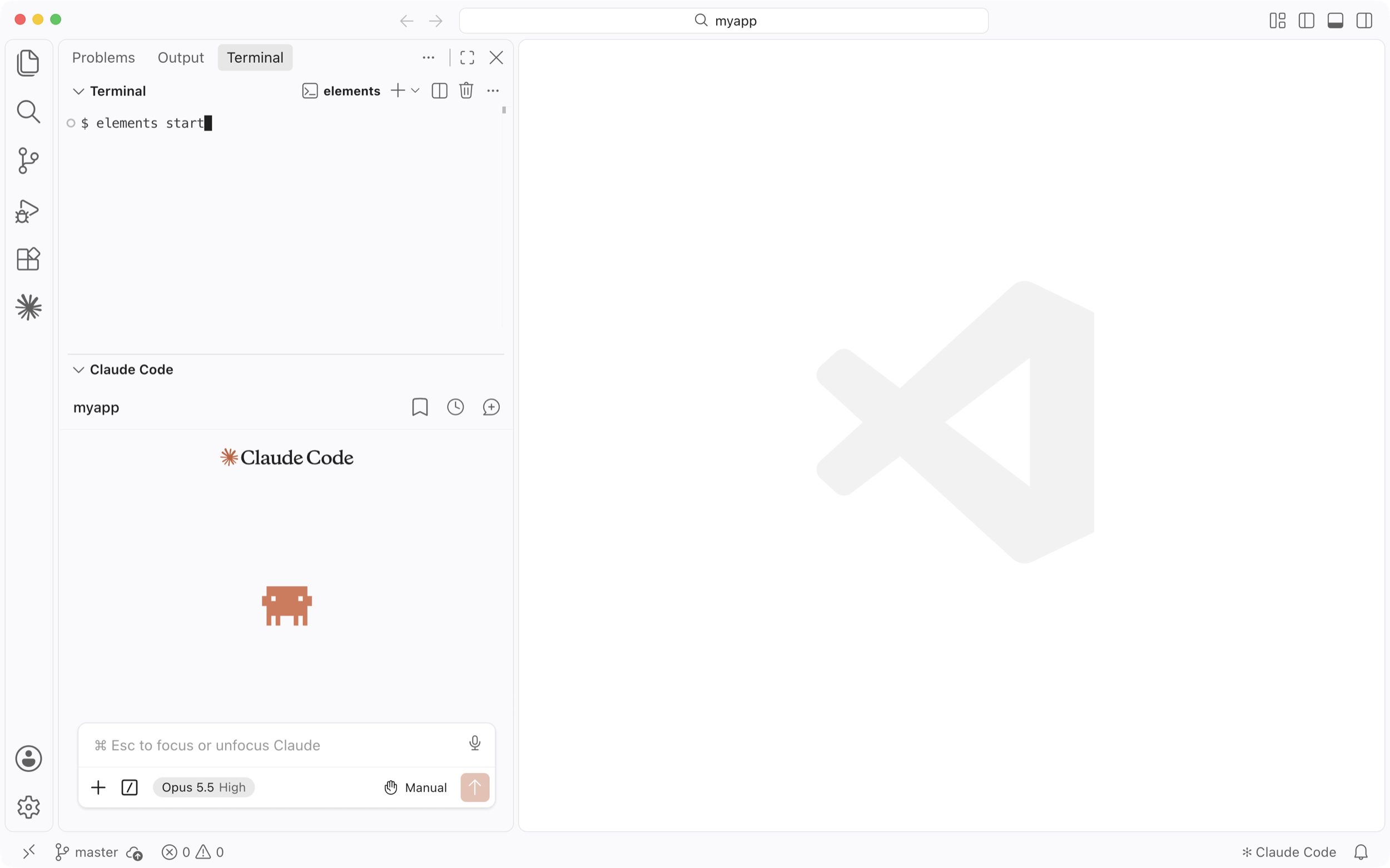
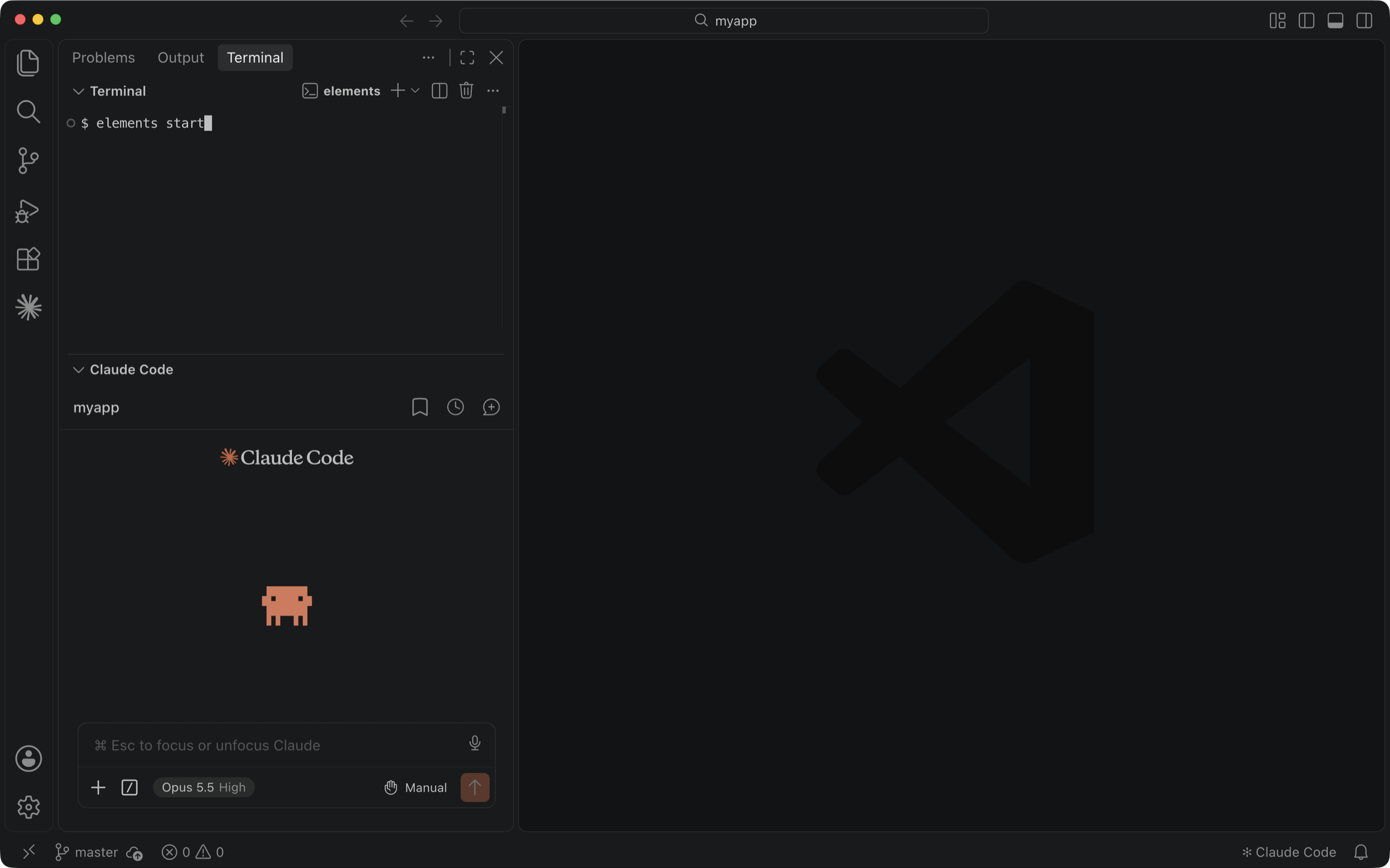
Your app opens in VS Code's browser, next to the terminal and Claude Code.
New to Elements? Read the getting started guide.