A discussion forum with a daily digest, built by Claude Code on Elements
Topics with photos, quoted replies, likes, marked solutions, live topic lists, a daily digest and moderator tools.
How it's built
Threadmoor needed topic lists that update as people post, replies that land on every open copy of a thread, image uploads, a daily email digest and moderator controls. Each of those is a part of Elements, so the agent spent its 30 minutes on the forum itself.
- Live topic lists. Topics are a LiveTable opened on the front page, per category, on the unanswered tab and on the pinned strip, 25 at a time. A database trigger announces each new topic and fresh reply, so every open list moves as the forum does.
- Live threads. Posts and likes are LiveTables. A reply, with its quote, appears on every open copy of the topic, and marking a solution or hiding a post updates every screen, the previous solution included.
- Moderation as function calls. Moderators pin, lock and move topics with
@rpcfunctions, each checked against the signed-in user's role. - Image uploads. The editor uploads photos through an rpc that returns the markdown to embed them, and a route serves each image under its content hash.
- A daily digest. One cron line runs a job each morning that queues an email for every member with new replies in the topics they follow, one job per member so each retries on its own.
- Data from SQL files. Three migrations define the forum, add four categories with solutions turned on for Help, and seed nine members, thirty topics, replies, likes, avatars and woodworking photos.
Why Elements
Elements is the integrated stack for web apps: a build server and tooling, an app framework, a Postgres database and deployment, engineered as one system. Your editor, tools and one or many agents all connect to the same always-on build server, which runs type checking, program analysis, migrations and tests as the agent builds. Built-in guardrails keep the app structured correctly and secure as it grows from prototype to production.
Run it yourself
Install Elements
Copy the install command.
curl -fsSL https://elements.dev/install | shOpen a terminal in VS Code: choose Terminal › New Terminal from the menu bar at the top of your screen.
Copy and paste the command into the terminal and press Enter.
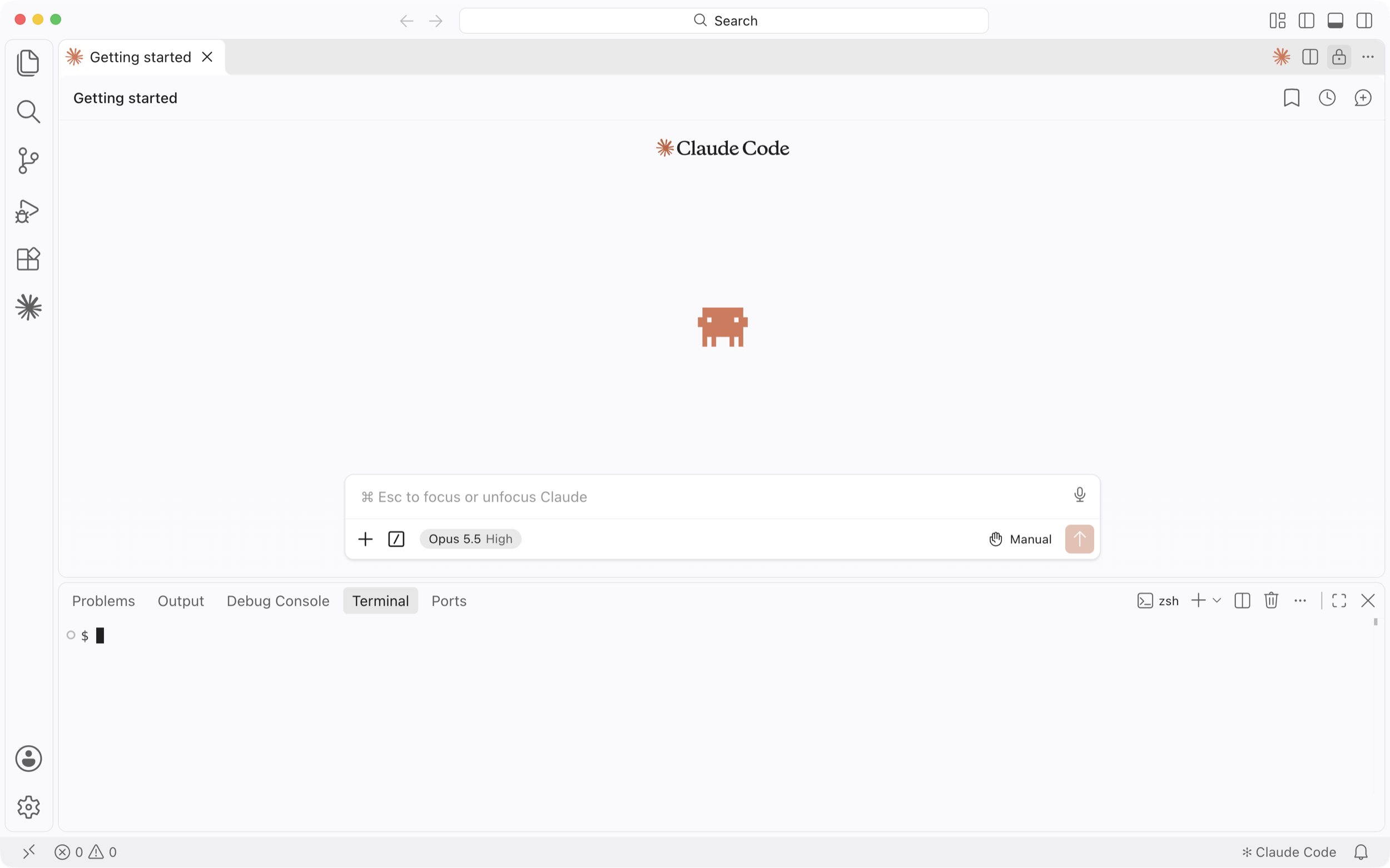
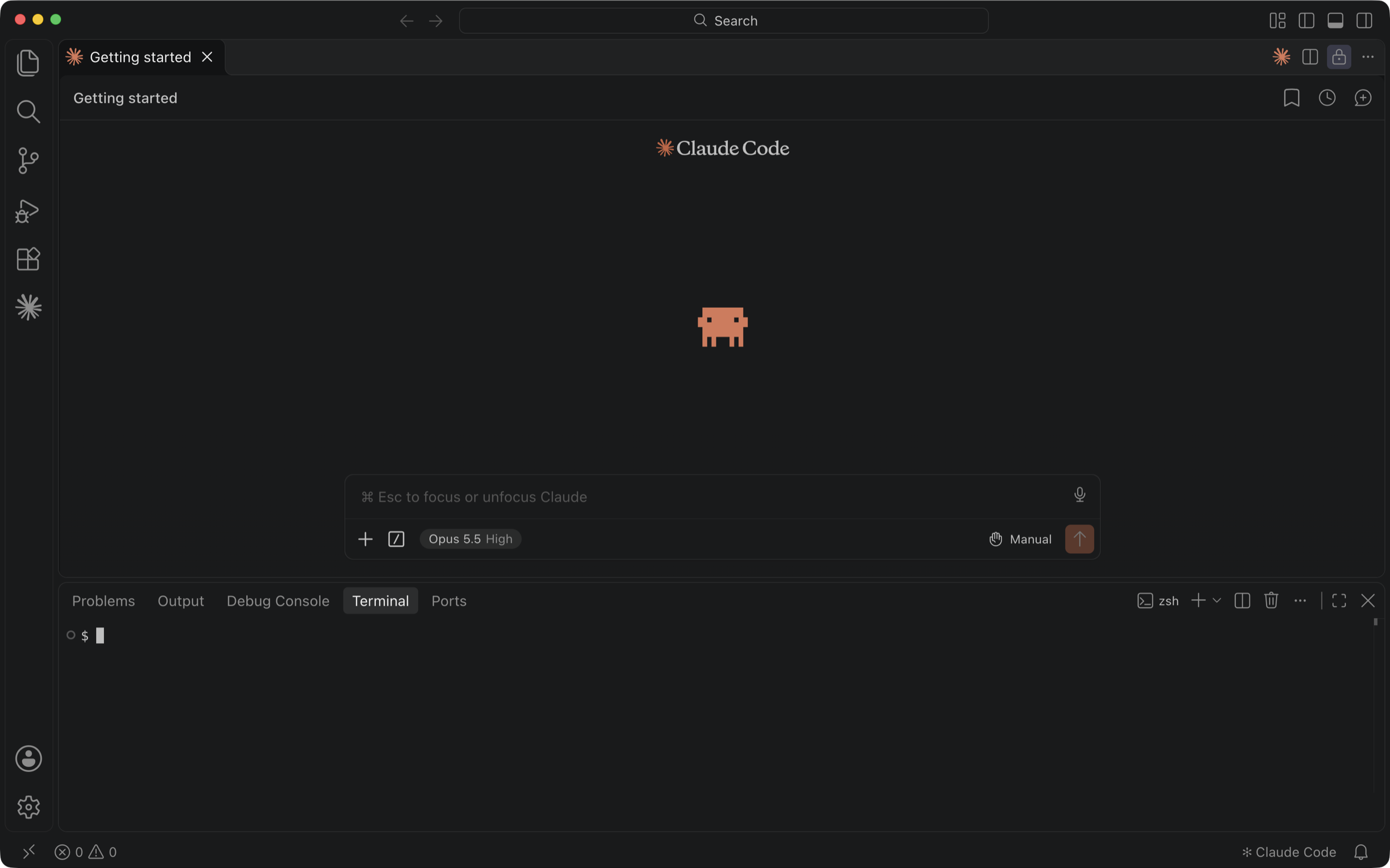 curl -fsSL https://elements.dev/install | sh
Create your copy of this app
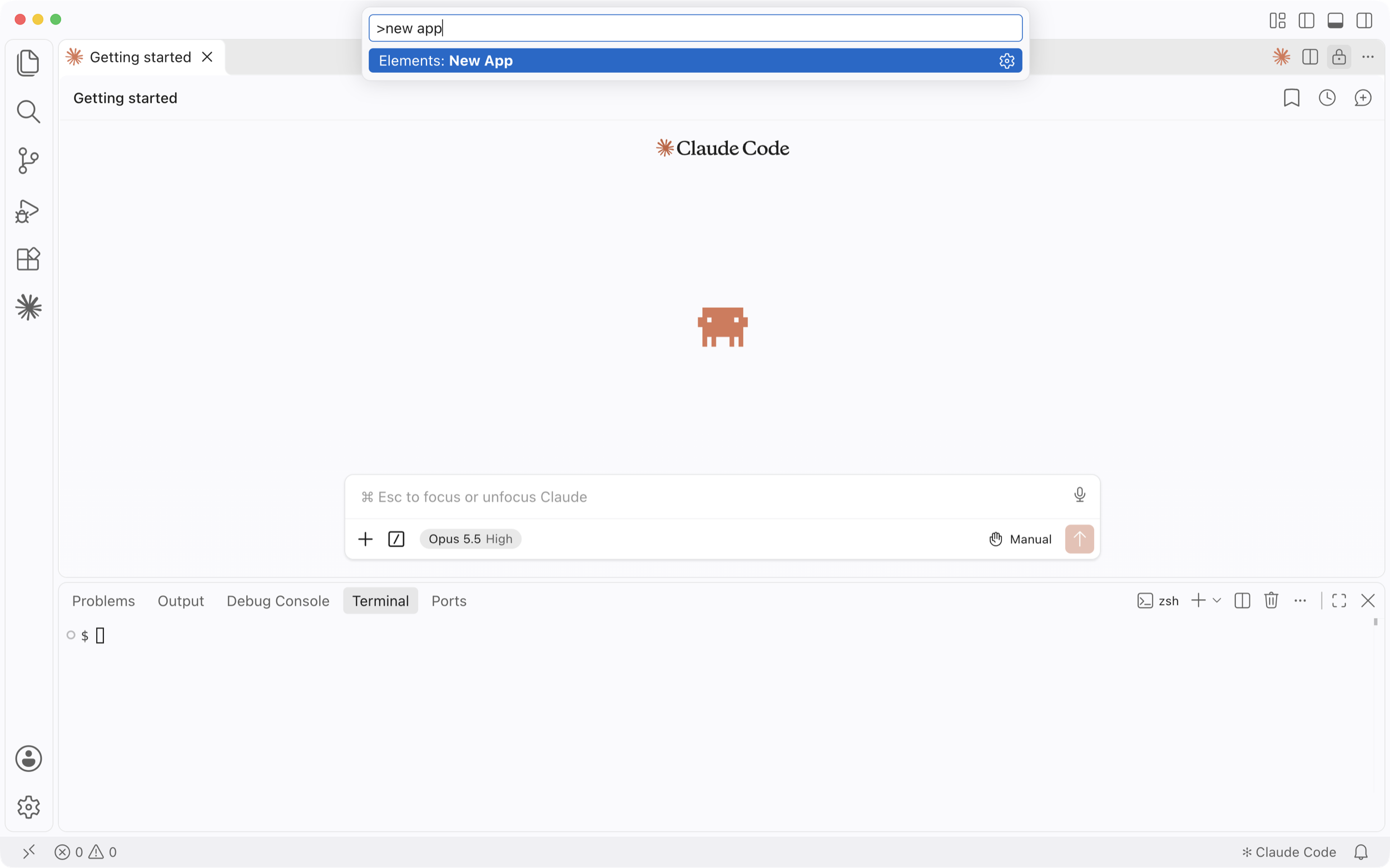
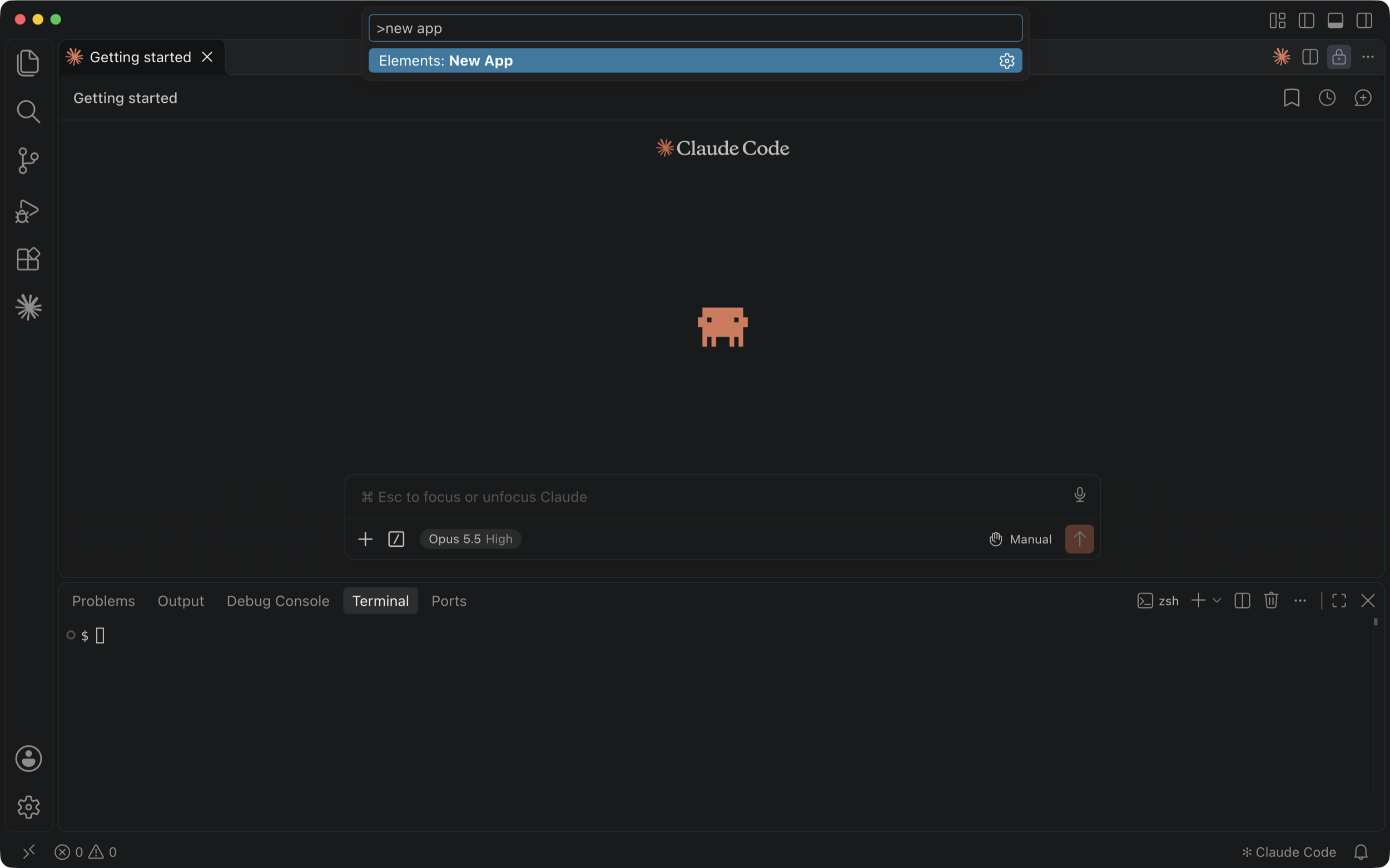
When the install finishes, press Shift + Command + P to open the command palette.
Type new app, select Elements: New App in the list and press Enter.
Copy the text.
threadmoor -scaffold=elementscode/demo-threadmoor
Paste the text into the Elements: New App name box and press Enter.
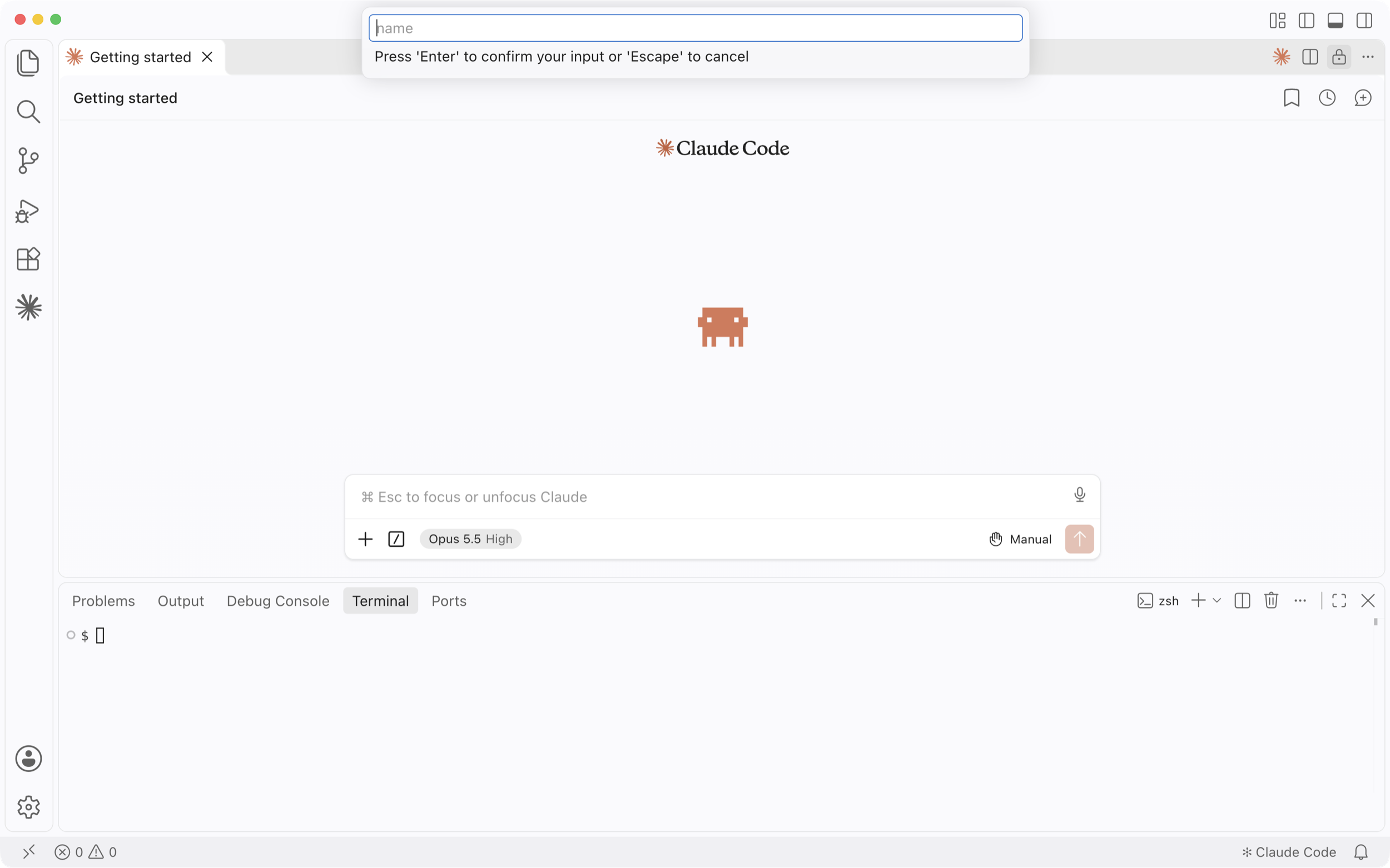
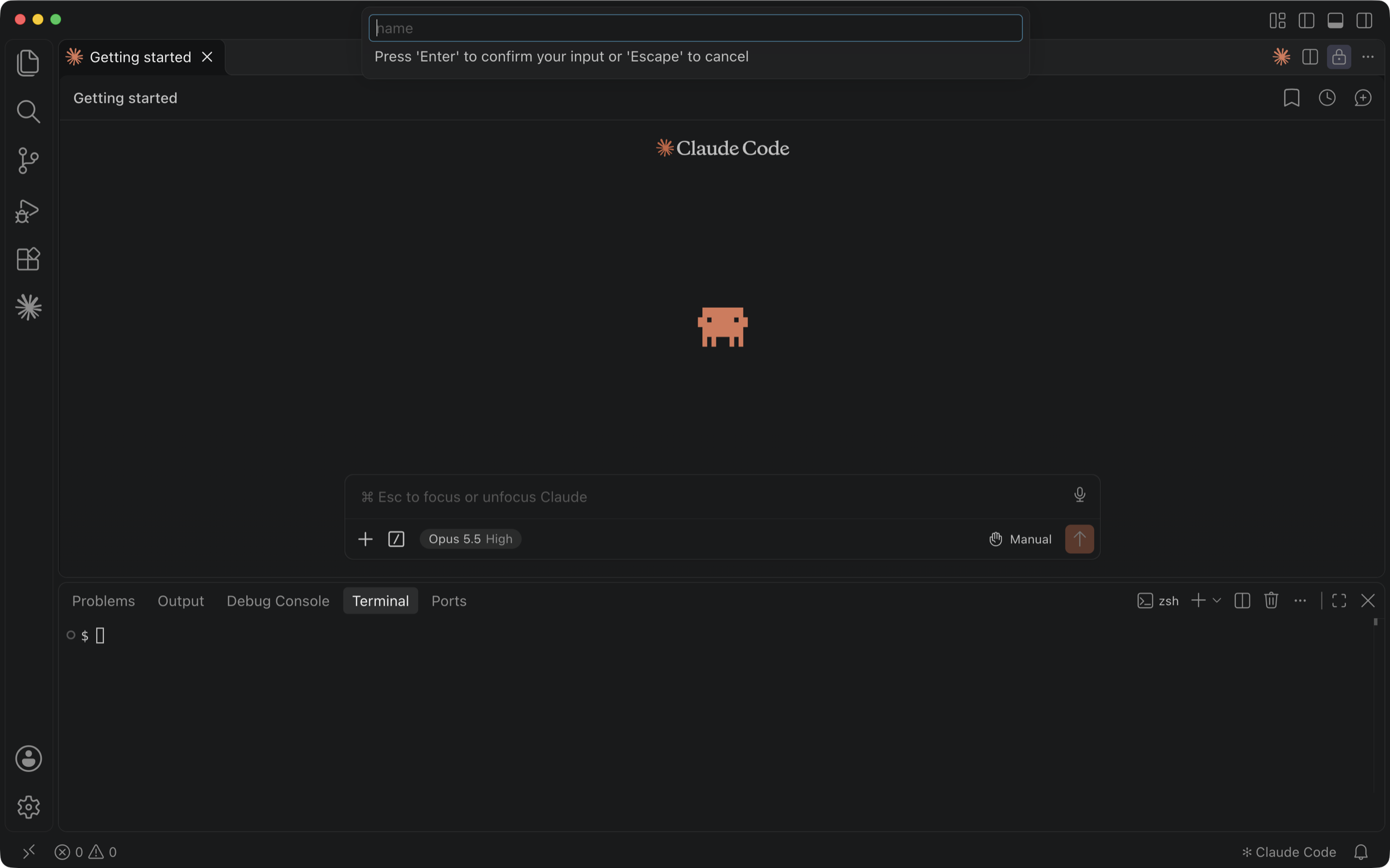 threadmoor -scaffold=elementscode/demo-threadmoor
Your copy of this app opens in VS Code with a terminal and Claude Code on the left.
Start your app
Copy the command.
elements startPaste the command into the terminal and press Enter.
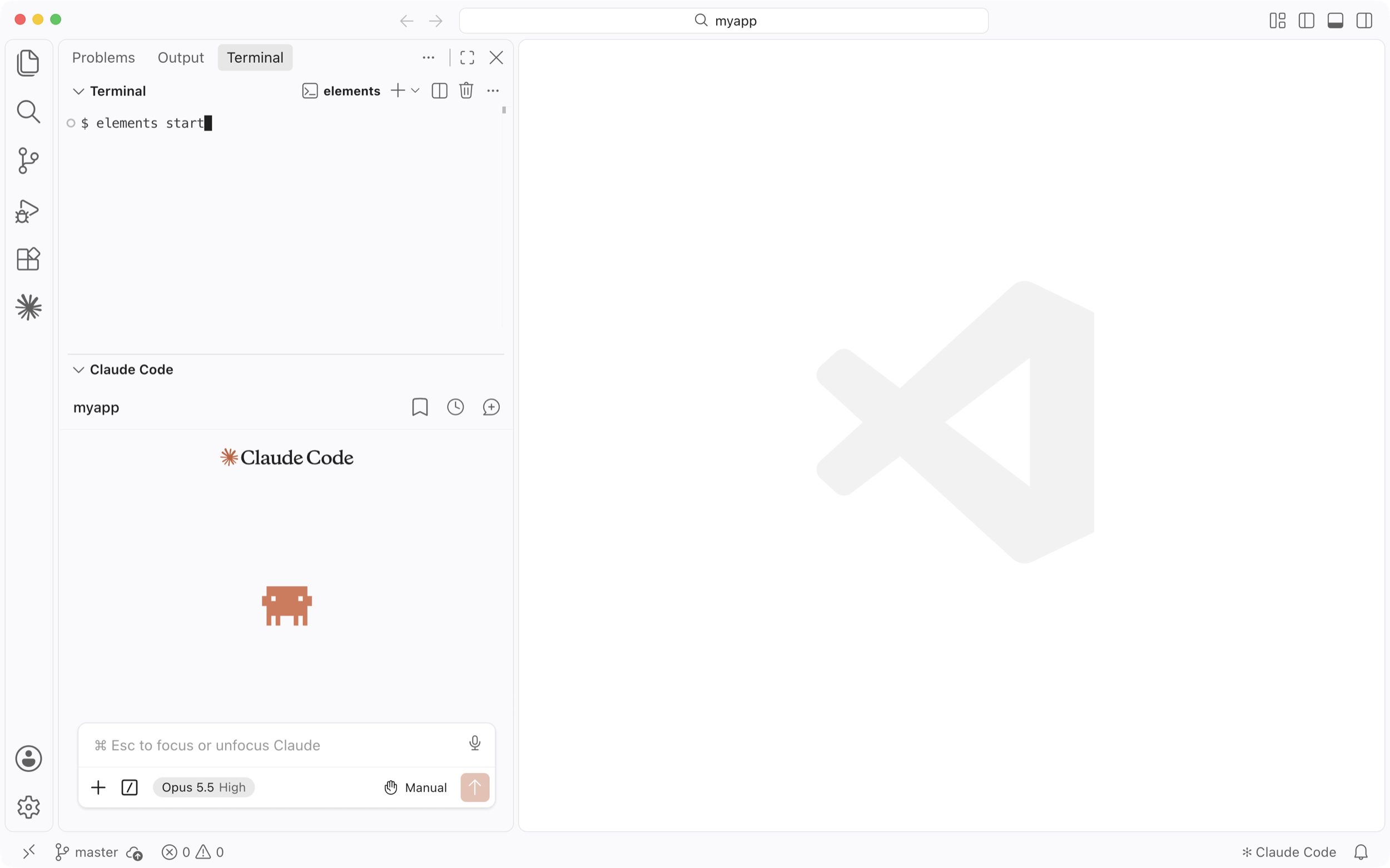
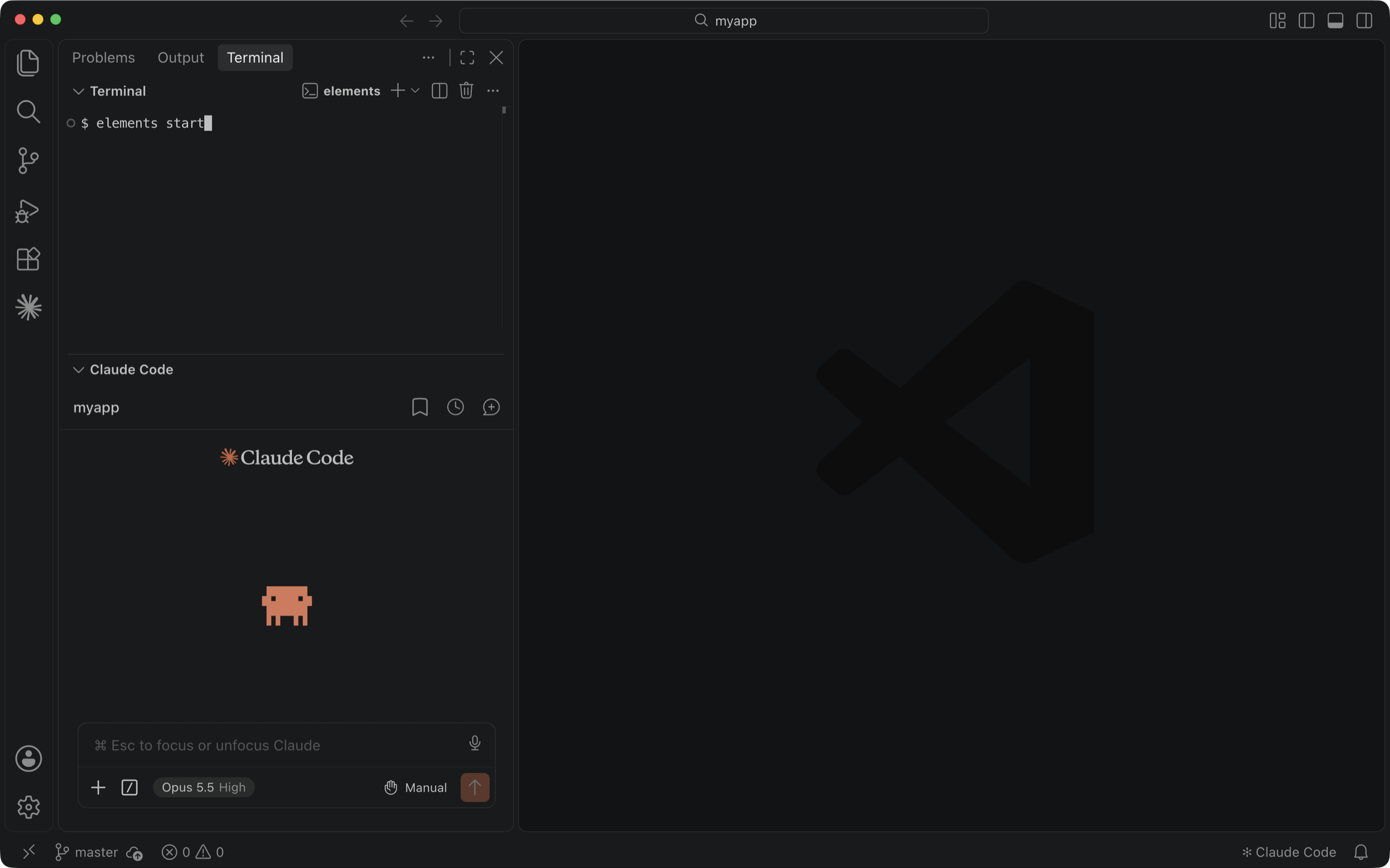
Your app opens in VS Code's browser, next to the terminal and Claude Code.
New to Elements? Read the getting started guide.