A chat app with channels and presence, built by Claude Code on Elements
Channels with unread counts, image attachments, emoji reactions, presence and typing indicators, and @mentions that email offline members, all live.
How it's built
Glowhollow needed messages that arrive in every open window, unread counts per channel, reactions, image attachments, presence and typing indicators, and email for mentions when someone is away. Each of those is a part of Elements, so the agent spent its 22 minutes on the community itself.
- Live channels and messages. Channels, memberships and messages are LiveTables. A message appears for everyone in the channel, and a database trigger raises the unread count for every other member, so the sidebar badges move as people talk.
- Reactions in the message row. Reacting calls an
@rpc, and a trigger folds the reaction into its message, so the change reaches every open copy of it. - Presence and typing. A presence channel records each open window and clears it a few seconds after the window closes, which drives the online roster. A typing channel carries "is typing" pings between members of the same channel.
- Mentions by email. When a message @mentions (opens in a new tab) someone with no open window, a background job emails them the message.
- Image attachments. An rpc takes the attachment as a
File, checks its type and size, and stores it, and a route serves it under its content hash. - Sessions and roles. Admins create and archive channels, and removing a member ends every active session they have at once. Three migrations define the schema and seed one admin, three members and three channels with a conversation in each.
Why Elements
Elements is the integrated stack for web apps: a build server and tooling, an app framework, a Postgres database and deployment, engineered as one system. Your editor, tools and one or many agents all connect to the same always-on build server, which runs type checking, program analysis, migrations and tests as the agent builds. Built-in guardrails keep the app structured correctly and secure as it grows from prototype to production.
Run it yourself
Install Elements
Copy the install command.
curl -fsSL https://elements.dev/install | shOpen a terminal in VS Code: choose Terminal › New Terminal from the menu bar at the top of your screen.
Copy and paste the command into the terminal and press Enter.
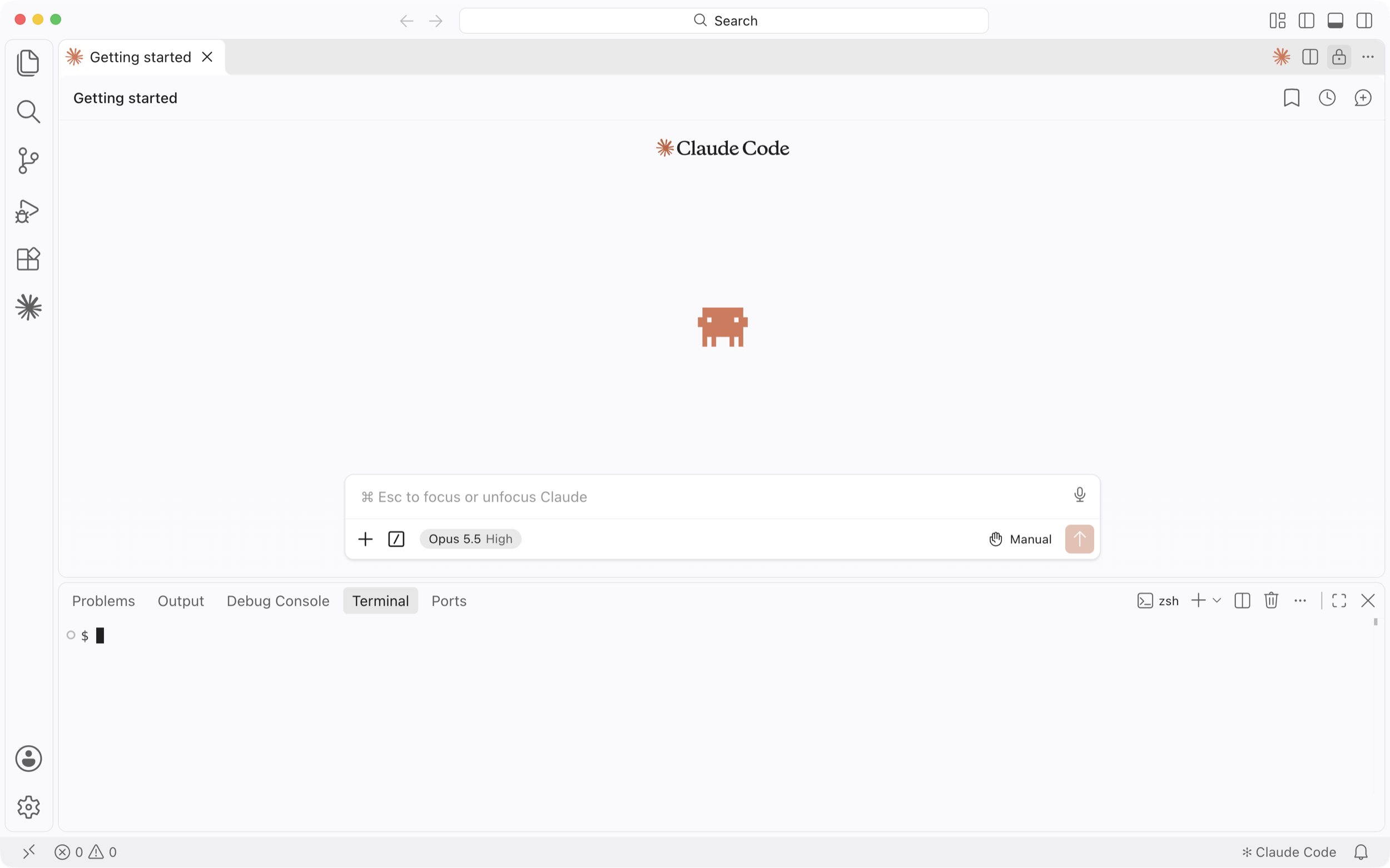
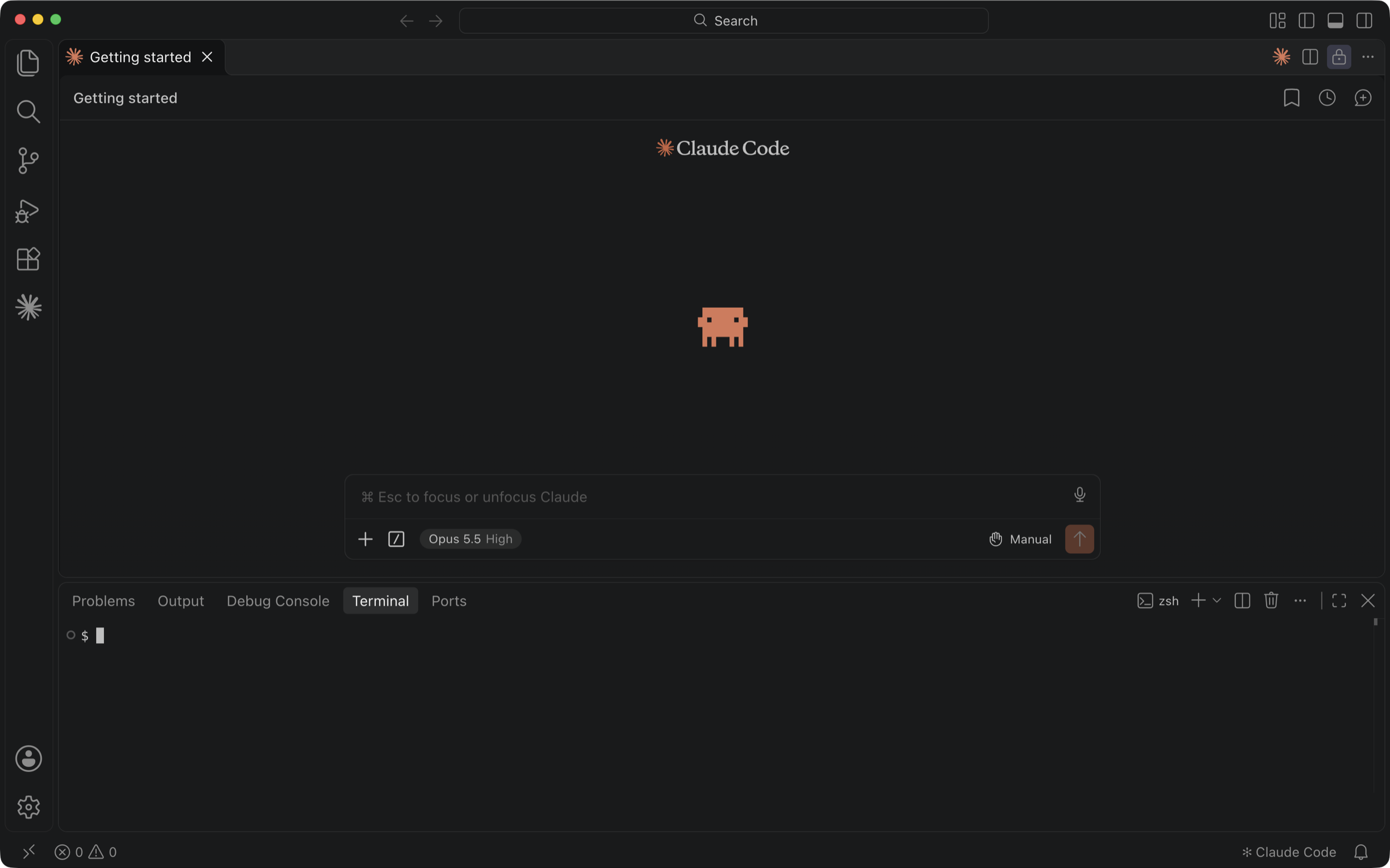 curl -fsSL https://elements.dev/install | sh
Create your copy of this app
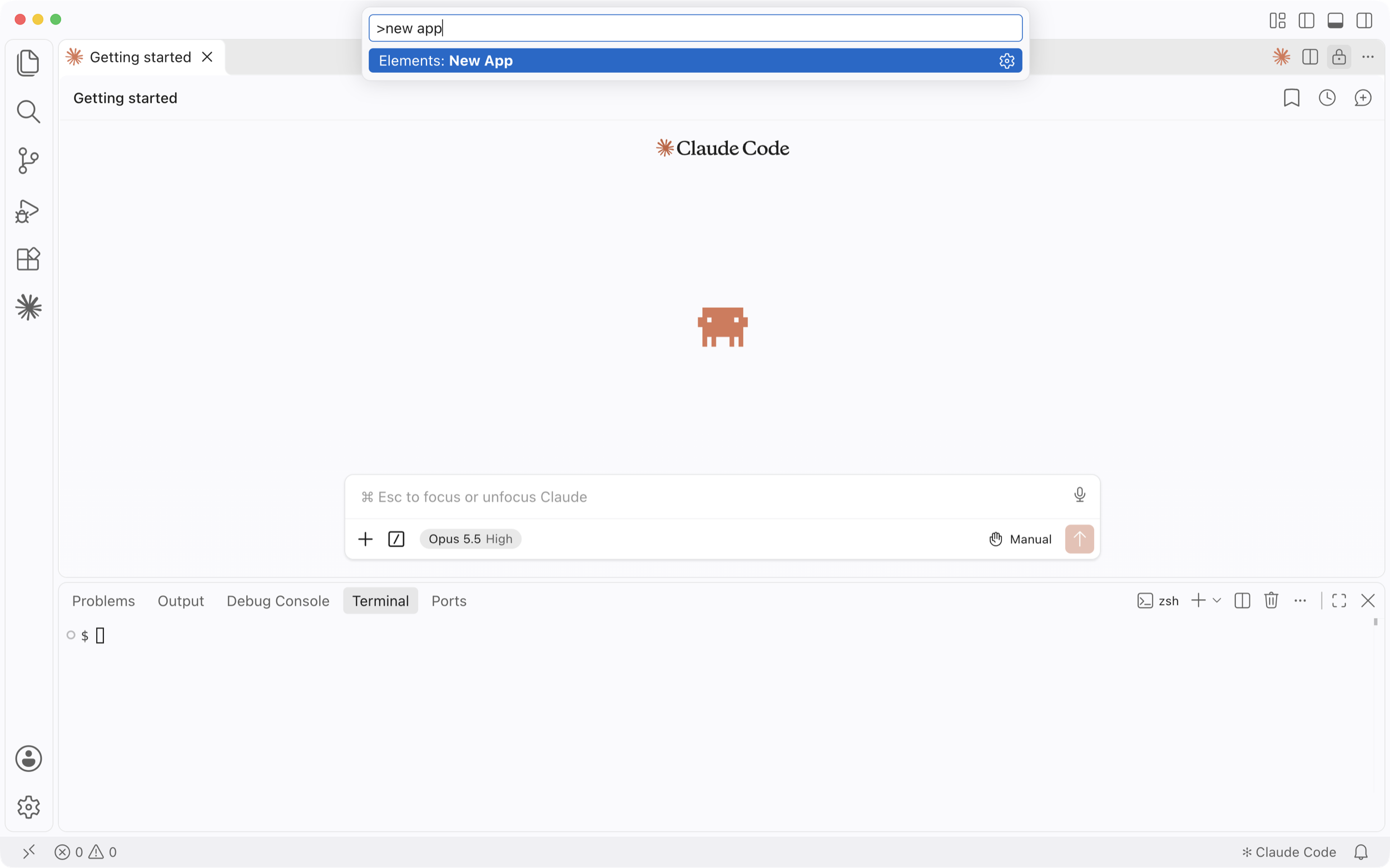
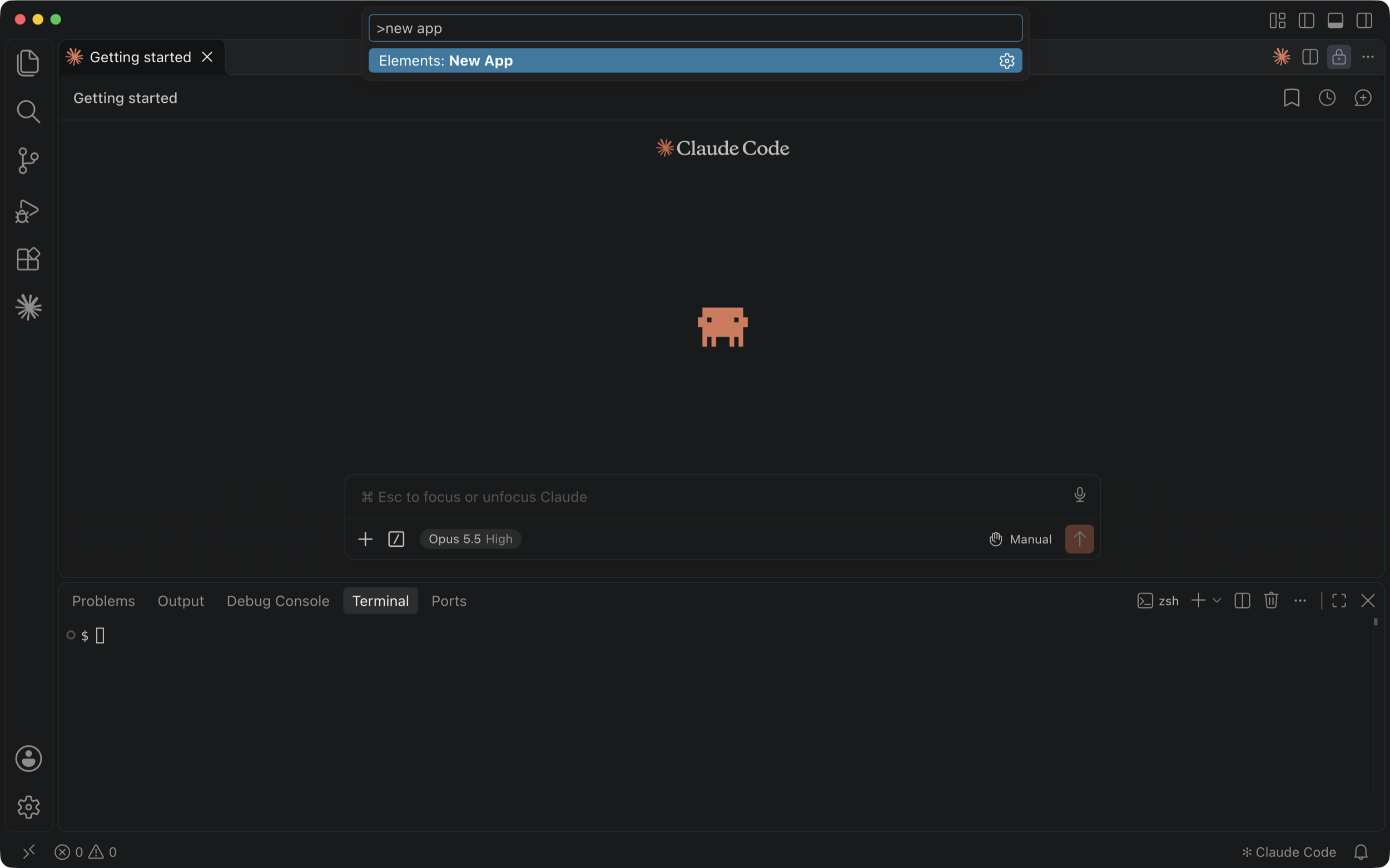
When the install finishes, press Shift + Command + P to open the command palette.
Type new app, select Elements: New App in the list and press Enter.
Copy the text.
glowhollow -scaffold=elementscode/demo-glowhollow
Paste the text into the Elements: New App name box and press Enter.
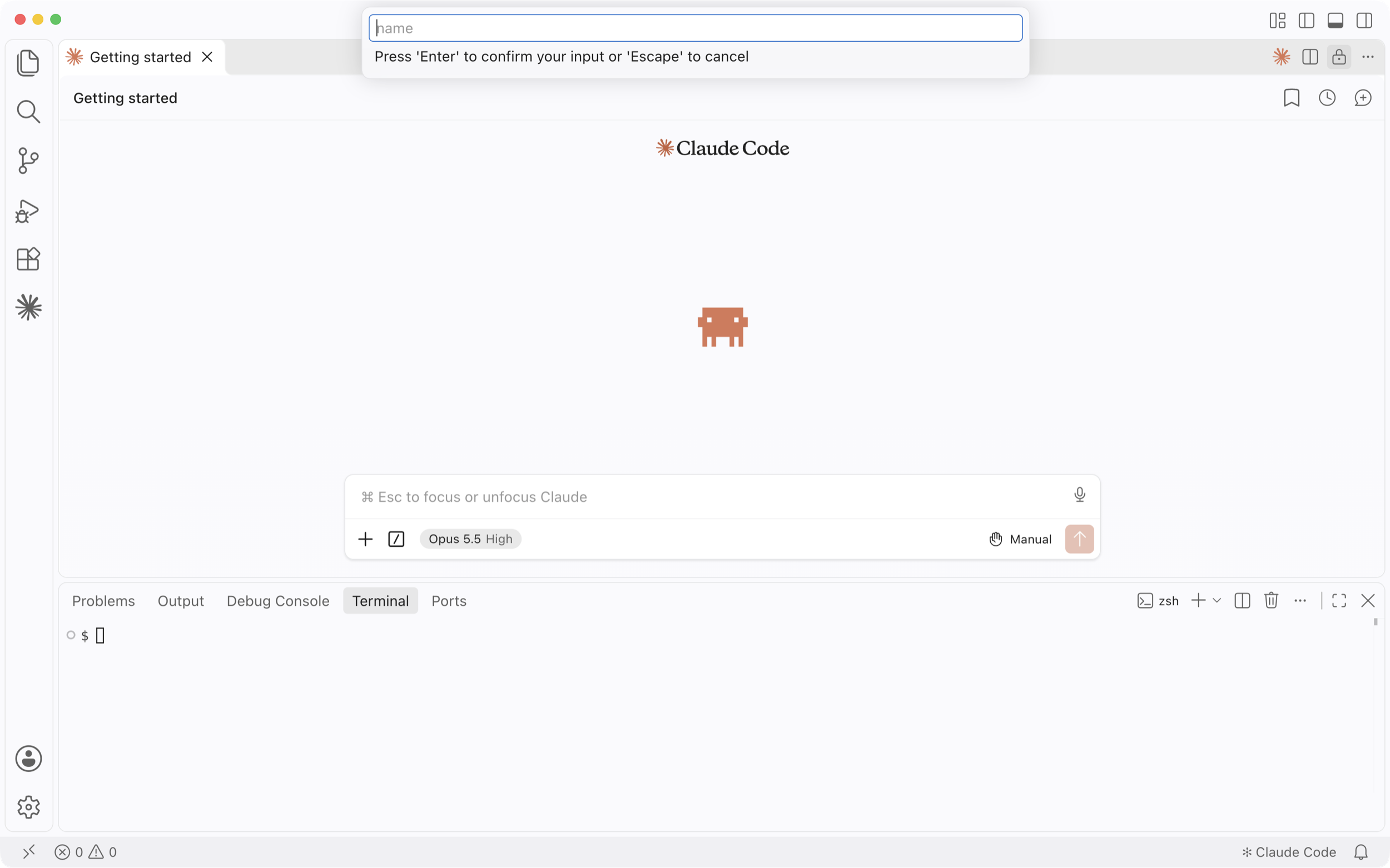
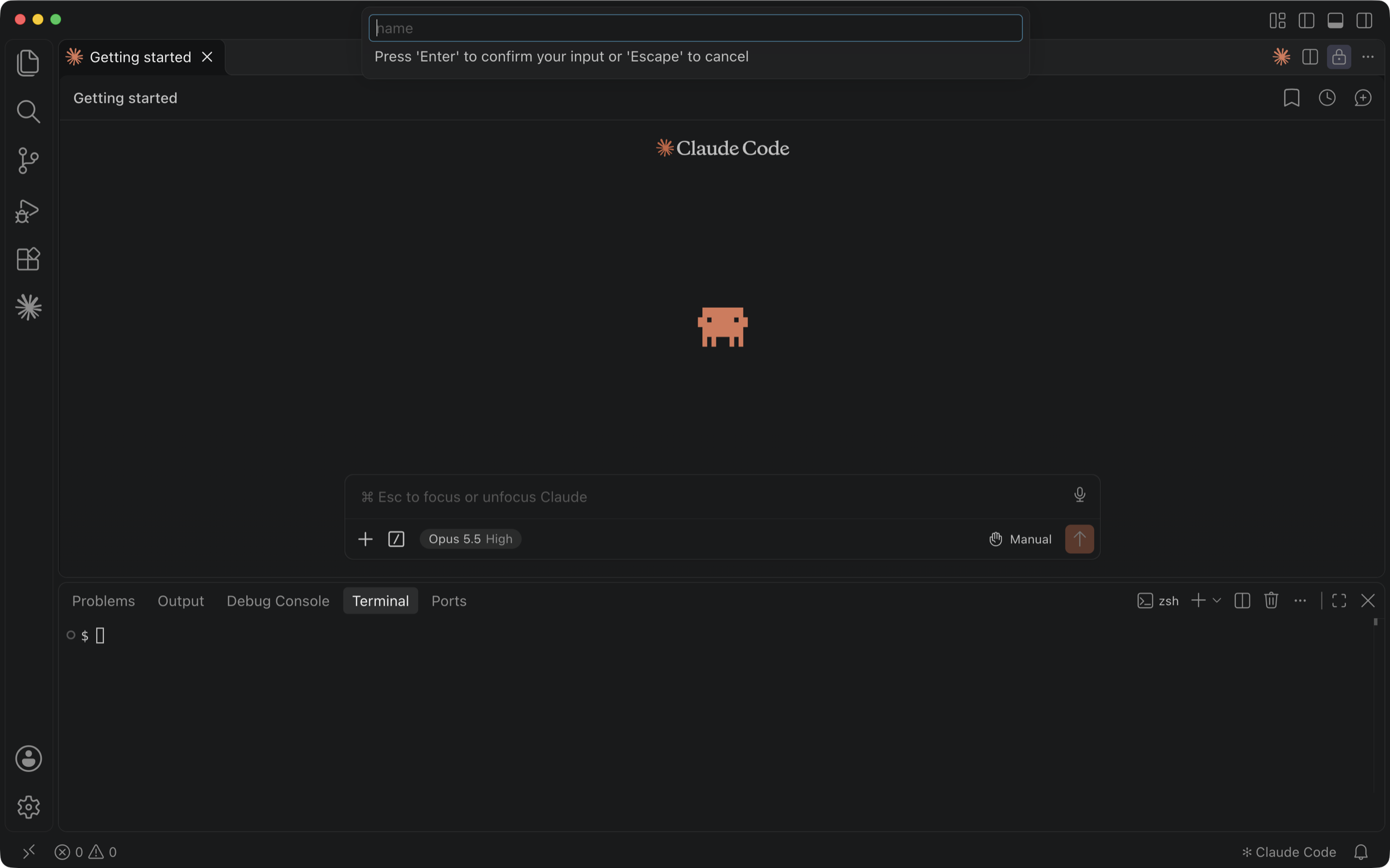 glowhollow -scaffold=elementscode/demo-glowhollow
Your copy of this app opens in VS Code with a terminal and Claude Code on the left.
Start your app
Copy the command.
elements startPaste the command into the terminal and press Enter.
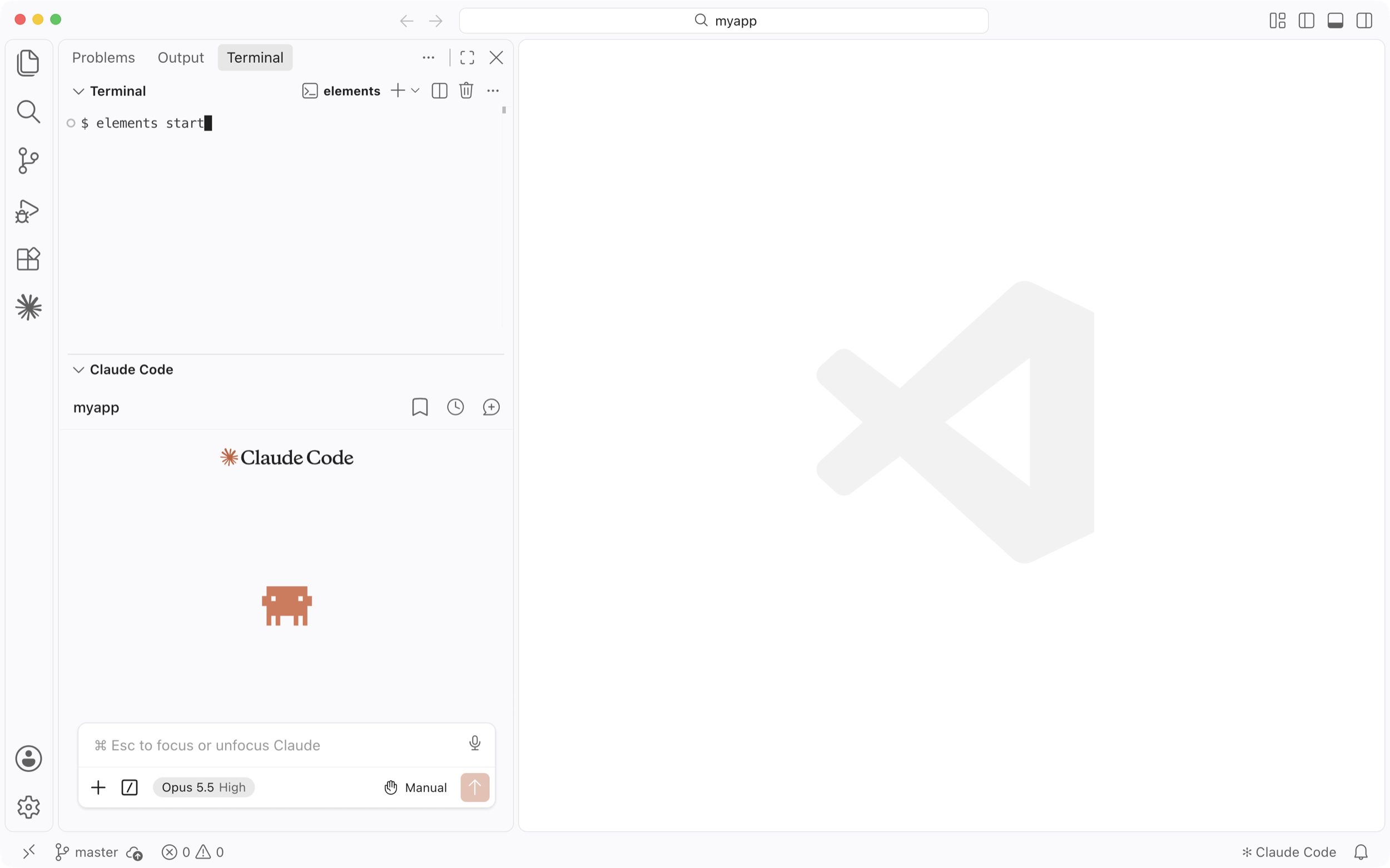
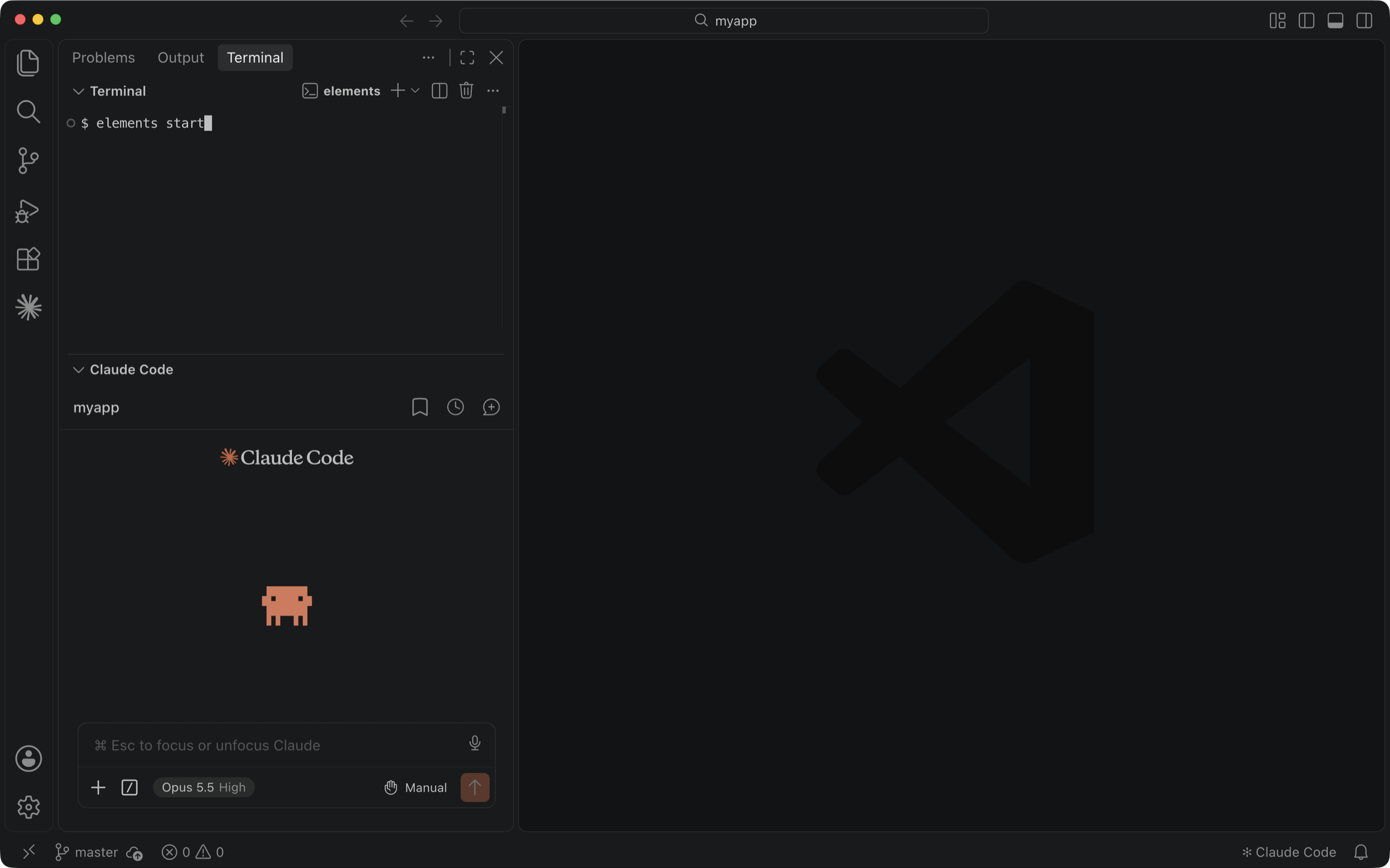
Your app opens in VS Code's browser, next to the terminal and Claude Code.
New to Elements? Read the getting started guide.