A help desk with a live ticket queue, built by Claude Code on Elements
A live ticket queue with overdue badges, email replies, internal notes, canned replies, and who is viewing or typing on each ticket.
How it's built
Replyhaven needed a shared queue that reorders itself as tickets arrive, conversations that stay current in every open window, email both ways with customers, and a way for agents to see who else is on a ticket. Each of those is a part of Elements, so the agent spent its 16 minutes on the help desk itself.
- A live queue and conversations. Tickets, messages and canned replies are LiveTables. A database trigger announces every change, so a new ticket from the contact form lands in each agent's queue, sorted by priority then age, and a reply appears in every open copy of the ticket.
- First reply targets. Each priority has a target, from one hour for urgent to 24 for low. The queue counts down to each ticket's target, marks it overdue once the time passes, and the dashboard reports the median first reply and the share that met the target.
- Who is viewing and typing. A presence channel records each open ticket page, which shows "Priya is also viewing this ticket" and an eye with avatars on the queue row. A typing channel carries "is writing a reply" between agents on the same ticket.
- Email both ways. The public contact form opens a ticket and emails the customer a confirmation. An agent's reply schedules a background job that emails it to the customer, and internal notes stay with the agents.
- Server calls as function calls. The contact form, invites and presence lookups call server functions straight from the page with
@rpc, with types checked from the template to the database. - Sessions and roles. The admin invites agents by email and manages canned replies, and every server call checks the signed-in role with one shared guard. Migrations define the schema and seed one admin, three agents and 20 tickets with their conversations.
Why Elements
Elements is the integrated stack for web apps: a build server and tooling, an app framework, a Postgres database and deployment, engineered as one system. Your editor, tools and one or many agents all connect to the same always-on build server, which runs type checking, program analysis, migrations and tests as the agent builds. Built-in guardrails keep the app structured correctly and secure as it grows from prototype to production.
Run it yourself
Install Elements
Copy the install command.
curl -fsSL https://elements.dev/install | shOpen a terminal in VS Code: choose Terminal › New Terminal from the menu bar at the top of your screen.
Copy and paste the command into the terminal and press Enter.
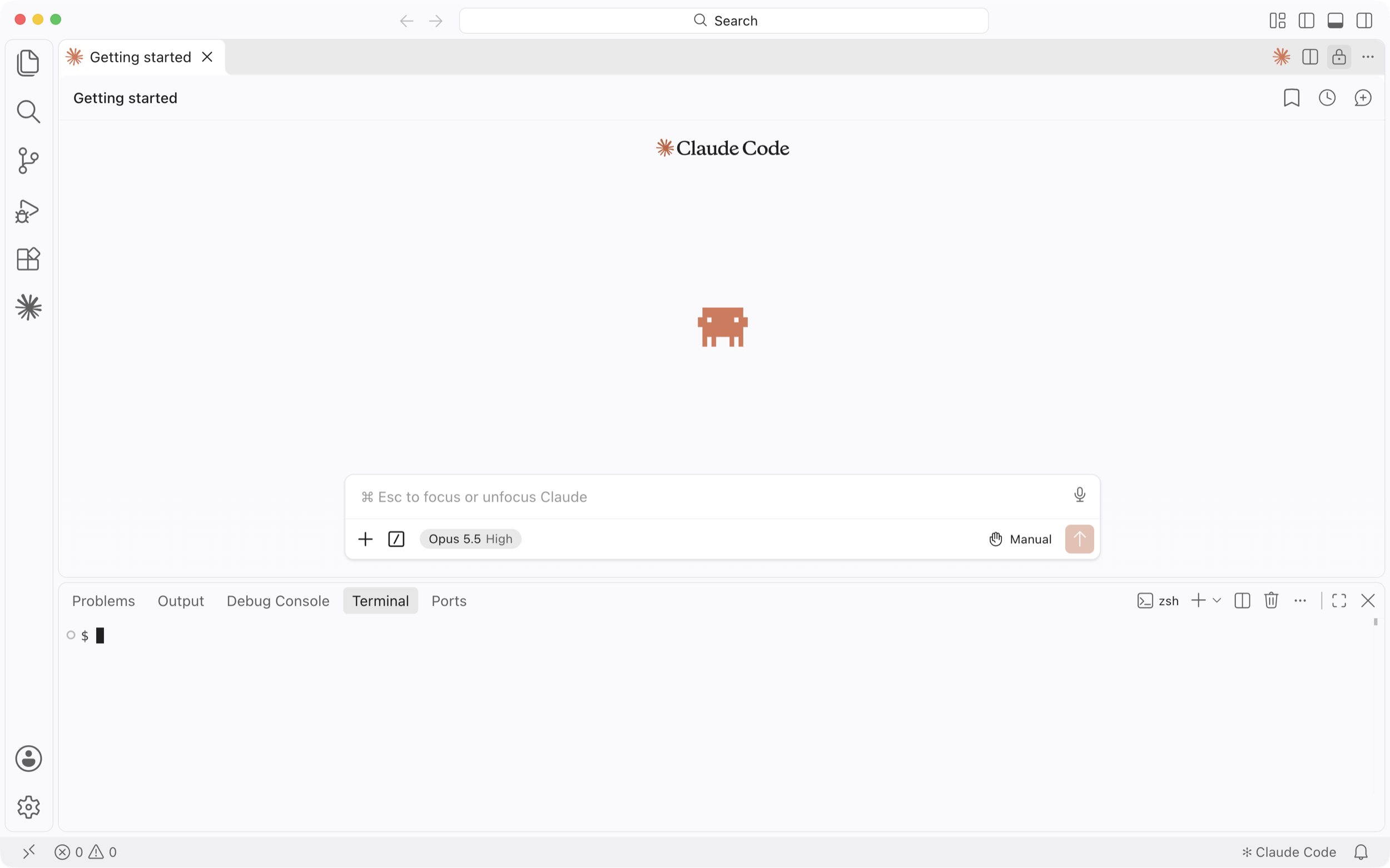
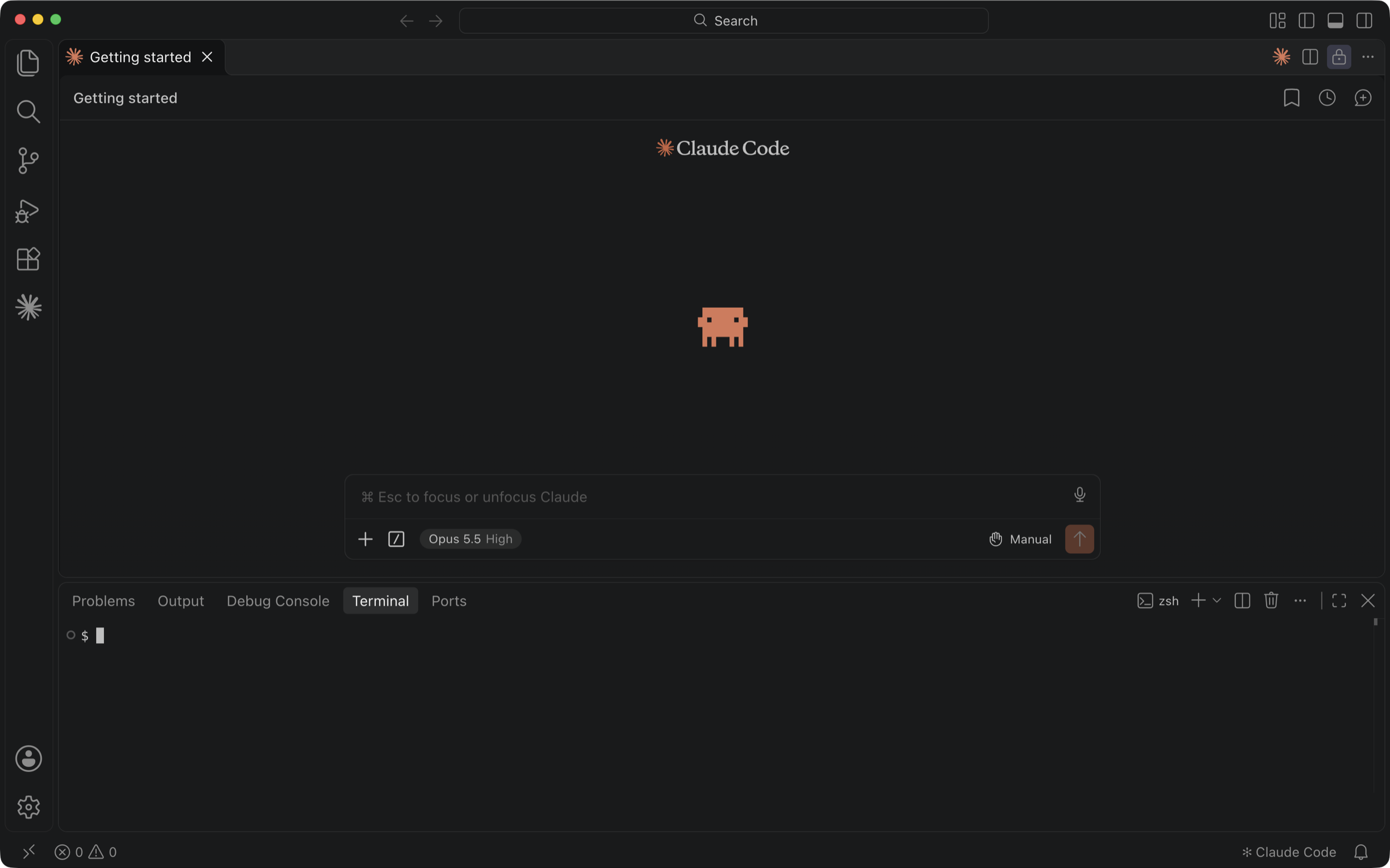 curl -fsSL https://elements.dev/install | sh
Create your copy of this app
When the install finishes, press Shift + Command + P to open the command palette.
Type new app, select Elements: New App in the list and press Enter.
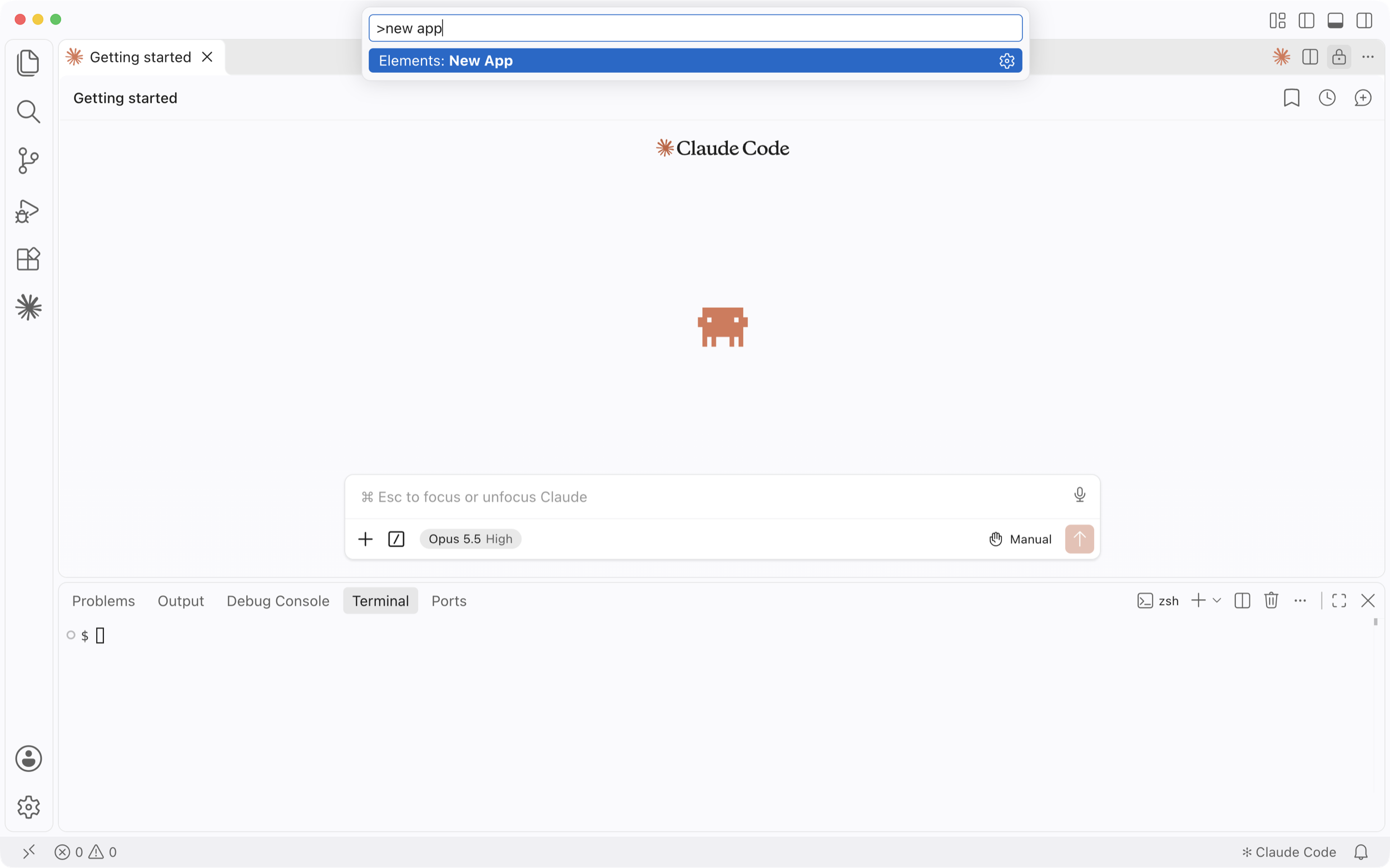
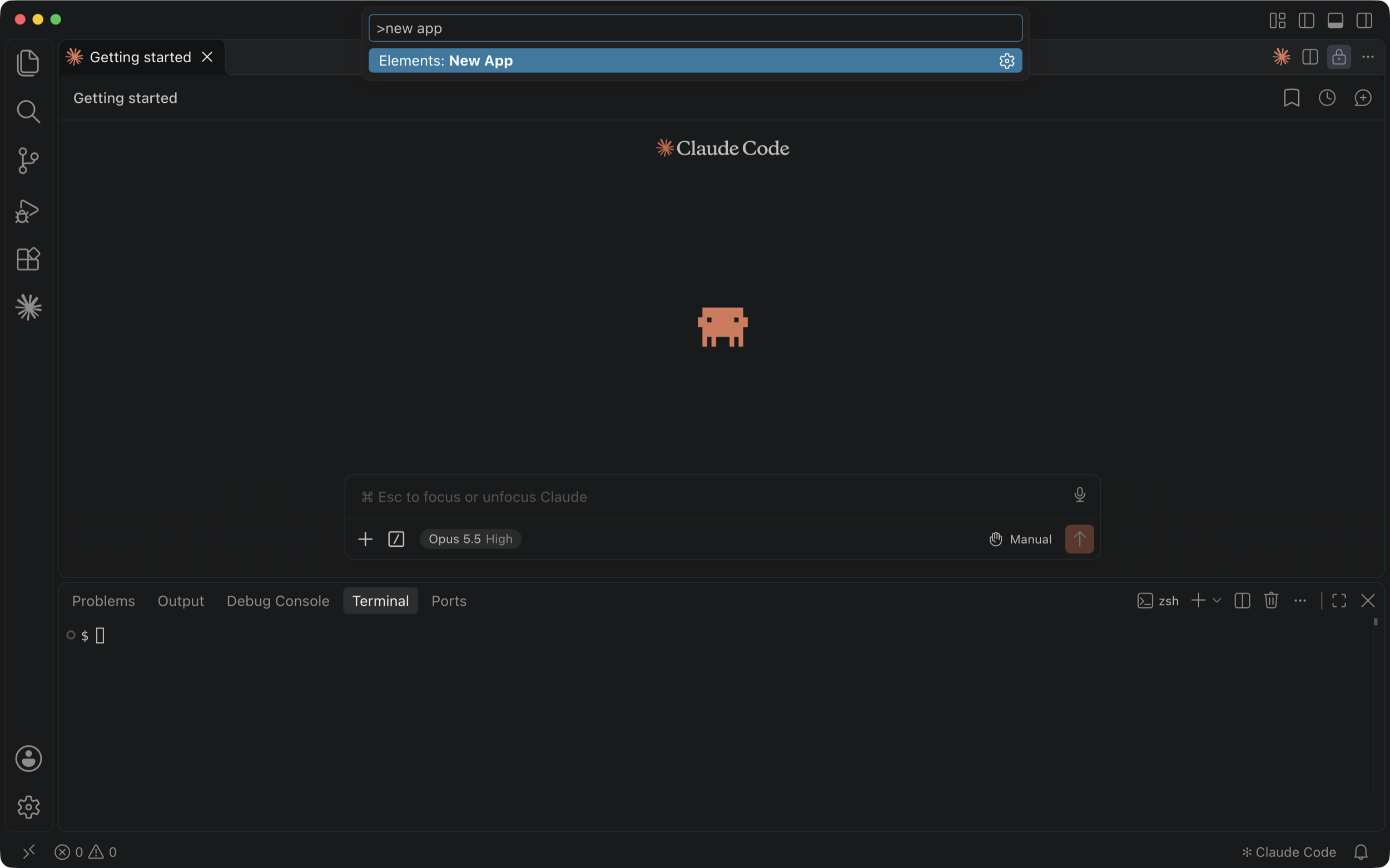
Copy the text.
replyhaven -scaffold=elementscode/demo-replyhaven
Paste the text into the Elements: New App name box and press Enter.
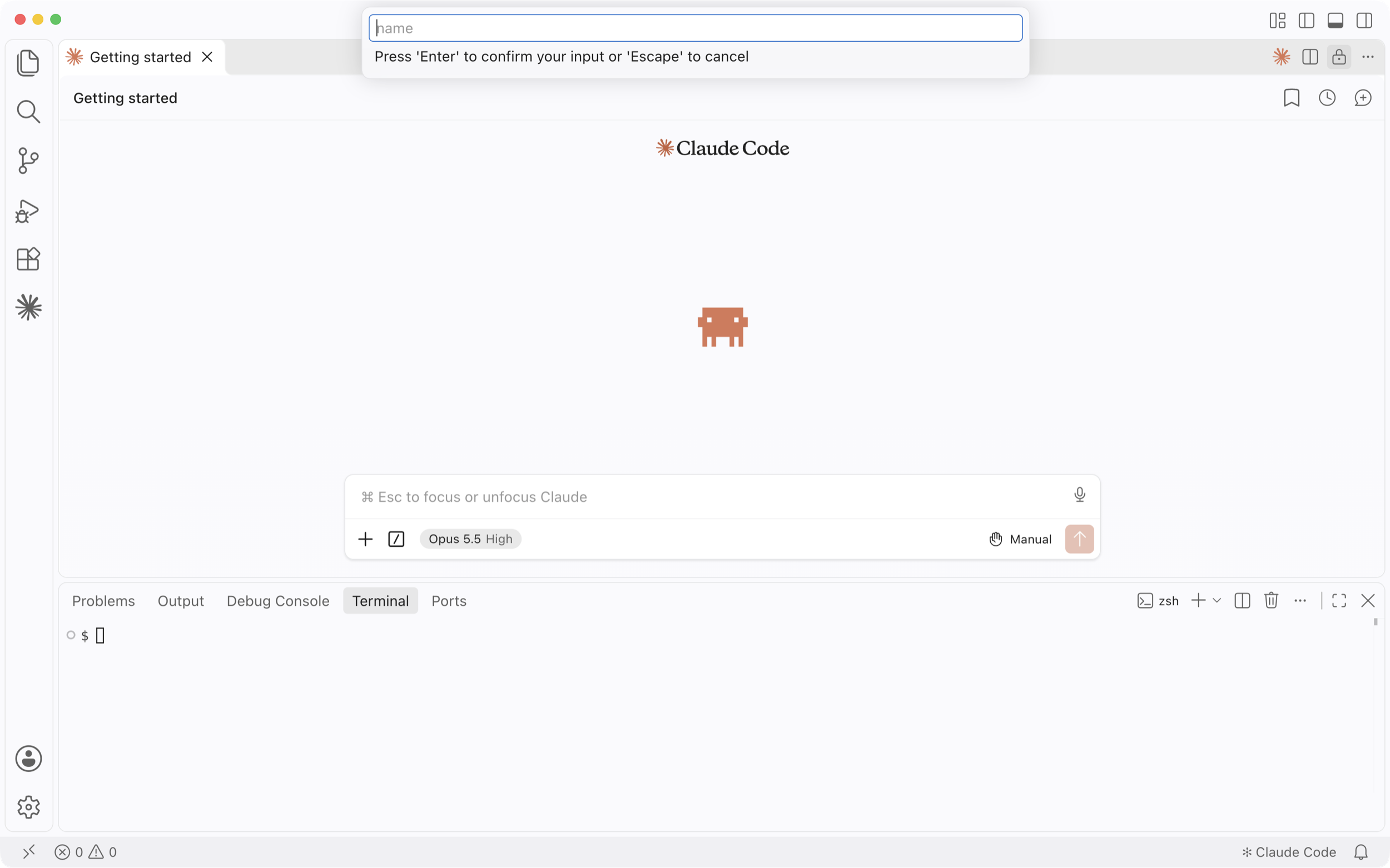
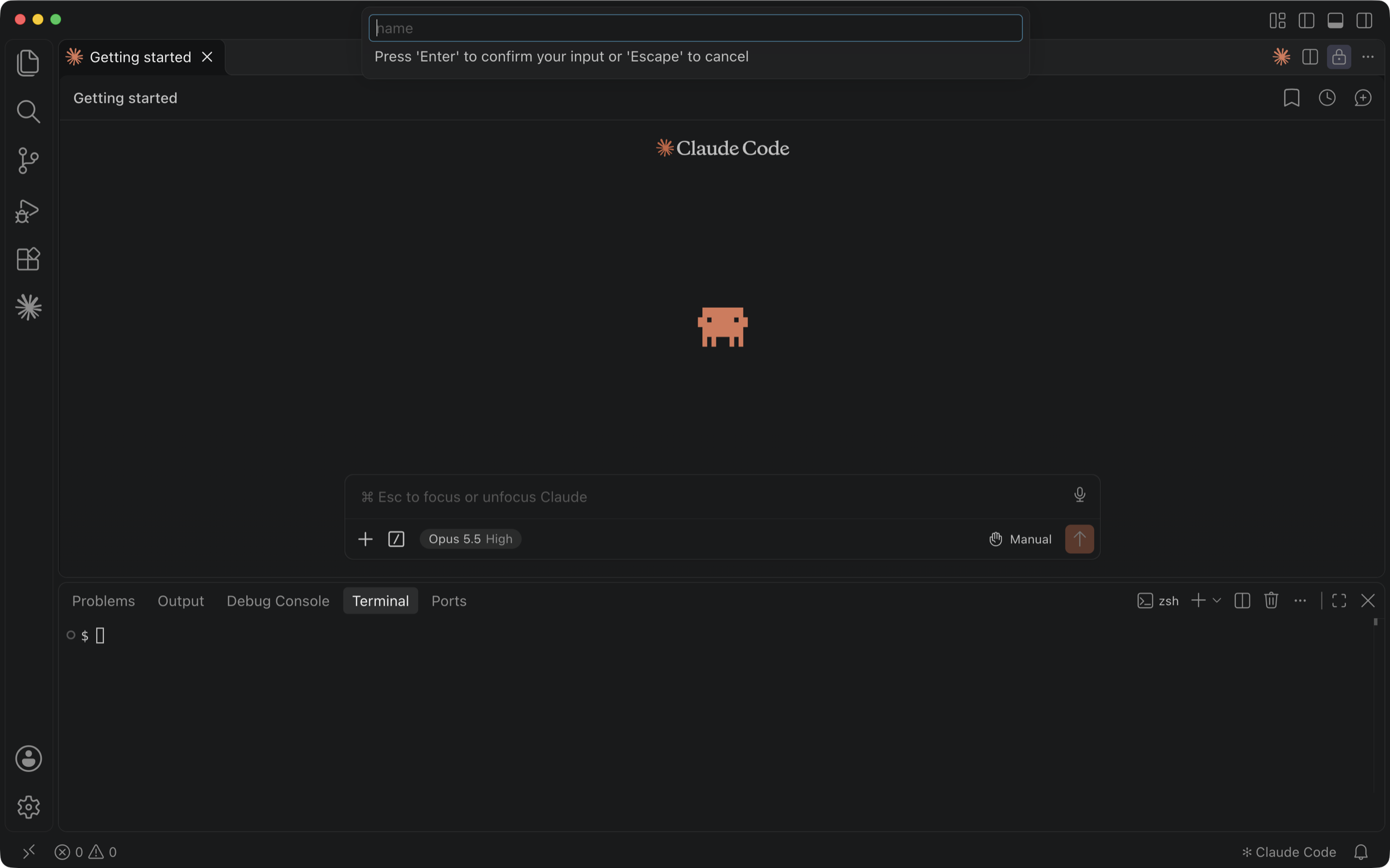 replyhaven -scaffold=elementscode/demo-replyhaven
Your copy of this app opens in VS Code with a terminal and Claude Code on the left.
Start your app
Copy the command.
elements startPaste the command into the terminal and press Enter.
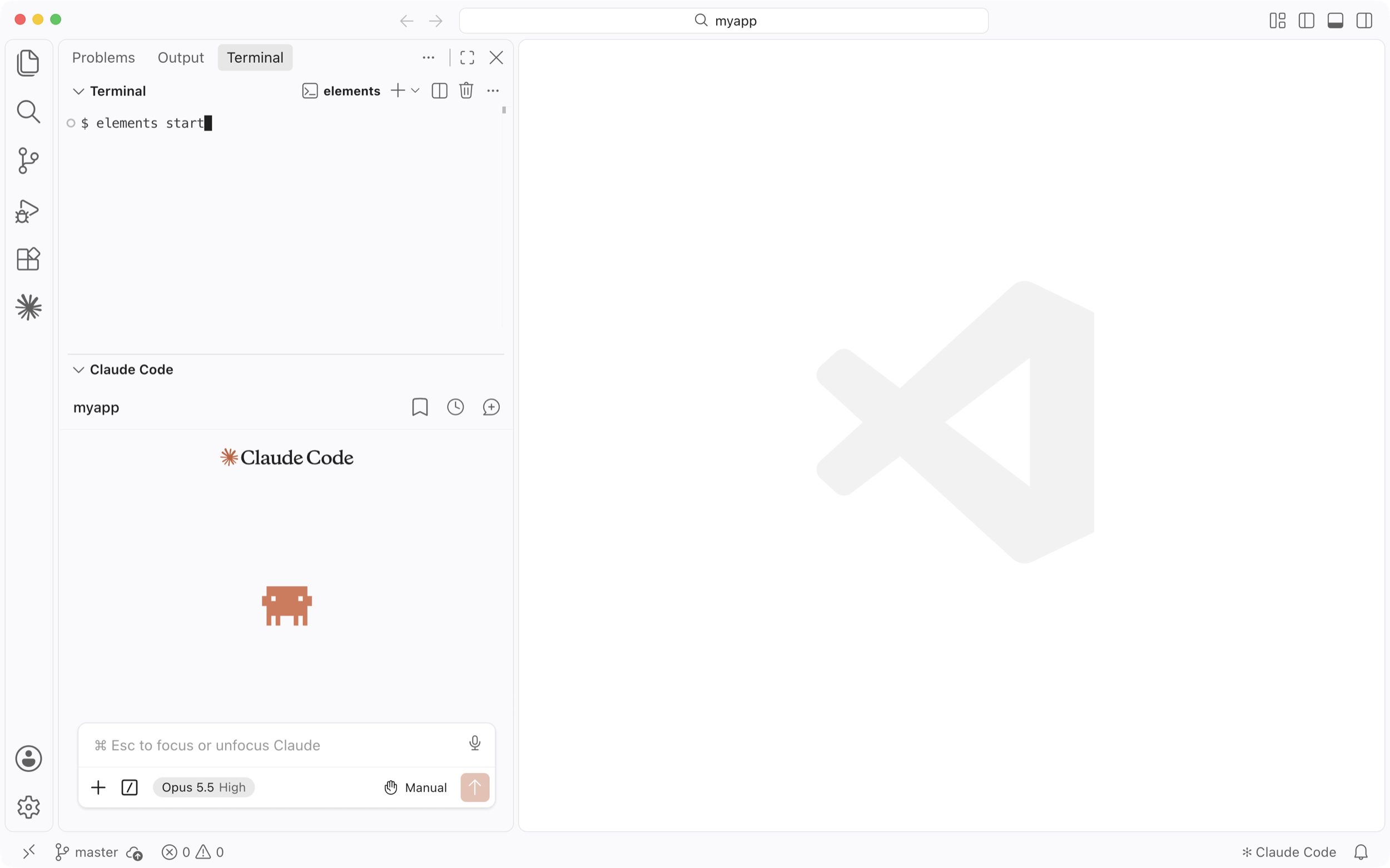
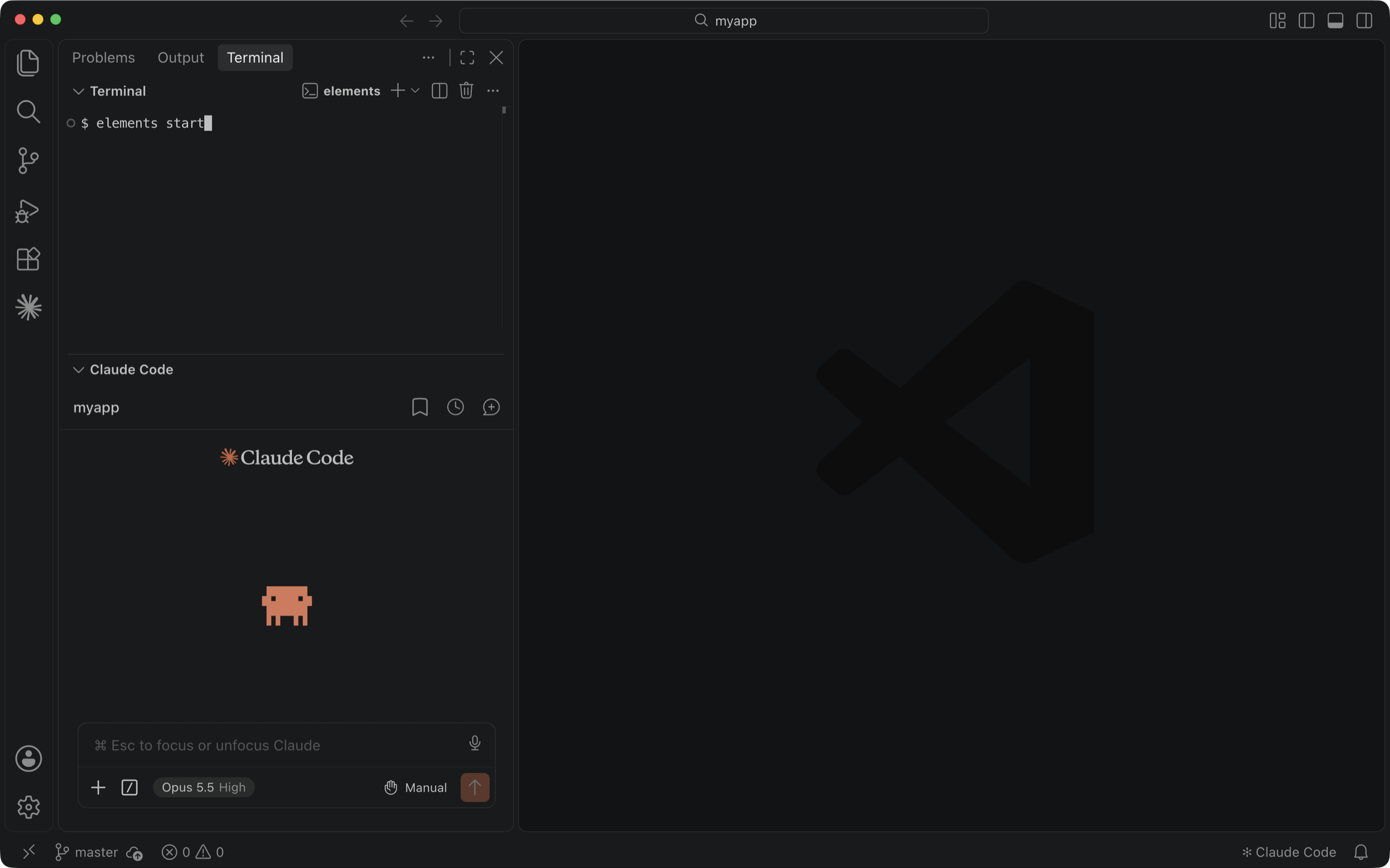
Your app opens in VS Code's browser, next to the terminal and Claude Code.
New to Elements? Read the getting started guide.